Table of Content
Using HubSpot CMS for blogging is not entirely a walk in the park. Many times, users complain about complicated designs and cluttered workflows.
If you also face similar issues with creating blogs on HubSpot, then it is the right time to migrate to WordPress.
WordPress is loved by users across the world for its super-easy and exciting user design. It makes uploading and managing blogs a fairly simple task, even for beginners.
With its readily available features, bloggers prioritize WordPress over any other CMS platform. SEO friendliness is another plus point of shifting to WordPress blogs.
Lastly, this platform gives you complete control of your CMS. This means you have thorough autonomy over your blogs and other content.
Now all you need is a step-by-step guide to migrate the HubSpot blog to WordPress. But before moving forward, let us first learn more about the two platforms and how migration will be beneficial for your blogs.
This comprehensive guide will take you through all the steps to migrate all your blogs with ease. Let us begin!
Reasons for Migrating from HubSpot Blog to WordPress

Lower Costings
HubSpot comes with a costly marketing and sales environment. The tools part of HubSpot are designed for large-scale enterprises, and often do not align with the requirements of small and mid-sized agencies.
Publishing and editing blogs costs comparatively less with WordPress, which is an open-source platform, and only includes payment for hosting, themes, and other additional tools.
Migrating to WordPress saves a lot of money in the long run, especially when your business focuses on frequent blog publishing.
Ownership and Control
HubSpot stores all your data and content on servers that take away your control. WordPress, on the other hand, gives you complete ownership over your website and blog content.
This means you can access everything anytime without worrying about getting tied to a particular ecosystem or cloud environment.
With WP, you get peace of mind as it allows you to freely control every aspect of your blogging site.
Easy Editing and Customization
HubSpot does not offer a wide range of design templates, and the platform’s customization options are also limited.
When you migrate to WordPress blogs, you not only get a myriad of template options, but most of them are customizable. This helps you give your brand a unique identity.
Additional Tools
While HubSpot has built-in marketing and sales tools readily available, most of them are pricey. WordPress allows you to use external plugins for improved SEO rankings and on-page optimization.
WordPress makes it easy and hassle-free to increase organic traffic on your blogging website without spending too much money on marketing and SEO campaigns.
Migrating your HubSpot blogs to WordPress is a crucial step and requires expert help. You can consult a reliable HubSpot to WordPress migration agency like PSDtoHTMLNinja for quick and professional assistance.

HubSpot Blog vs WordPress Blog: Why Consider Migration?
Still not convinced? We have created a proper comparison table to help you better understand the primary features of both HubSpot and WordPress.
Preparing for a Smooth HubSpot to WordPress Migration
Before we begin transferring your HubSpot blogs to WordPress, creating a proper roadmap is crucial. Let us look at a few things to finalize prior to the actual migration.
Decide on a Migration Approach
You can consider any of the two popular methods to migrate your HubSpot blog to WordPress:
1. Manual Migration
The manual migration method involves copying the HubSpot blogs and pasting the entire content to the WordPress post editor. It can be time-consuming, but it works well for people who want to avoid unnecessary errors.
Manual WordPress post migration is a good option for transferring small blogs and articles.
2. Using a WordPress Plugin
The second method involves using automated tools to shift HubSpot blogs to WordPress. For example, the “WP All Import” plugin can transfer large blogs and enormous content efficiently.
Back Up Your Existing HubSpot Content
Before making any changes to your existing blogs, your top priority should be to ensure content protection.
HubSpot makes it easy to export your blog data in CSV format, which includes all the essential details like posts, titles, authors, tags, and more.
Do not forget to back up any images, PDFs, and other media you have stored in HubSpot’s file manager. This step is super important because once you leave HubSpot, getting your content back could turn into a real hassle.
By creating a thorough backup, you can rest easy knowing that even if something goes sideways during the migration, your content will stay safe and accessible.
Map Out Your URL Structure
Not mapping your URL structure can cause major problems after migration. Your blog’s URLs are more than just simple web addresses; they are a crucial part of your SEO strategy.
HubSpot blogs typically follow a specific URL format: yourdomain.com/blog/post-title
On the other hand, WordPress might create URLs differently depending on the permalink settings you choose. If these structures don’t align, you could end up with broken links and reduced search engine rankings.
To avoid this, take the time to map your current HubSpot URLs to your intended WordPress structure. Think about whether you want to keep the same URL style or make some tweaks for improved readability.
Having this mapping ready will help you manage your redirects and ensure consistency throughout your blog.
Plan for SEO Preservation
Creating SEO-friendly blogs and making them rank high on the search engine requires hard work. Now imagine all this is lost because of loose SEO preparation. To avoid losing your online traffic, keep the following in mind:
- Start by pinpointing your best-performing posts using HubSpot Analytics or Google Analytics.
- Focus on the pages that attract a lot of traffic, have strong backlinks, and rank well for keywords.
- Once you are in WordPress, make sure these posts keep their metadata, alt tags, and internal linking structure intact.
- It is also vital to set up 301 redirects from your old HubSpot URLs to the new WordPress ones, ensuring that both users and search engines can easily find the right pages.
Read this: How to Migrate from HubSpot to WordPress
Migrating Your Blog Content: Manual vs. Automated Approach
Now that everything is prepared, your SEO preservation strategy is in place, and blog backup is created, it is time to see how HubSpot blogs are migrated to WordPress using different methods:
1. Manual Migration (Do-It-Yourself Method)
This is a straightforward but time-consuming method, and requires greater concentration while migrating large blogs:
Step 1: Open the HubSpot blog post
Log in to your HubSpot account and open the blog post you want to migrate.
Step 2: Copy the content
Select the complete blog or article content, including the heading, body, SEO details (metadata, meta title), etc.
Step 3: Create a fresh WordPress post
Log in to WordPress, open the dashboard, and select Posts > Add New
Step 4: Paste the content in the WP editor
Now, open the WordPress post editor and paste the copied HubSpot blog content there.
Step 5: Download and insert images
In case the blog contains images, download them from HubSpot and insert them manually in WordPress
Step 6: Final check and edits
Finally, check the formatting, images, hyperlinks, etc., and publish the blog on WordPress.
A WordPress editor has the following layout and design:
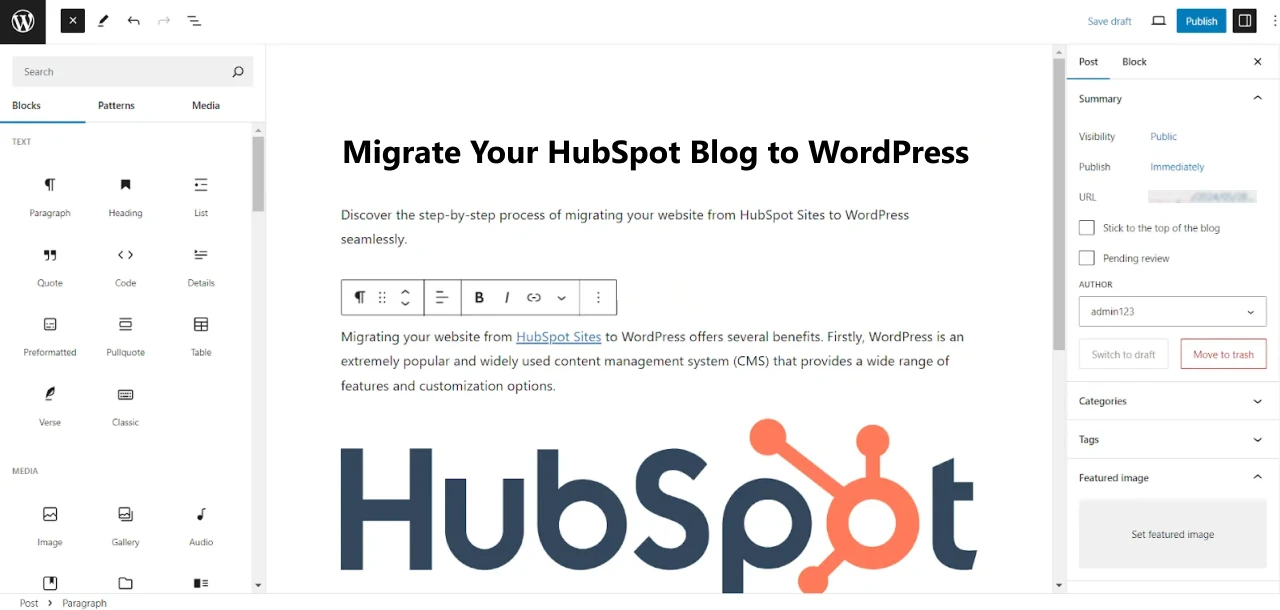
WordPress presents a block-based editor that provides separate sections for different blog sections like Title, H1, H2, CTAs, etc. This makes it easy to structure a blog.
2. Automated Migration (Plugin-Assisted Method)
You can use any of the free plugins available on the internet for shifting a HubSpot blog to WordPress through this method.
First, here is a list of all the components your blog migration includes:
- Overall blog content
- Featured images and thumbnails
- Blog URL
- Meta content
- Date and time of publishing and editing
- Authors and comments
- Tags
WP All Import is a famous one, but you can use any plugin available.
Step 1: Install the Plugin
- Log in to the WP dashboard
- Go to Plugins > Add New
- Search for the plugin you installed. For example: ‘WP All Import’ > Install
- Click on Activate
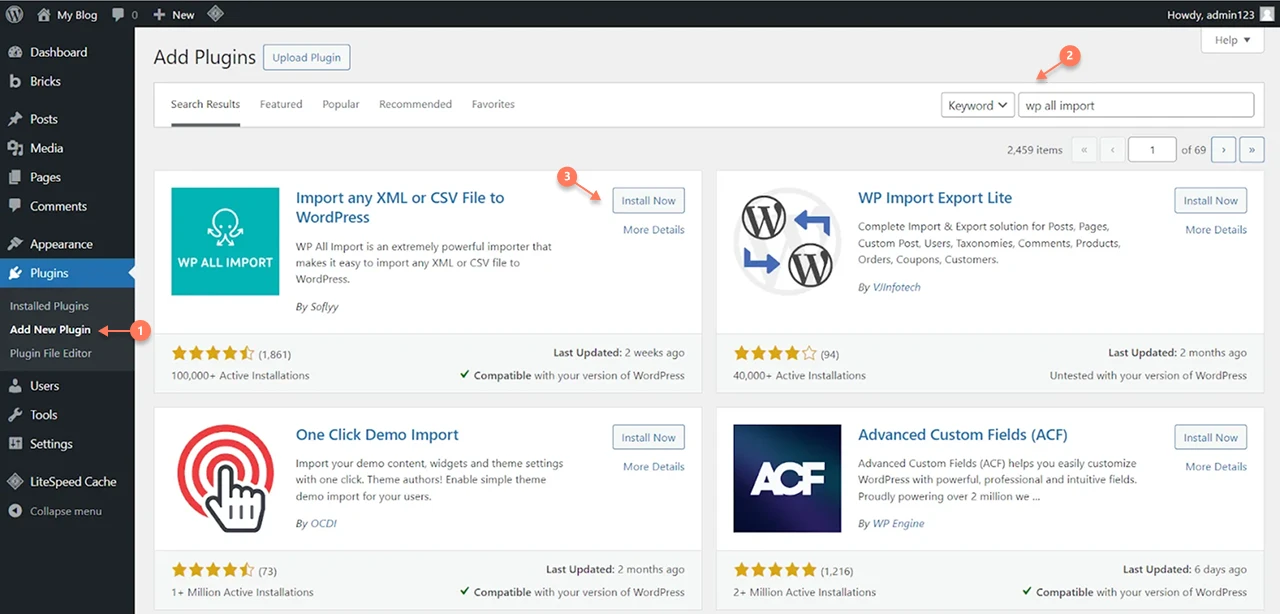
- Once imported, the plugin will be visible on the dashboard
- Click ‘New Import’
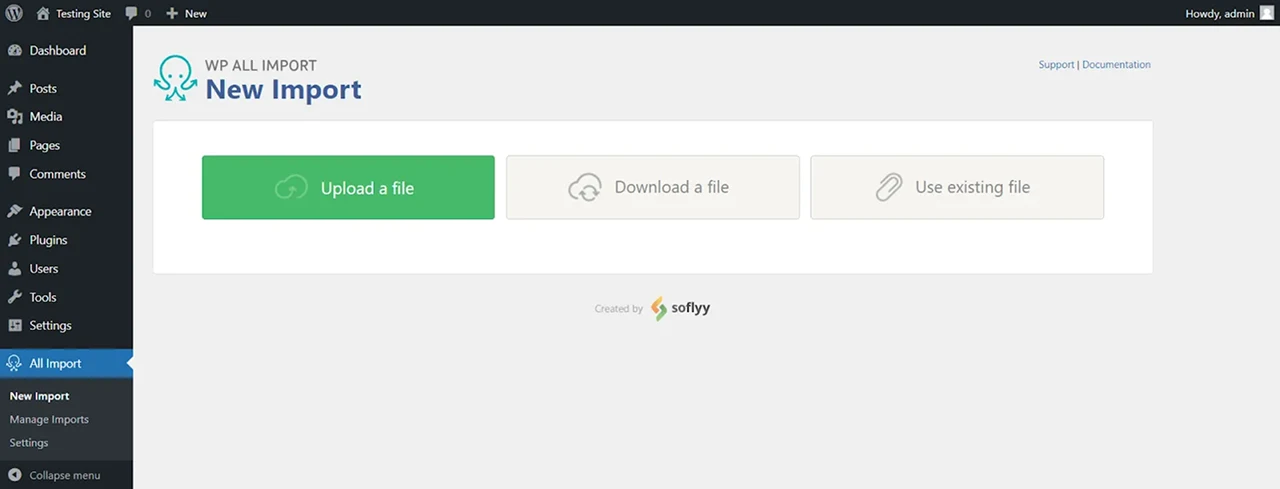
Step 2: Export HubSpot blogs as CSV
- Open the HubSpot dashboard
- Content > Blogs > Actions > Export Blog Posts
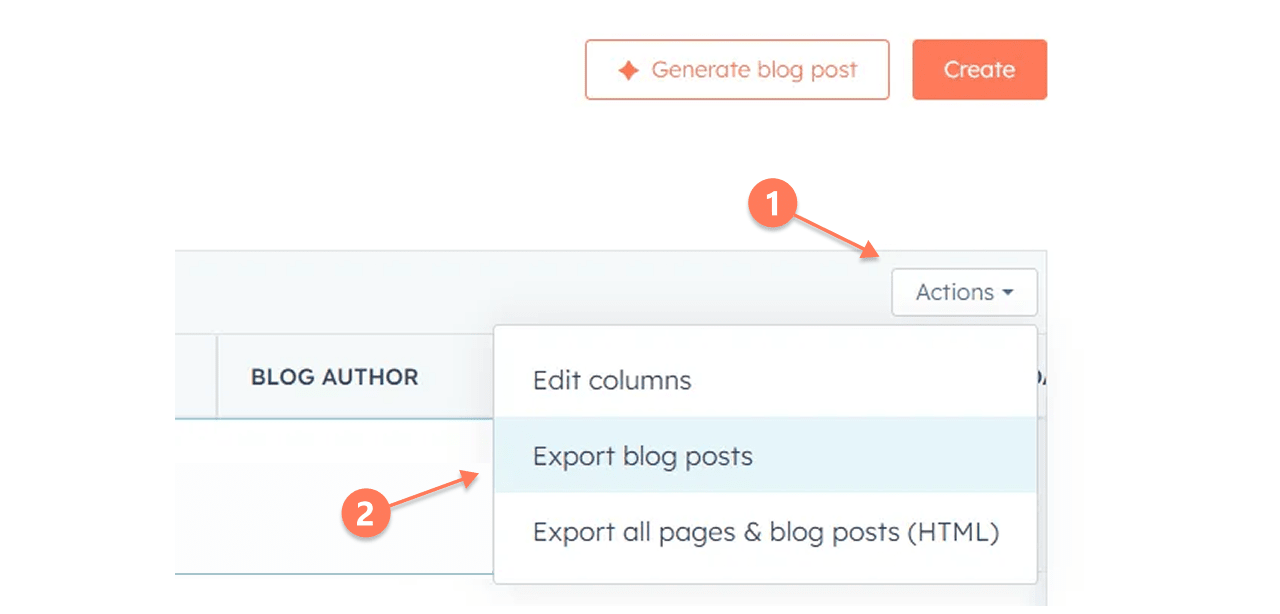
- From the new pop-up, select ‘CSV’ as the export format
- You will be notified via Email once the CSV file is ready
Step 3: Preparing the CSV File
Open the CSV file and check every part of the blogs for any anomalies. You can use Ctrl+F to find and replace URL-related issues.
Save a copy of this edited CSV file.
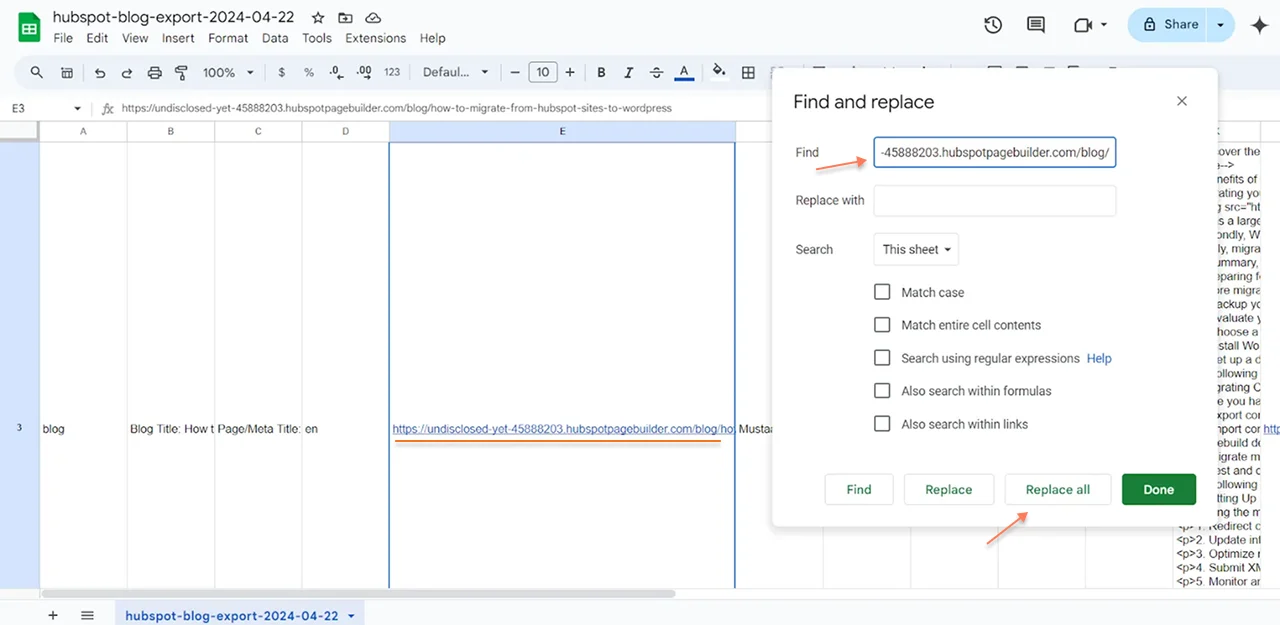
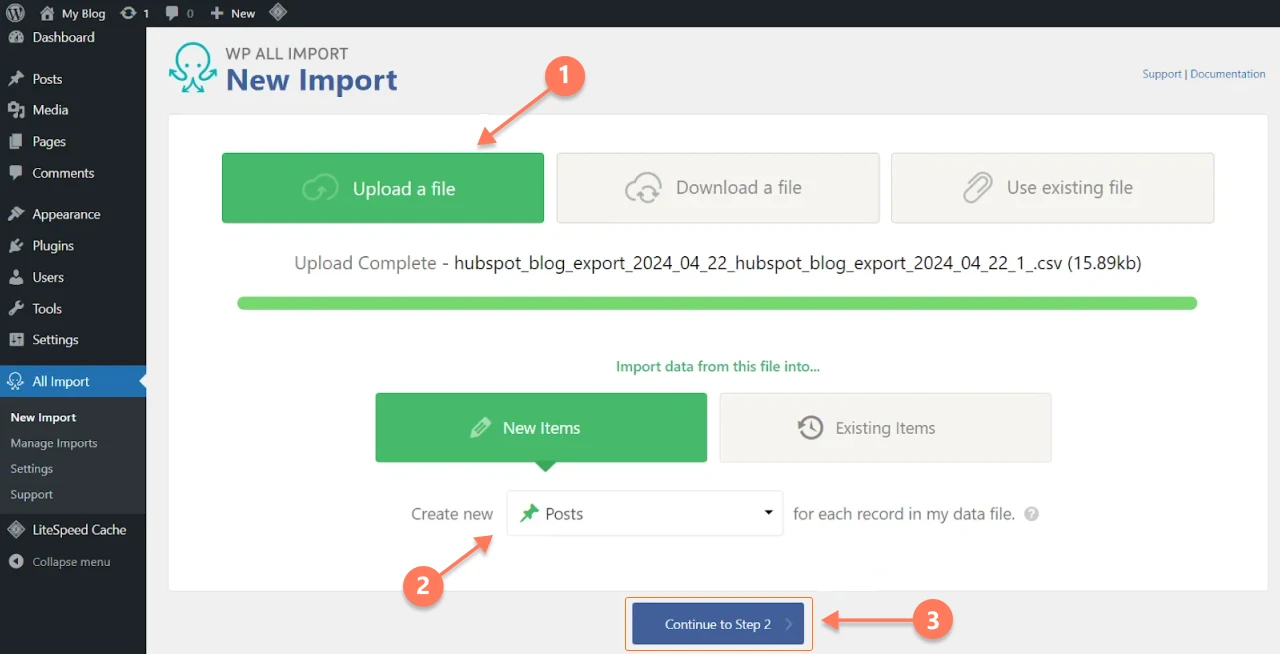
Step 4: Upload the CSV to your plugin
- Open the WordPress dashboard
- Click on All Import > New Import > New Items > Posts
- Click on Continue to Step 2
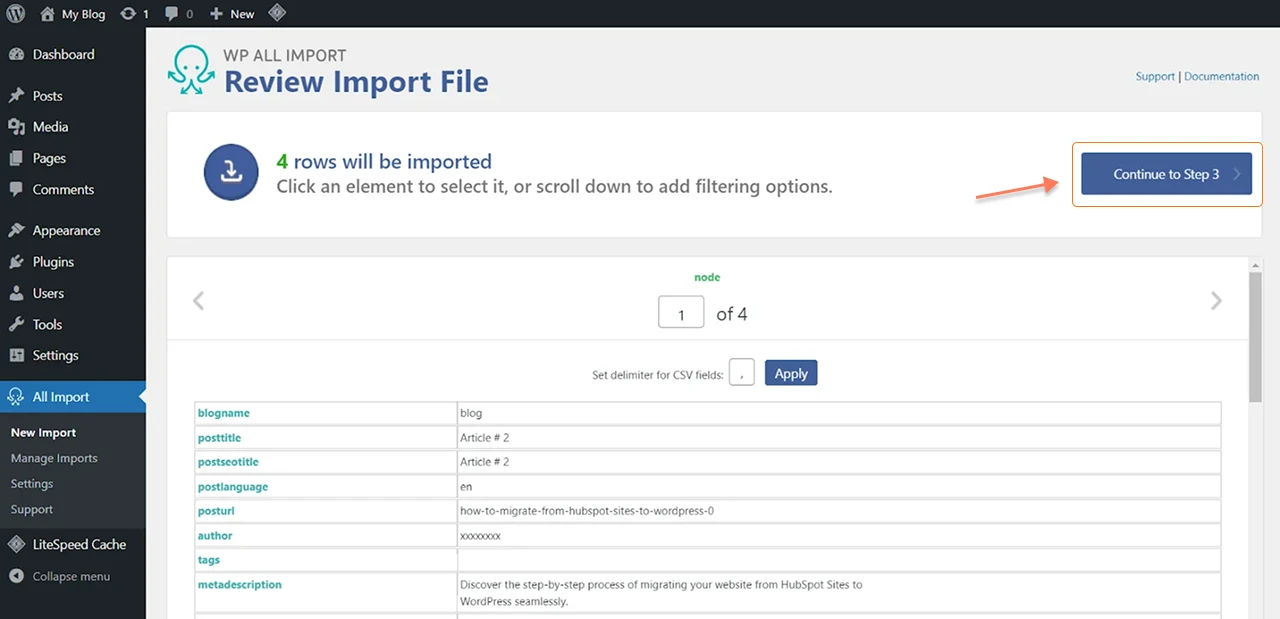
- You will see all the posts found in the CSV file. Click on Continue to Step 3 if everything looks right.
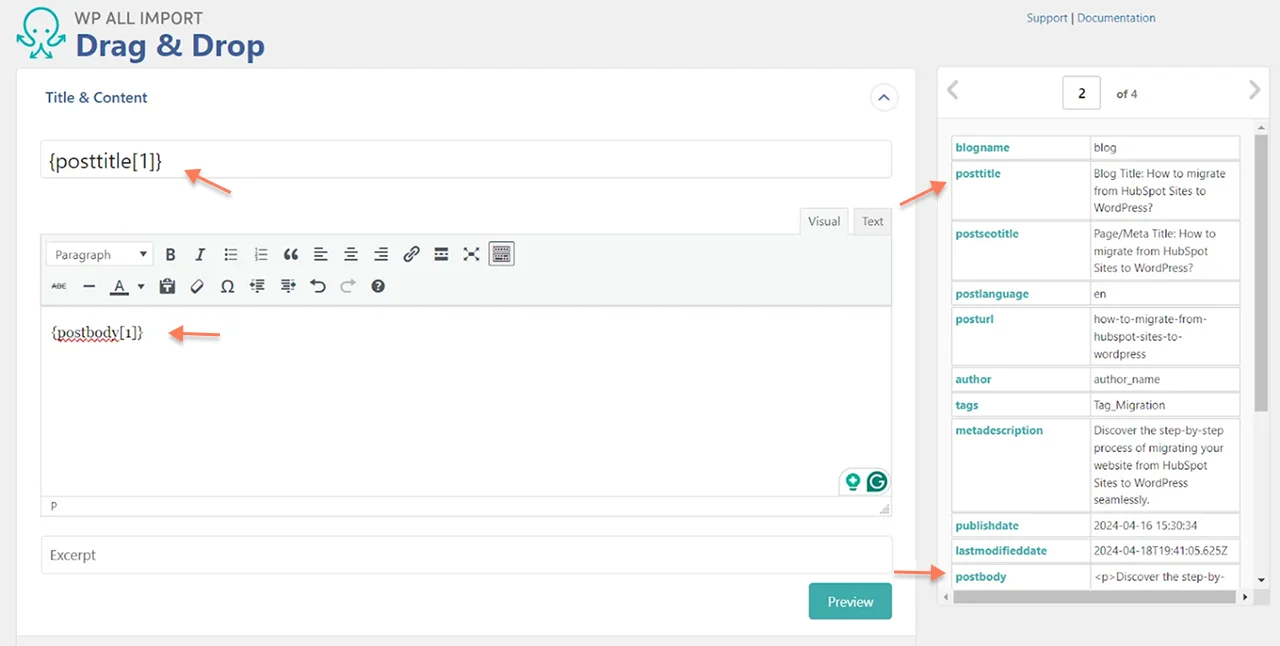
Step 5: Maintaining Blog Structure from CSV File to WordPress
Under ‘Title & Content,’ match the data points from the right panel to their corresponding fields on the left by dragging and dropping.
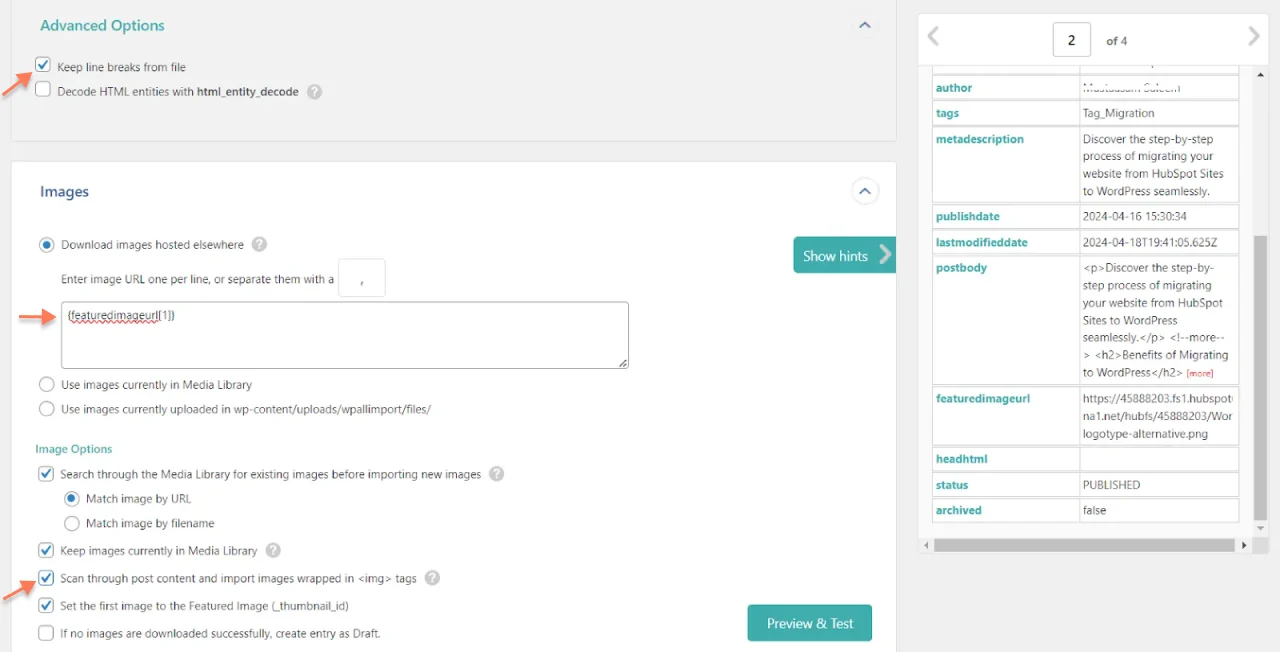
- Select Advanced Options > Keep line breaks from File. This will maintain the original formatting structure of the blog.
- Tick ‘Scan for images’ to import all the correct images
- Import SEO parameters by clicking on SEO & Advanced Options
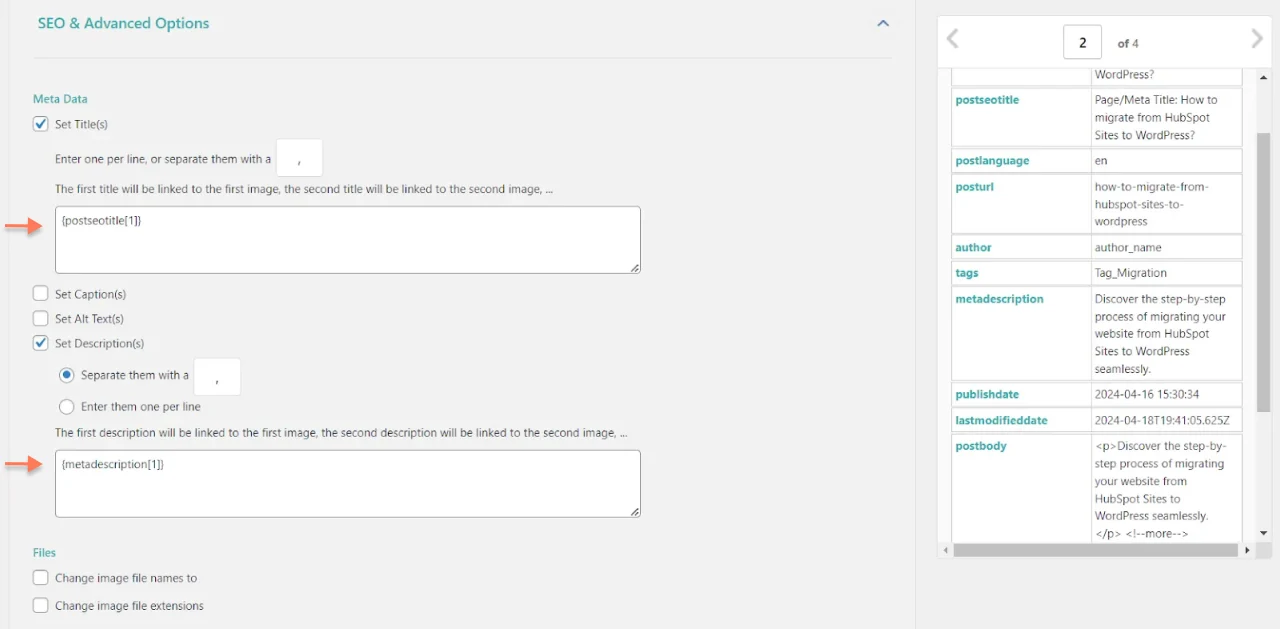
Tags vs Categories: Are they both the same?
HubSpot utilizes Tags for Keywords, whereas WordPress uses Tags and Categories.
- Tags are descriptive keywords, and they do not necessarily signify any category or segment.
- Categories are broader themes with hierarchy. For example: Software development blogs > Mobile app development
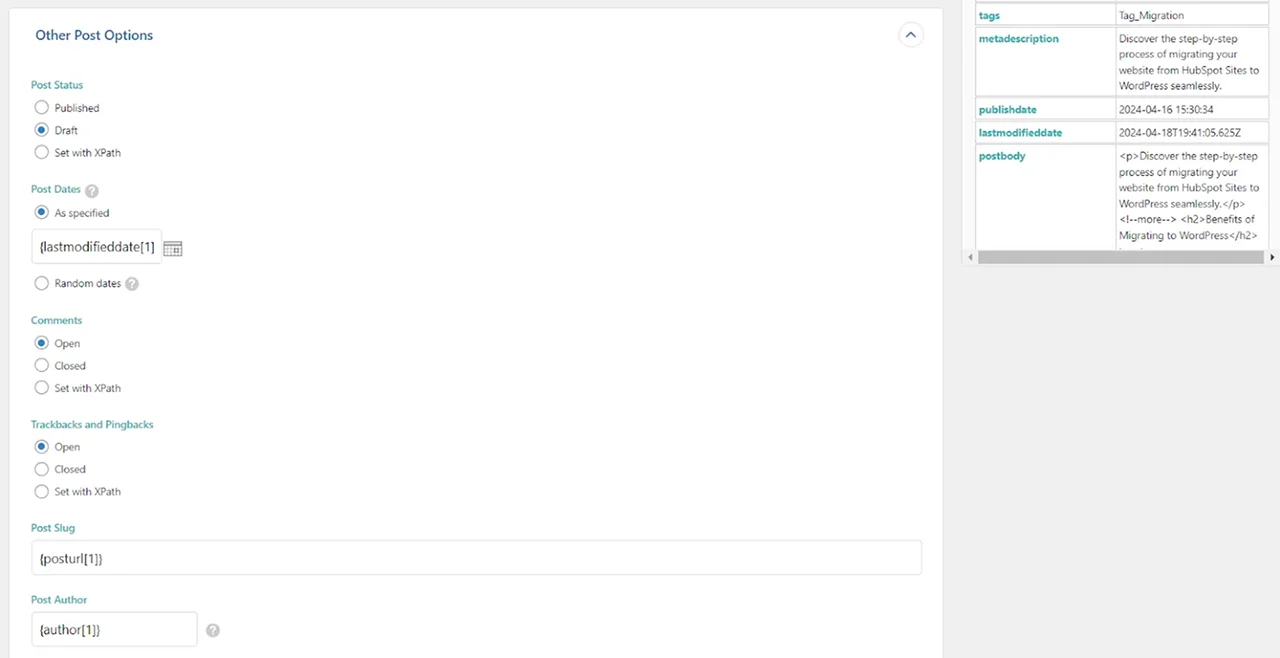
You can further edit and optimize your post in the “Other Post Options” section
- Set posts as Drafts to review them
- Choose your preferred way of handling the Publishing dates
- Since you have already tweaked your CSV URLs by taking out “/blog/” to bring them to the domain level, there’s no need to stress; we can put “/blog/” back in later on in this guide.
- Assign posts to specific authors in WordPress > Users. If you skip this step, the posts will automatically be linked to the main admin account of the site.
Now, Continue to Step 4
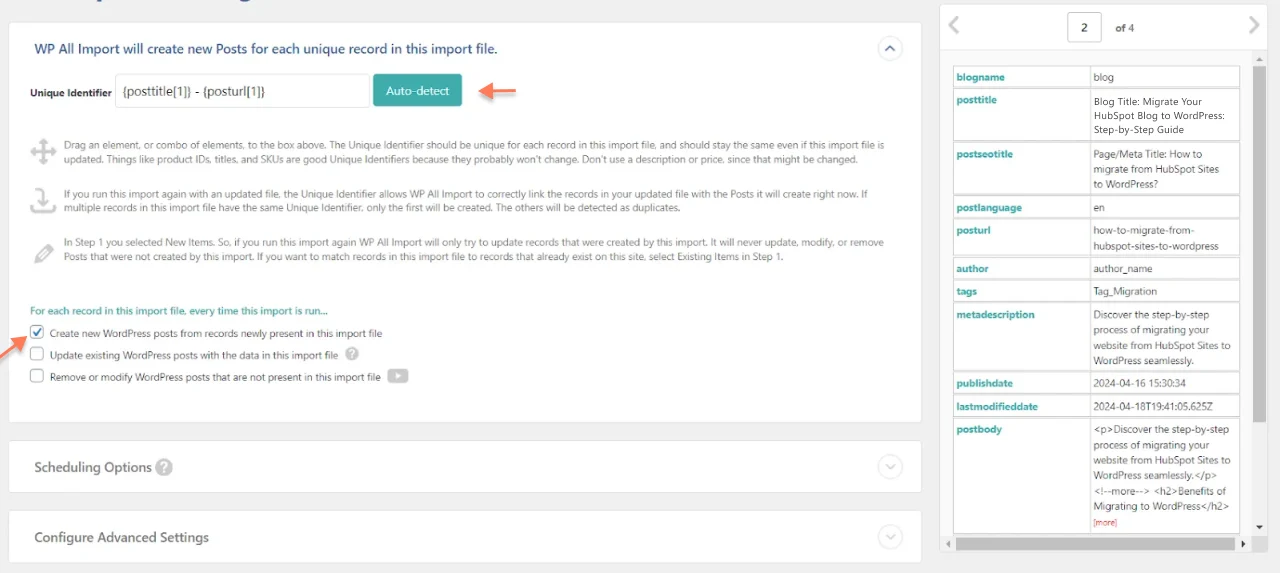
- You have to utilize the ‘Auto Detect’ feature to set the Unique Identifier.
- For creating new posts in WordPress, ensure that the ‘create new WordPress posts’ option is ticked.
- Click on ‘Confirm and Run Import’
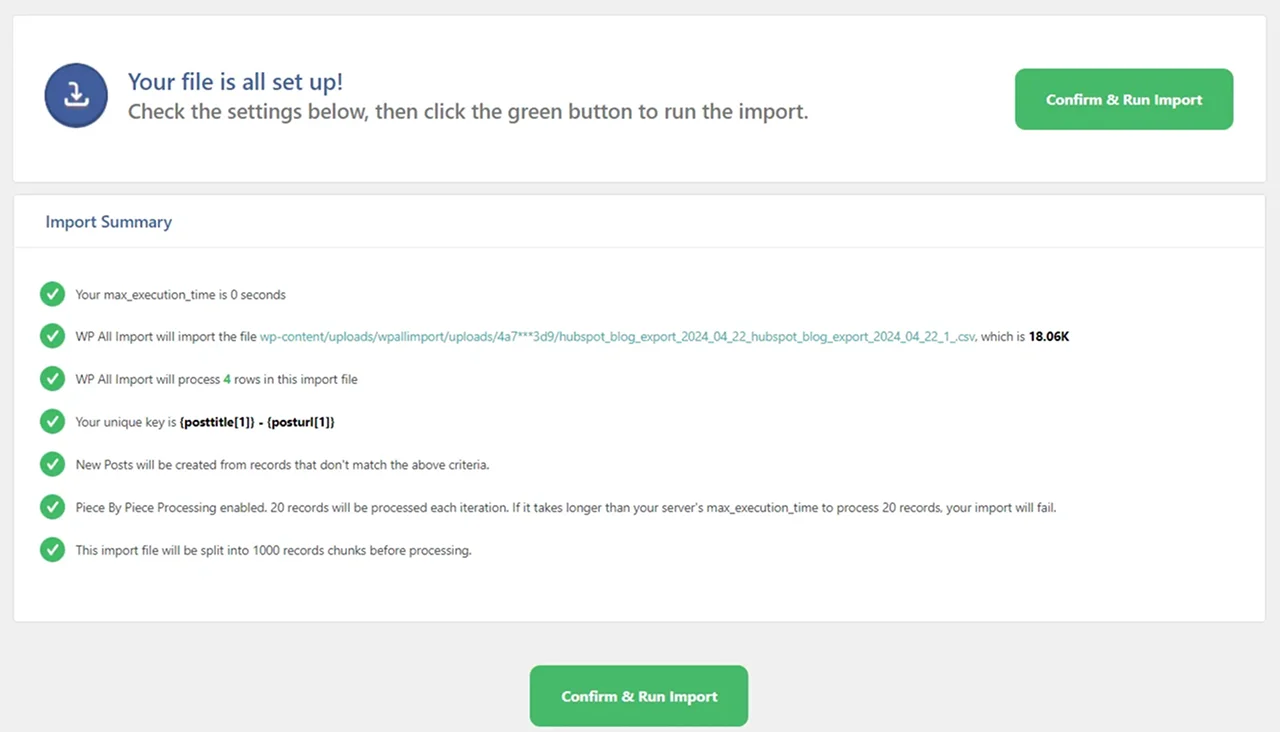
Once this is done, a confirmation pop-up will be visible on the screen.

Step 6: Reviewing the Imported Posts
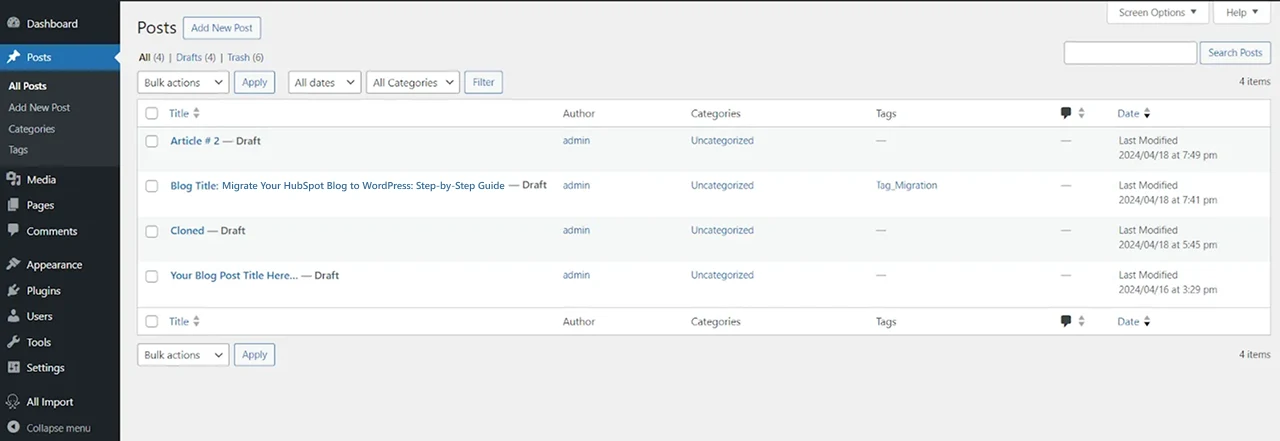
- Go to Posts > All Posts to check that you imported the posts
- Check Posts > Categories and Tags
- Analyze your posts and make changes if needed
Step 7: Setting Up the URL Structure
WordPress gives your blog posts a non-descriptive URL. You can change this for improved SEO rankings.
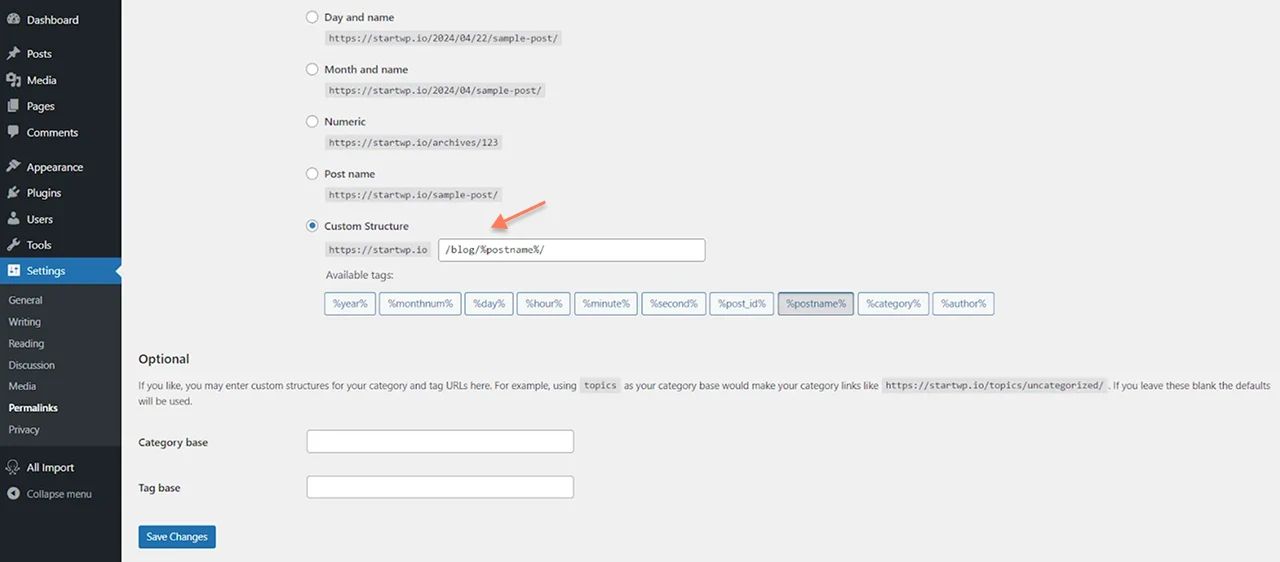
- Open the WordPress dashboard
- Settings > Permalinks
- Click on Custom Structure
- Add your preferred URL structure or the one matching your HubSpot blog URL
- Click on ‘Save Changes’
Also read: Top WordPress Website Migration Agencies: Trusted Experts to Hire
Migrate HubSpot Blog Comments to WordPress
WordPress and HubSpot follow different systems for comments. The former has a dedicated commenting system, while the latter utilizes ‘Forms’ for identifying blog comments.
You can migrate HubSpot blog comments to WordPress using the following steps:
- Open your HubSpot dashboard > Marketing > Forms
- All the forms will appear. Find the form used to collect blog comments
- Click on the number below the ‘Form Submissions’ option.
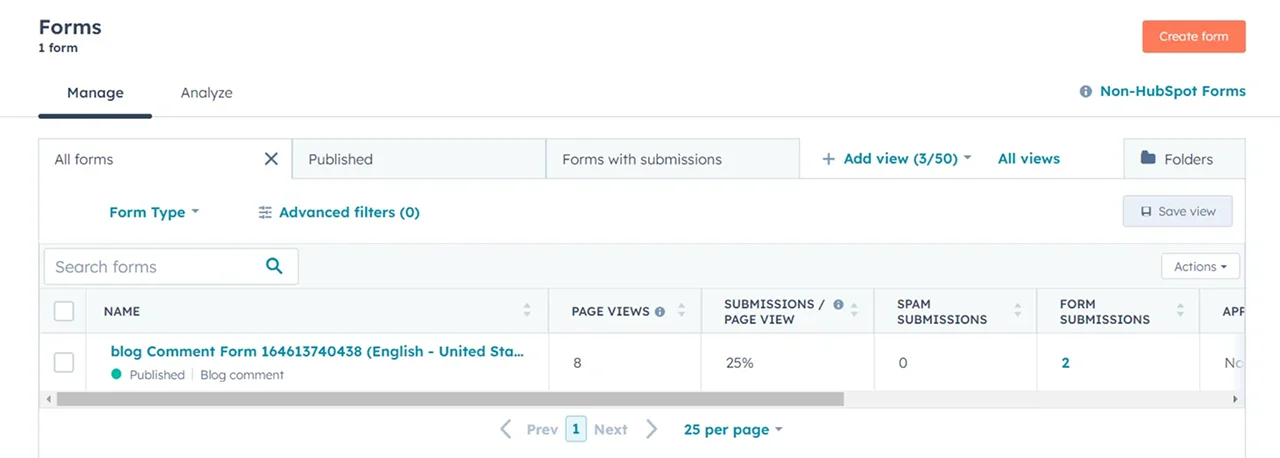
- Click on Export Submissions > CSV from the file format dropdown menu.
- Once downloaded, open the CSV file.
- Check and correct the URL structure, like you did with blogs.
- Now open the WordPress dashboard, All Import > New Import
- Upload the edited CSV > Comments > Continue to Step 2
- Using the drag-and-drop method, map CSV parameters to match the WordPress comment fields.
- Map the ‘Comment Author’ to the correct section
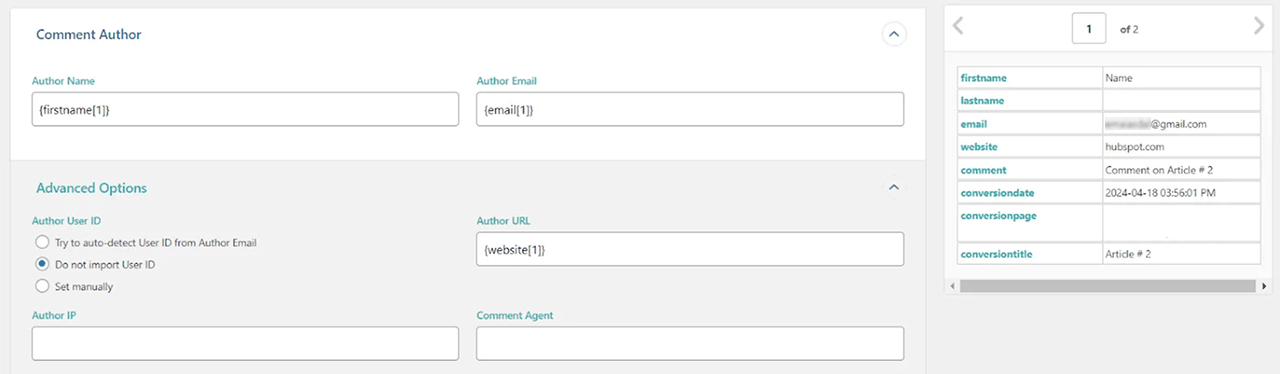
- Click on ‘Continue’ > Confirm & Run Importer
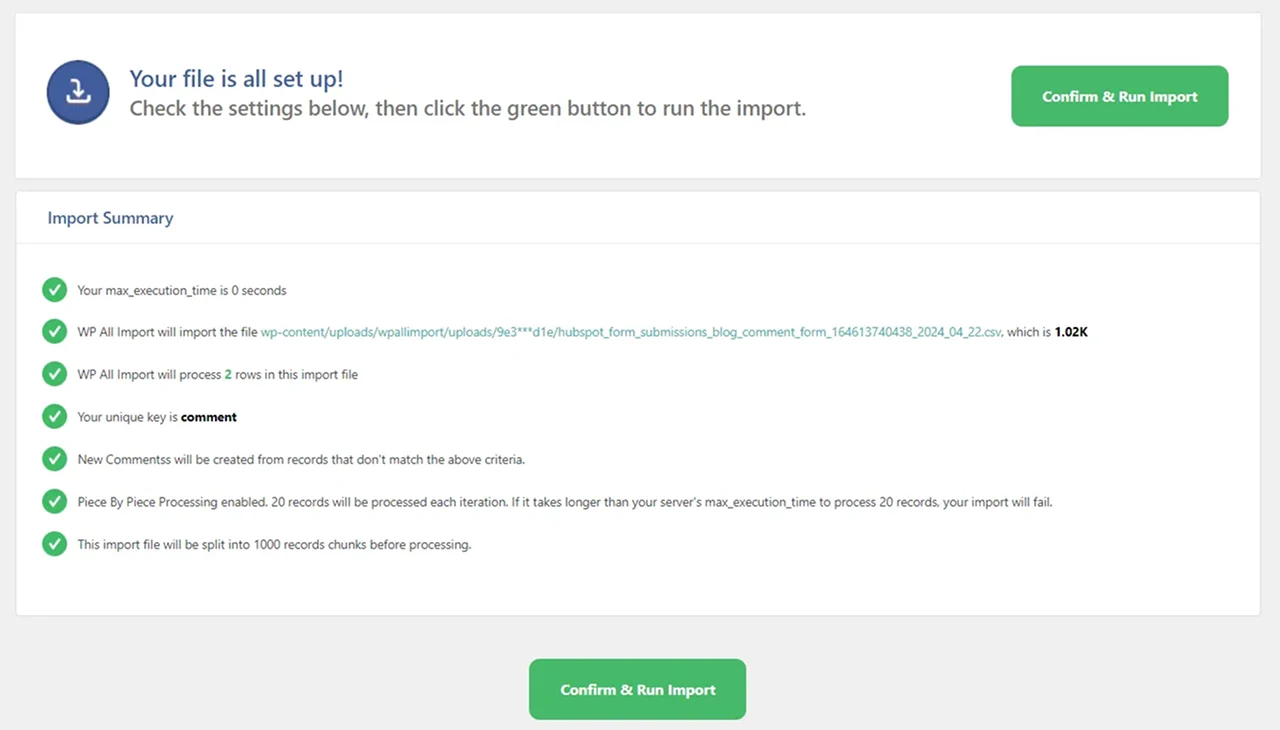
- Recheck by going to the Comments Section to verify everything
- Here’s a preview of how the comments will appear on WordPress

1. How long does it take to migrate a HubSpot blog to WordPress?
The migration process depends on your blog’s size and complexity. Small blogs can be migrated in a few hours, while larger blogs with images and multiple authors may take a couple of days.
2. Will I lose SEO after migrating from HubSpot to WordPress?
No, as long as you properly implement 301 redirects, preserve metadata, and maintain your internal linking structure, your SEO rankings should remain intact.
3. What is the easiest way to migrate a HubSpot blog to WordPress?
Using a migration plugin like WP All Import is the easiest way for large blogs. For smaller blogs, manual migration can work well if you carefully copy content and images.
4. Can I use a plugin to transfer my HubSpot content to WordPress?
Yes, plugins like WP All Import or FG HubSpot to WordPress can automate the migration, handling posts, images, URLs, and metadata efficiently.
5. How do I maintain my blog URLs during migration?
Before migrating, map your HubSpot URLs to your new WordPress URLs. Then set up 301 redirects from old URLs to new ones to preserve SEO and avoid broken links.

Conclusion: All Set For Migration
As we reach the end of this guide, you have successfully decoded the step-by-step method of migrating the HubSpot blog to WordPress.
The process sounds slightly complicated; hence, hiring an expert WordPress migration company like PSDtoHTMLNinja is the smart move. Our dedicated team of migration professionals has 13+ years delivering smooth WordPress migration projects.
Apart from the complete migration process, we also run final tests and analysis to ensure the new WordPress blogs remain functional and user-oriented.
Our team achieves this by:
Checking broken links and fixing URL structure while migrating your HubSpot blog to a WordPress setup.
Ensuring the new blogs are accessible across multiple screen sizes.
Maintaining SEO preservation during migration so your blog retains its SEO rankings.
You can contact our support team for more information, and our experts will assist you in kickstarting your WordPress migration project.

Jayveer Ker serves as the Business Development Manager at PSDtoHTMLNinja.com, specializing in assisting organizations with overcoming web development hurdles. His insightful and informative posts deliver practical solutions and valuable insights.
Couldn't find what you were looking for?
Let us know how we can help!

Related Blog Posts