Table of Content
HubSpot has been a go-to platform for industry professionals for various reasons. Its CRM capabilities are unmatched, and HubSpot boasts a fair number of websites. But with time, user preferences and usage have shifted. Industry experts and users now look for an easy-to-manage website with a smooth CMS platform.
That is why they switch to the alternatives for HubSpot, one of which is WordPress. Currently, approximately 46% of all live websites utilize WordPress, with over 500 new websites being built on this platform every day.
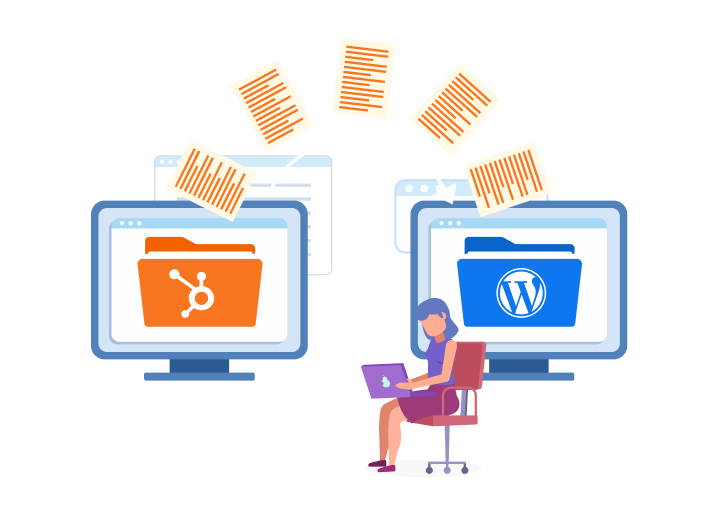
The power of WordPress in today's era cannot be undermined. Therefore, if you plan to migrate from HubSpot to WordPress, now is the ideal time. This detailed guide will give you a comprehensive understanding of the migration process, its benefits, and everything else.
Why Consider Migrating from HubSpot to WordPress?
While HubSpot is a popular platform that includes web hosting, marketing tools, and a simple user interface, migrating to WordPress is a better option. With this open-source platform, you can enjoy a wide range of themes and templates that speed up the website development process.
HubSpot offers high subscription fees and website development costs, which is the reason why most website owners migrate to WordPress. Customization and community support are two other fronts where WordPress excels.
Here is a detailed breakdown of why you should consider migrating from HubSpot to WordPress:
Cost Saving and Affordable Option
WordPress is often free with limited but useful features. You can buy premium themes and website development tools for a more enhanced experience, but it proves financially beneficial in the long run.
HubSpot, on the other hand, has a layered pricing structure that is mostly expensive when compared to WordPress. The pricing in HubSpot further increases based on your business requirements.
Full Website Control
WordPress gives the website owner complete ownership over their website and CMS. All your data and media are stored in your website and backend storage, making data migration and retrieval a smooth task.
HubSpot is a closed platform, and all your media files and data are stored on the HubSpot servers. This makes data migration and usage complicated.
Multi-tool Flexibility
Website owners can integrate numerous plugins and third-party tools into their WordPress CMS, which makes customization easy. The flexibility of tool integration also improves the website’s performance and functionality.
Design Options
WordPress has a vast library of appealing themes and templates. You can choose from a wide range of design options to make your website stand out. Most of these themes can be tailored to meet specific requirements, which becomes difficult with HubSpot.
Stronger Security
When you migrate to WordPress, you get regular themes and security updates. The platform enables malware scans to ensure the website remains 100% secure from hacking attacks while ensuring a layered protection. Users also get to back up the files to minimize data loss.
Pre-Migration Checklist: Things to Consider Before Moving From HubSpot to WordPress

Before you migrate your HubSpot website to WordPress, there are a few things to keep in mind before beginning the actual migration process. Follow these steps to ensure your migration goes smoothly.
1. Migration Goal and Planning
What results are you aiming to achieve? Do you want to migrate the complete website or only a few content components? Are there any reference designs you have in mind for the website? What additional functionalities do you need?
Your HubSpot to WordPress migration will be smooth sailing once you have solid answers to these questions.
2. Content Inventory To Be Migrated
Another important part of the checklist is your content inventory that needs to be migrated. Prepare a thorough list of website content readily posted on your HubSpot site:
- Blogs
- Forms
- Website pages
- Landing pages
- Images, icons, and graphics
- Other downloadable files
3. Analyze The Current Website Traffic And Performance
Users migrate to WordPress for better performance and higher online engagement. Carefully studying the existing website’s performance will give you a fair idea of what needs to be fixed in the migrated WordPress website.
Aspects like the website traffic, loading speed, refresh rate, etc., play a key role in the success of your website. Make sure you use these metrics as reference points to further elevate your WordPress website’s performance.
4. Select The Most Suitable Theme
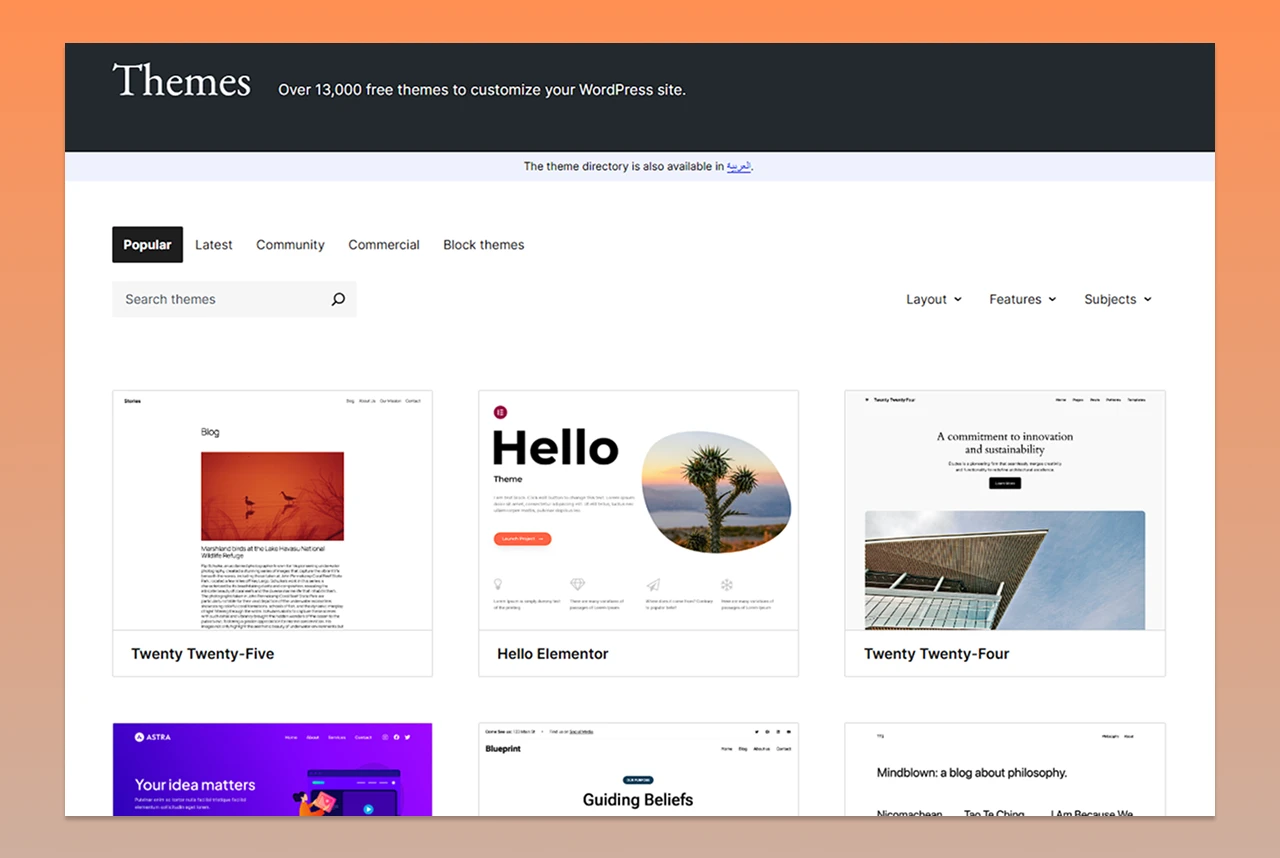
This may sound like a cakewalk, but it is not. Choosing the right WordPress theme requires extensive research and a clear understanding of your requirements. You have two options here:
- Find a WordPress theme that is closely similar to the current HubSpot theme. Do this only if you are satisfied with the existing one.
- Choose an entirely new theme that matches your expectations, but make sure that your existing content can be adjusted to this new theme.
Other things to consider include:
- The theme should be responsive
- Personalize the design with customization
- The new theme should be lightweight and hardcoded
5. List Of The Required Plugins
You will have to integrate a few additional plugins to replicate certain functionalities of your HubSpot website into the new WordPress site. Here is a list of plugin categories you should try:
- SEO plugins for higher search engine rankings
- Email marketing plugins for better social media marketing
- Security and backup plugins to safeguard your data
- Form plugins to create and distribute forms
- Other analytics plugins to monitor the website performance
Now that you have ticked all the boxes in the checklist, it is time to move forward with the migration process.
Data to Be Migrated
Migrating from WordPress to HubSpot is about more than just giving your website a fresh coat of paint; it’s a detailed process that involves carefully moving all your important data to ensure everything runs smoothly on the new platform.
The aim is to keep your content, SEO value, and user experience intact while leveraging HubSpot’s powerful marketing tools.
Website Pages & Blog Content
Your essential pages (like Home, About, Services, and Contact) and your blog posts need to be transferred while keeping their original formatting. This means preserving headings, images, embedded videos, and internal links.
Media Files
All your images, documents, audio, and video files from the WordPress media library should be migrated to HubSpot’s file manager. This helps maintain visual consistency and avoids any broken links.
SEO Metadata
It’s crucial to move over title tags, meta descriptions, alt text, and URL structures to keep your search rankings unscathed. Setting up redirects is also important to prevent any loss of traffic.
Forms & Lead Data
Any forms you have on WordPress, along with the data collected from submissions, need to be recreated using HubSpot’s form tool and linked to your CRM.
Navigation Menus & Structure
Make sure to replicate your site’s menu hierarchy and navigation paths so that users feel right at home when they visit your new site.
Custom Code & Functionalities
Review and adapt any custom scripts, widgets, and integrations to fit into HubSpot’s environment.
A well-thought-out migration plan ensures that no vital data is lost, your SEO remains strong, and your audience enjoys a smooth transition to your new HubSpot-powered website.
Read this: HubSpot Website Migration Guide: Process & Checklist
HubSpot to WordPress Migration Process
Here is a detailed step-by-step migration process followed by HubSpot to WordPress migration experts. Each step mentioned here is carefully added so the final website performs optimally and remains bug-free.
Step 1. Setting Up Your WordPress Environment
WordPress is known for being flexible, i.e., it allows you to freely choose your hosting provider, tools, design aspects, and lots of other elements. This flexibility helps in mirroring the functionality, appearance, and performance you are expecting.
Choose the domain:
Tips:
- Make sure the domain name is short and is not cluttered.
- It should be relevant to your business.
- The domain name should be catchy and easy to remember.
How to Register?
You can select a decent plan from any domain name registration provider.
Best options:
- GoDaddy
- Name cheap
- Domain.com
Select a reliable hosting provider:
- Shared hosting
- WordPress hosting
Top Hosting Providers:
- Hostinger
- SiteGround
Factors to consider: Traffic, storage, email addresses, budget, etc.
Step 2. Select Your Preferred Theme
Your website should be built on a spectacular theme that grabs the audience’s attention and leads to higher engagement rates. Make sure you have access to the WordPress.org theme directory so you get a wider pool of theme options.
WordPress themes are easy to build, and you can also choose from customizable templates. But which one should you move forward with?
Free vs Premium Themes: Free themes are for small businesses and blogging sites that primarily focus on a portfolio rather than providing services. They offer limited features and can’t be customized. For high-end businesses requiring cutting-edge CMS and constant content updates, Premium themes are the best option. They can be tailored easily and offer advanced features.
Theme options to explore: A few things should be on top of your mind while scouring through different WP themes.
- Target audience
- Mobile scalability
- Security and compatibility updates
- User experience
- Theme appearance and visual elements
Popular WordPress Themes
Page Builders: Drag-and-drop functionality
WordPress offers an easy and more visual way to build a website. You can design layouts with a drag-and-drop interface.
- Famous Page Builders: Elementos, Brizy, Beaver Builder, Bricks Builder.
Benefits:
→ User-friendly interface
→ No coding layout
→Pre-designed templates
Step 3. Prepare The Content For Migration
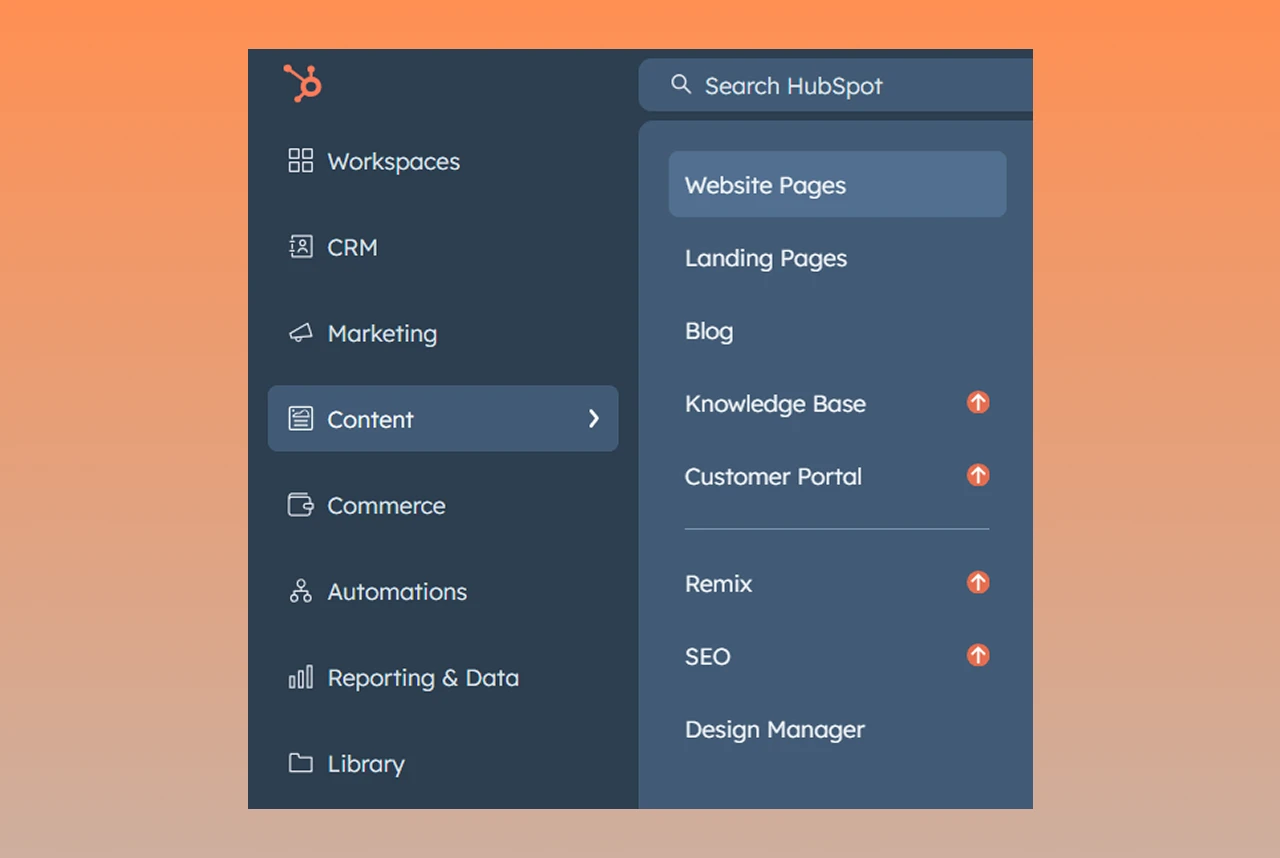
As mentioned in the earlier section, migrating your existing HubSpot data is extremely crucial. In this step, we will identify the main components for migration and the process of migrating.
Generally, websites have four major sections that are primarily migrated: General website pages, landing pages, media and other files, blogs, and articles.
Website Pages
- These are your normal website pages, like the product page, service page, about us, and contact us pages.
- The content present on these webpages is essential. If you wish to migrate everything from these pages, including the text, images, graphics, etc., you can do so in this step.
- You can also opt for fresh content based on your needs, but that will incur additional costs.
Landing Pages
- Targeted webpages that bring traffic and engagement to your website. They have a Call to Action and are often embedded with metadata and SEO content.
- These pages play a solid role in your website’s online performance and reach. Make sure everything is properly migrated.
Blogs and Articles
These are the easiest to migrate. All the blogs, articles, and papers published on your website have been migrated to the new WordPress site. All the images, videos, and hyperlinks in your blogs are migrated in this process.
Form Submission
- Other files like form submissions, feedback collections, survey responses, and customer service inquiries are part of this section.
- Ask your migration expert to precisely migrate this data without causing any data loss.
By carefully studying this guide, you can better assess the functionalities of various website components, such as landing pages and website pages.
We will migrate the following in this guide:
- Blog content (images, tables, links, etc.)
- Webpage content (images, data, links, etc.)
- Individual URLs of pages and blogs
- Meta title & meta descriptions
- Image titles
- Authors & forms
- Publish and updated date & time
- Tags
Step 4. Migrating The Content
Now comes the part where all the before-mentioned content and data are migrated from HubSpot to WordPress. You can do this in two ways: manual migration or by using plugins.
Let us also see how migration is done for blogs and websites using these two methods.
Migration For Small Blogs
1. Manual Migration
This method is used for migrating small blogs from HubSpot CMS to WordPress. Here is a detailed process of how to do it:
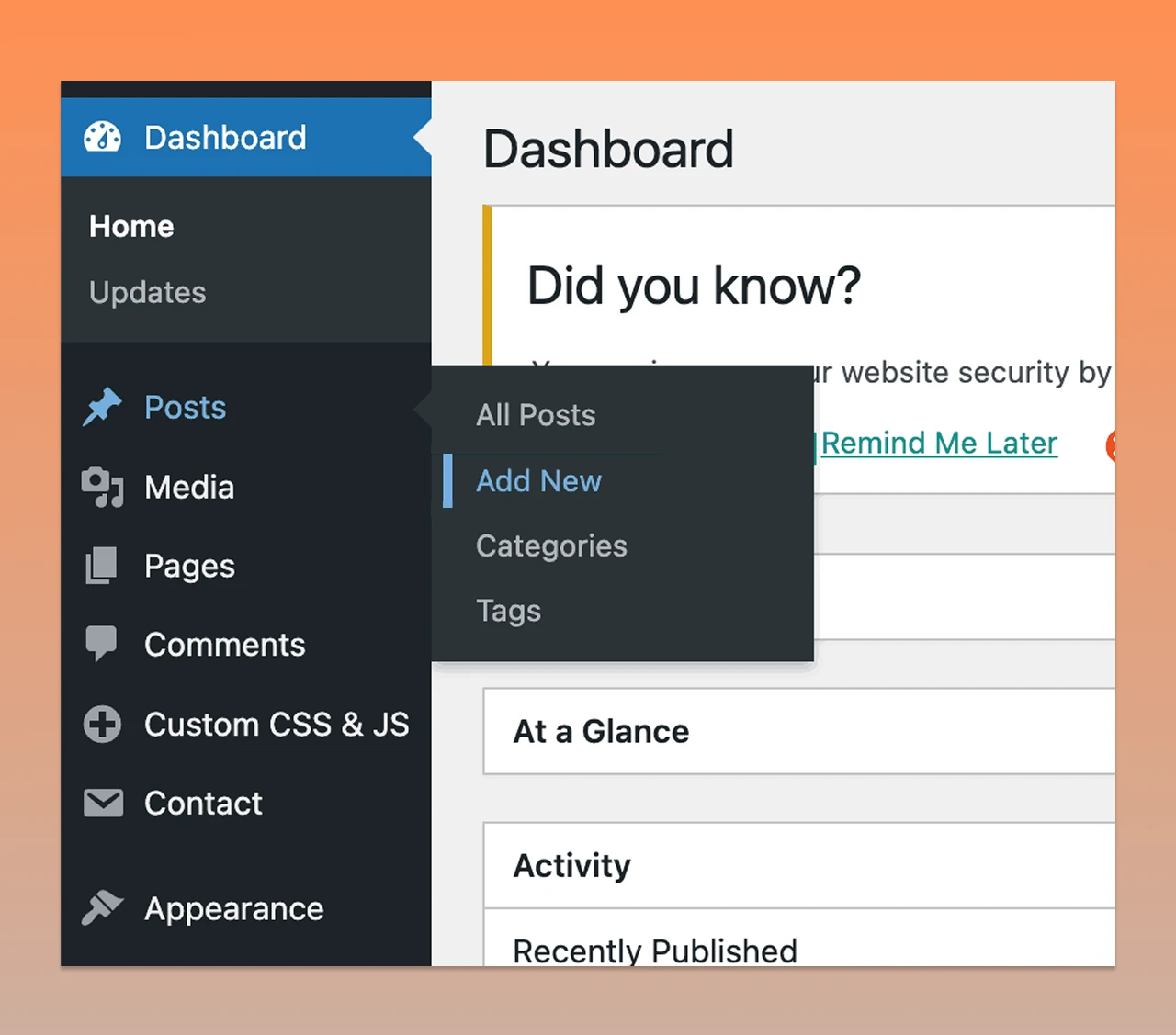
- Visit your WordPress dashboard
- Click on Posts > Add New
- You will see a new WP editor (Gutenberg) where the copied blog post content can be pasted.
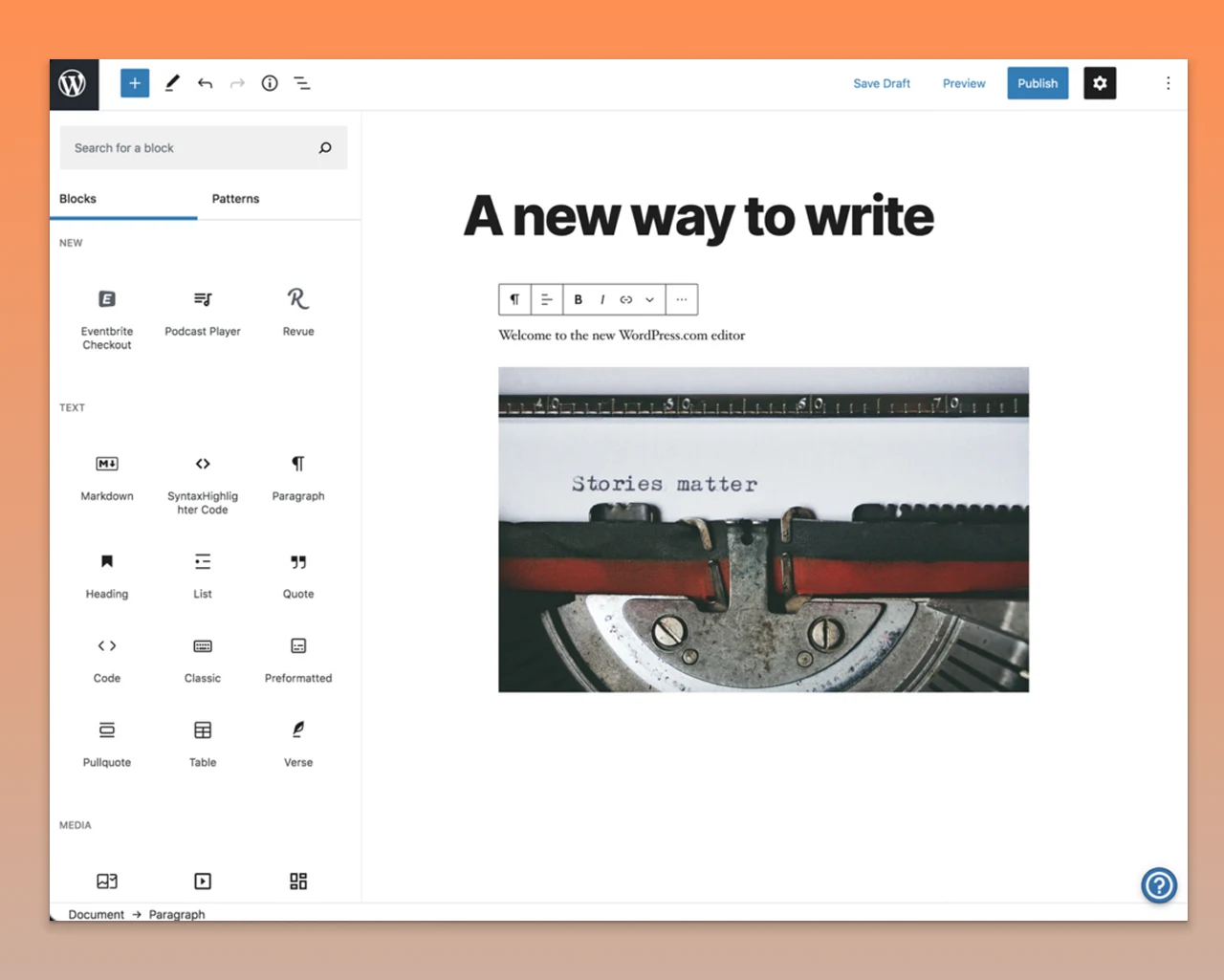
- You can use Blocks to migrate CTAs, forms, tables, and other advanced elements from your HubSpot blog.
- Review the formatting and layout of the pasted blog
- Images: The images in your HubSpot blog should be downloaded and then uploaded to the WordPress media library.
- Insert them into your WordPress blog.
2. Migrating with a Plugin (For large sites & blogs)
When it comes to migrating a large number of pages and blog posts from HubSpot to WordPress.
Plugins can really save you a lot of time compared to doing everything manually.
WordPress has a fantastic selection of plugins, and one standout is the user-friendly “WP All Import.” This tool makes it a breeze to transfer XML/CSV data, helping you maintain accuracy and consistency throughout all your migrated content while cutting down on the time you spend on the process.
Steps to follow using the WP All Import WordPress plugin:
- Open the WordPress dashboard
- Click on Plugins > Add New Plugin
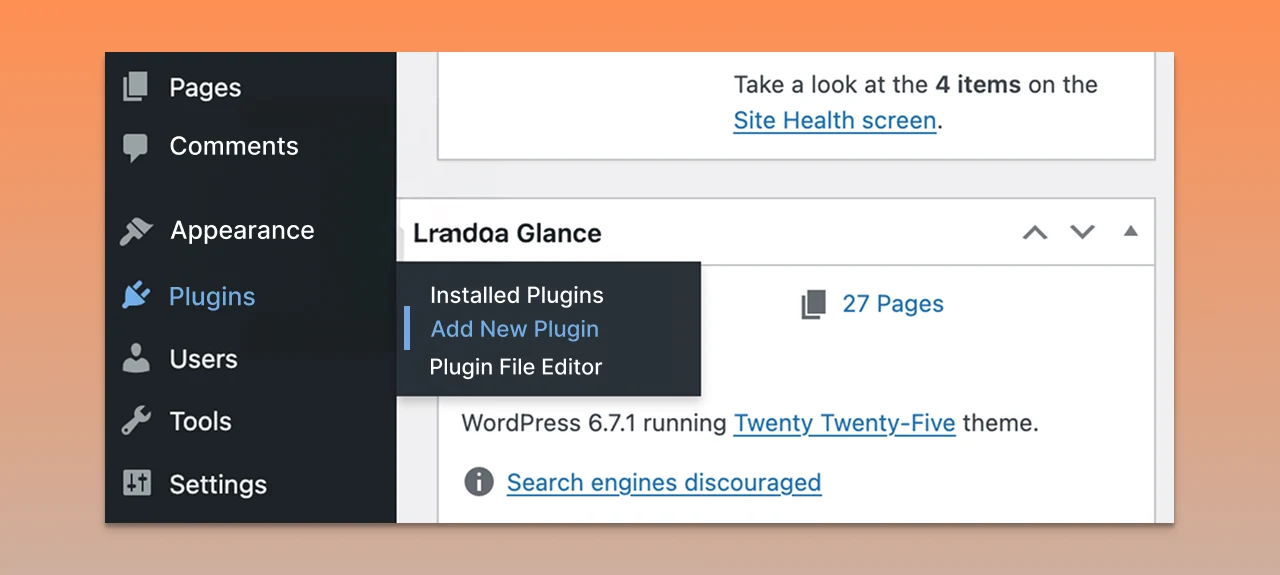
- Search for All Import, install, and activate it
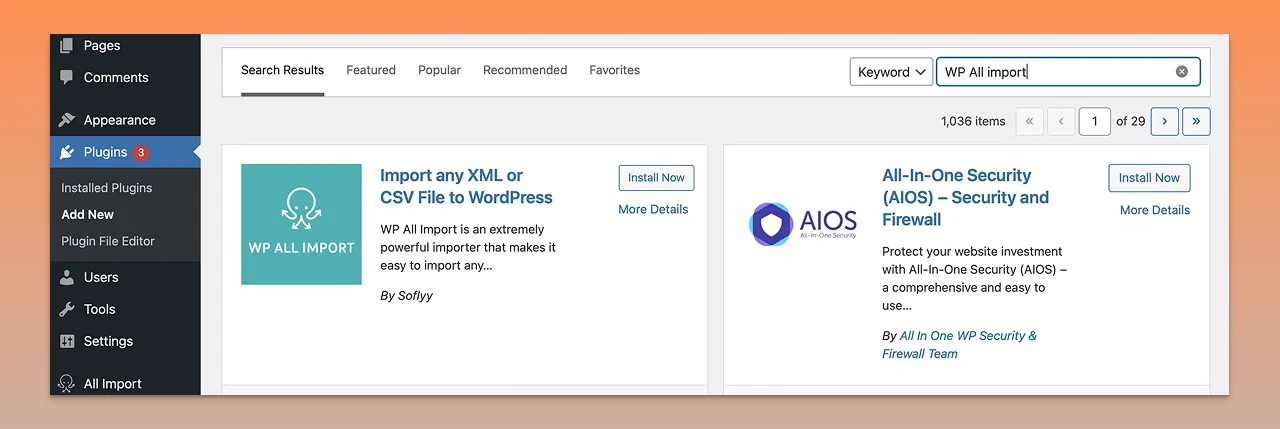
- Once installed, you will see a ‘New Import’ option
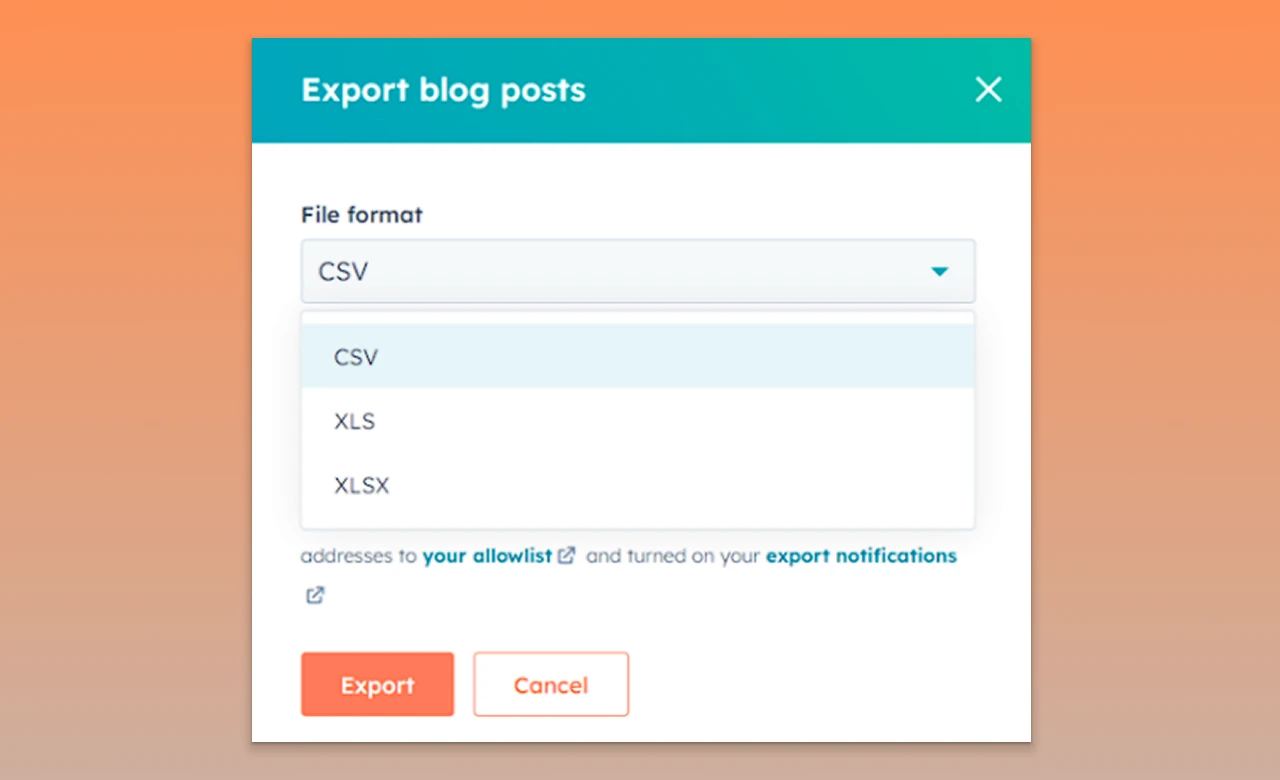
- Export your HubSpot blog posts in a CSV format
You will receive an email on the dashboard confirming that the files are ready
→ Open the CSV file in a spreadsheet editor or Notepad
→ Ctrl+Find and enter the domain name you want to replace
→ Click Replace All and save the CSV file with a new name
- Go to the WP dashboard
- Click on All Import > New Import > New Items > Posts
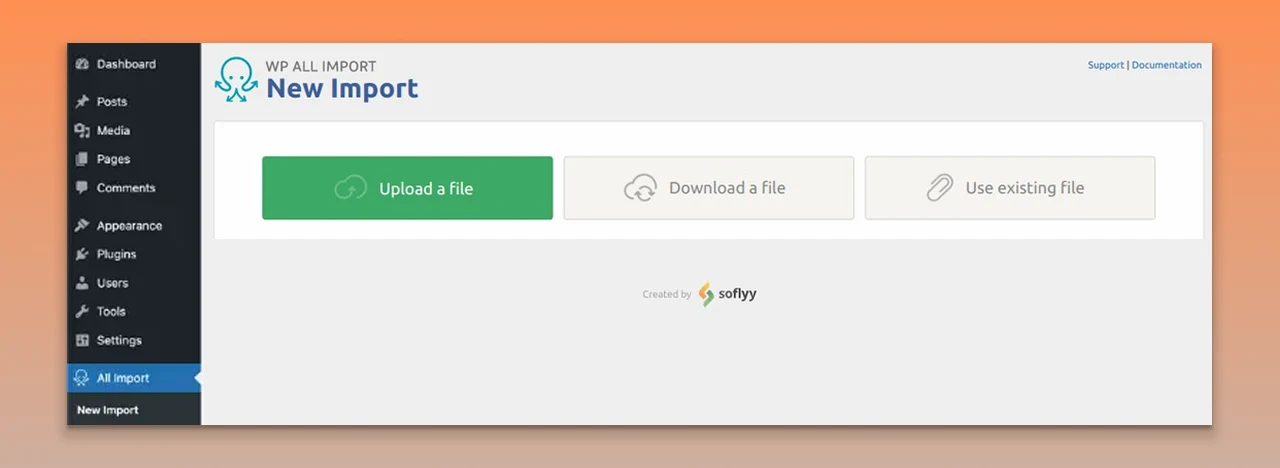
- Click on Continue to Step 2
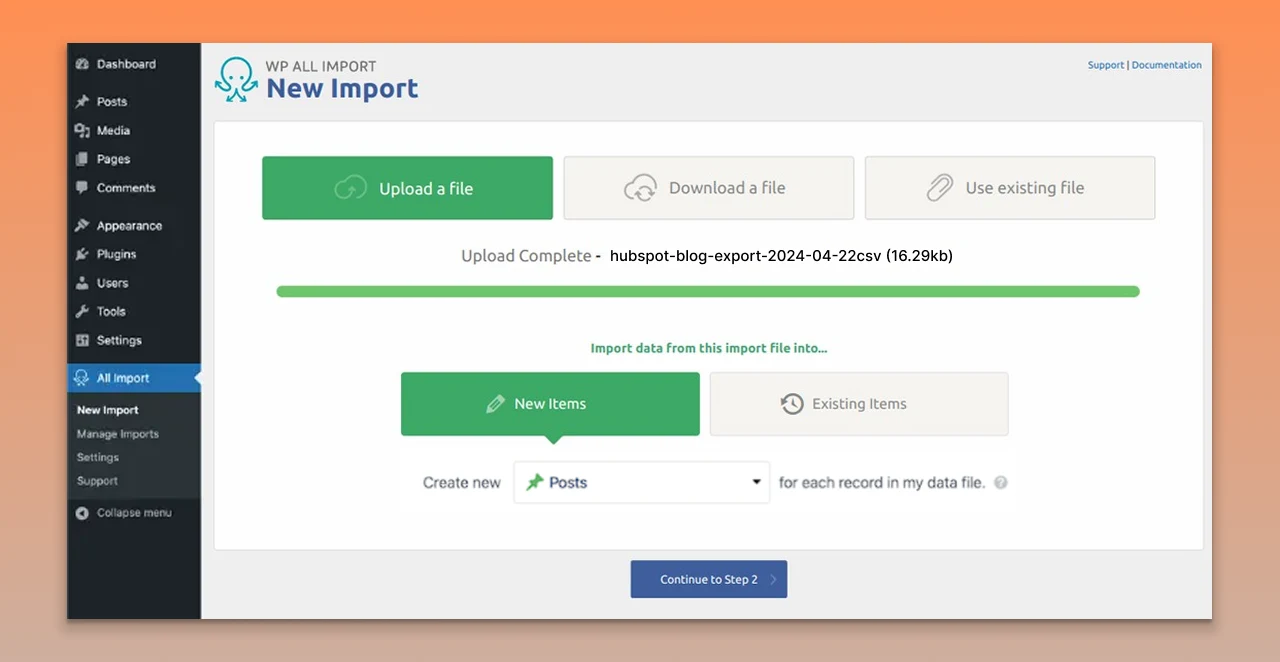
- WP will automatically scan and find the total posts present in your CSV file
- You can now start adding the content to the relevant section with the drag-and-drop functionality
- Click on the ‘preview’ button
- Check SEO & Advanced options
Migrate Blog Comments From HubSpot To WordPress
You might want to migrate comments from your HubSpot blogs to WordPress. Here’s how to do it:
- From the HubSpot dashboard, go to Marketing > Forms
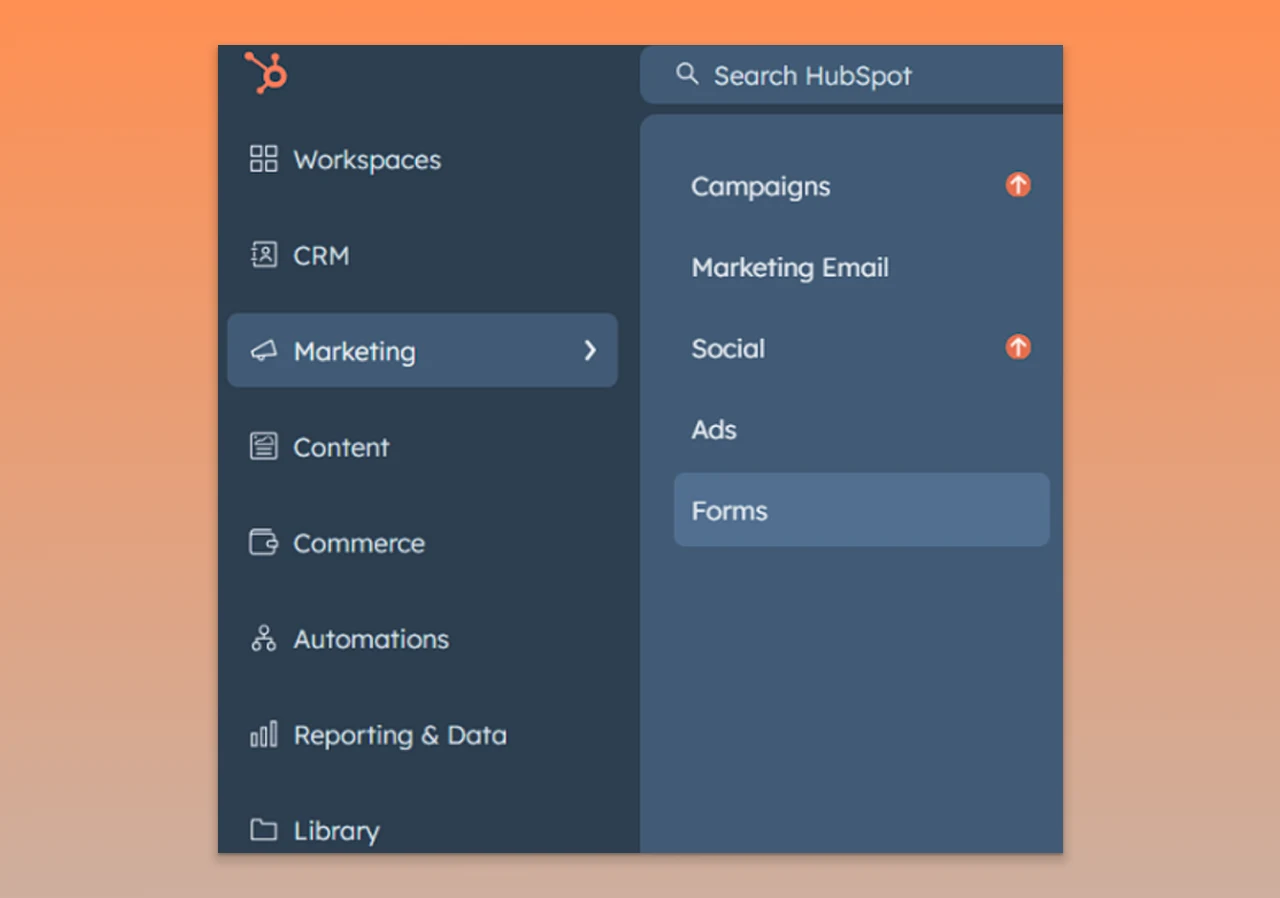
- This will display all existing forms in HubSpot, including the blog comments.
- Click on Form Submissions > Export Form Submissions
- In the dialogue box, choose CSV format from the File Format dropdown menu
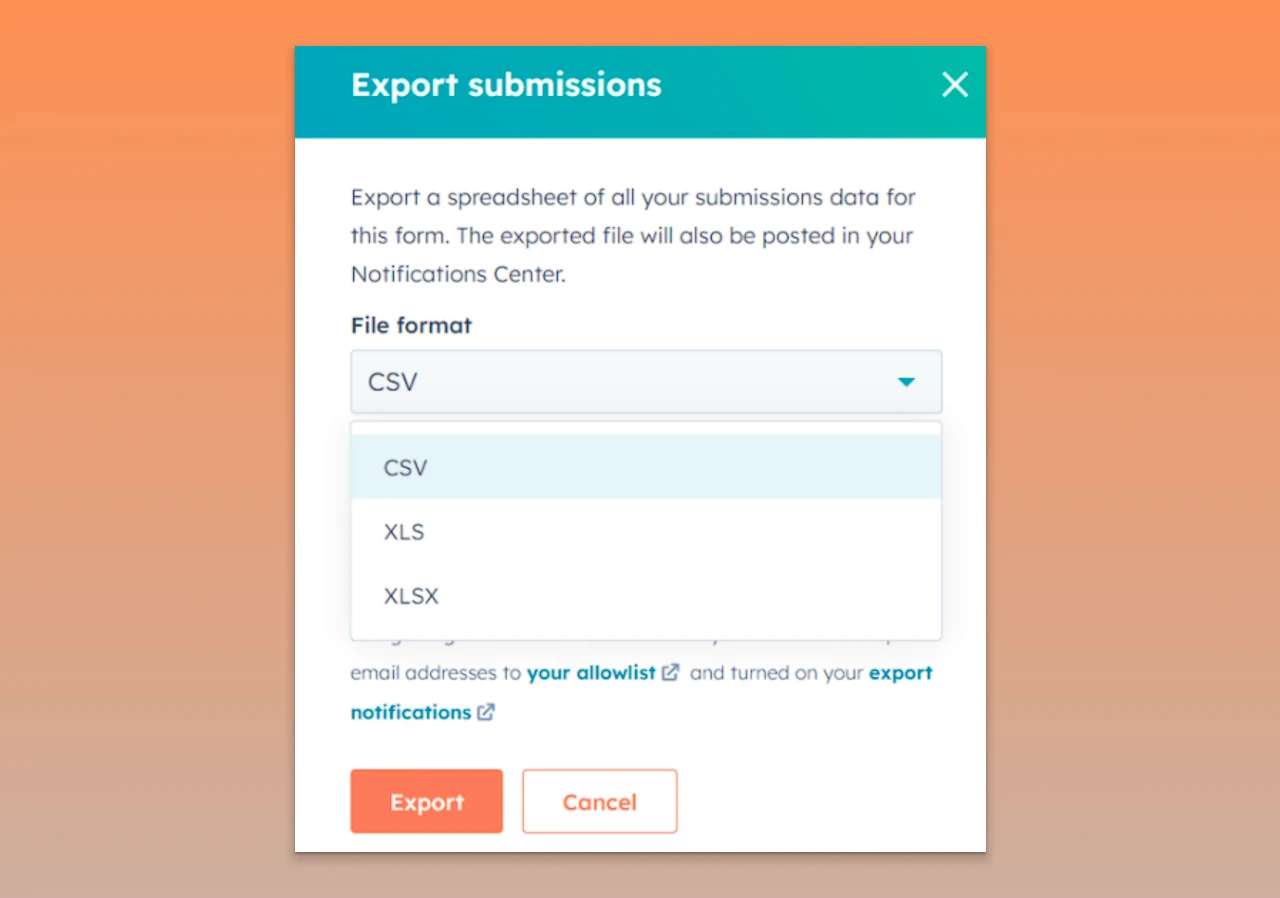
Now the CSV file needs to be edited. All instances of "https://domain.com/blog/" should be changed to match the format used for comments. Here’s how you can import comments to WordPress using the CSV file:
- Open the WP dashboard
- Select All Import > New Import
- Click on Upload File and select the updated CSV file
- Select Comments from the dropdown menu
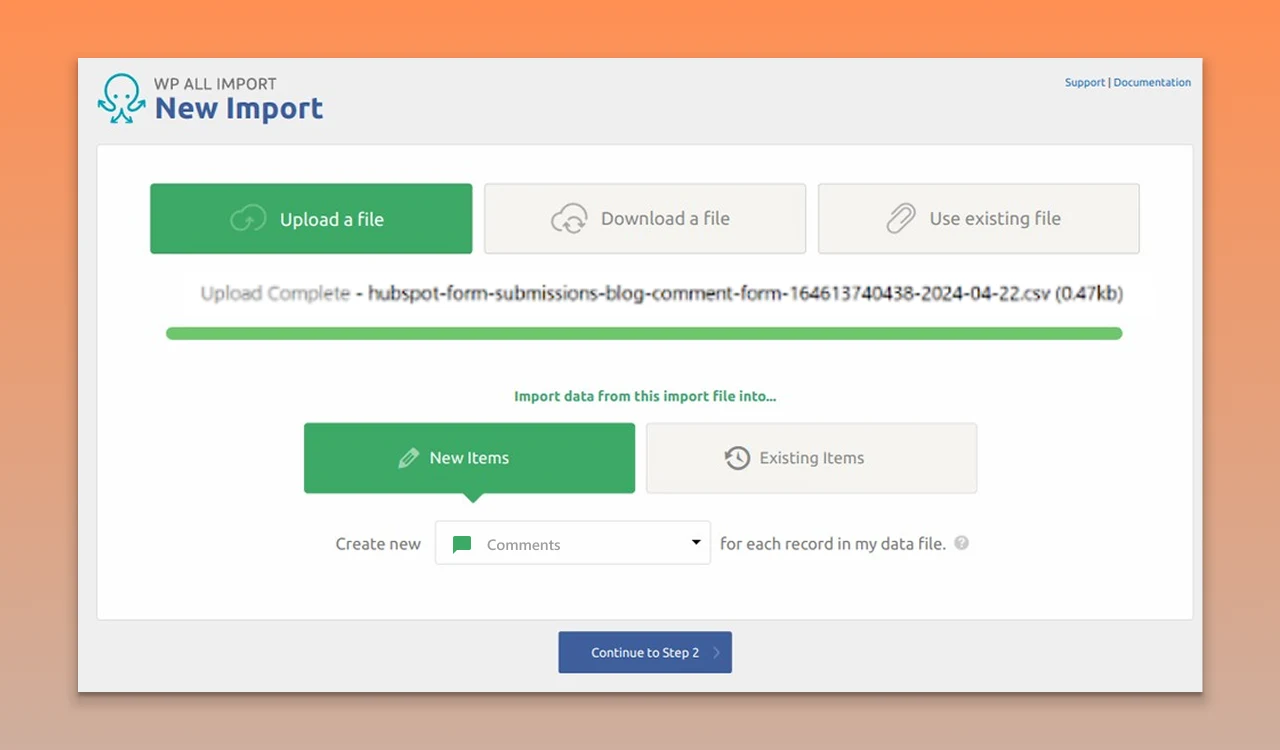
Once the CSV file is imported, check for errors and inaccuracies. Next comes the step where you map the data points from the CV files using the drag-and-drop method in WordPress.
- Map the fields in the Comment Author section.
- WP All Import requires a unique identifier to track comments during import.
- Since each comment is distinct, you can use the "Comment" field as the unique identifier by dragging and dropping it.
- Click on Continue and run the Importer.
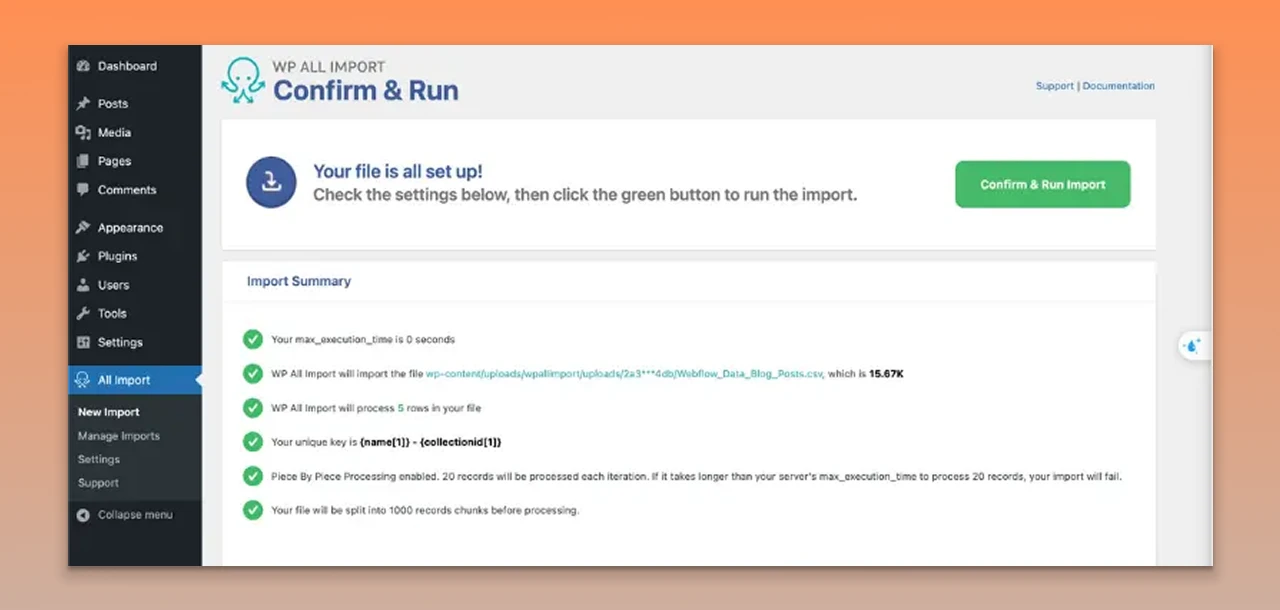
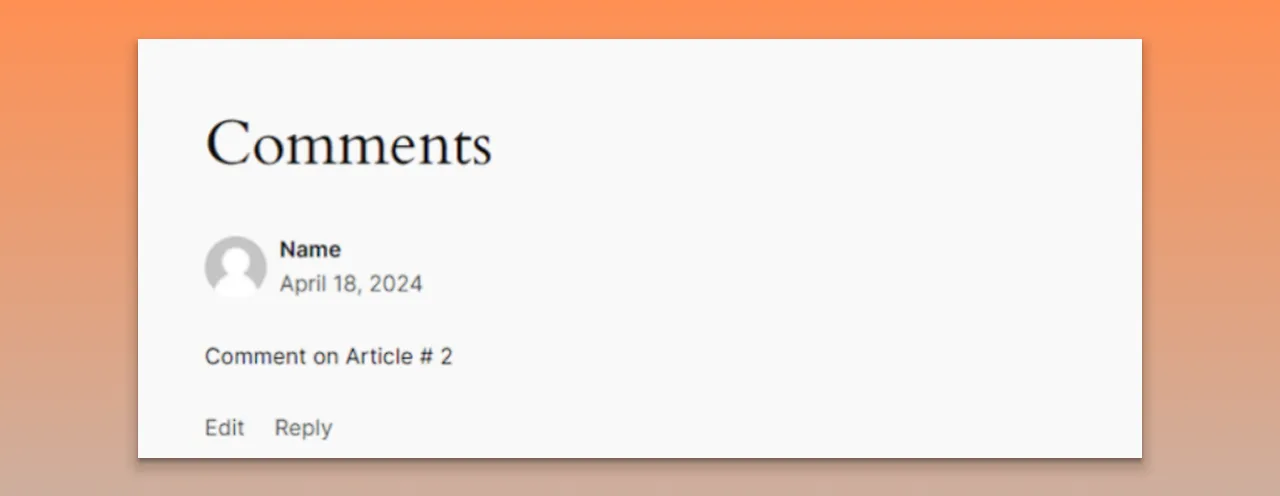
- Check the imported comments from the Comment section.
Migrate Websites From HubSpot to WordPress
You can migrate your entire HubSpot website to WordPress in three ways:
- Hiring a professional migration company: This is your best chance of getting a smooth migration service. Experts like PSDtoHTMLNinja easily migrate even the most complex websites with efficiency and accuracy.
- Using plugins: You can use various plugins to migrate your website, but it can lead to errors and inconsistencies.
- Manual migration: Manual migration requires you to have adequate technical knowledge of the migration process.
Advantages Of Hiring A Professional Migration Company
- Smooth Transition: You witness the power of tools and innovative technologies for seamless migration.
- Reduced Downtime: Expert staff prioritizes a steadfast approach where the downtime is reduced.
- SEO Preservation: Your existing search engine page ranking is preserved during the migration.
For Error-free and Smooth Migration, Choose PSDtoHTMLNinja
- Industry Experience: Our team possesses an impressive experience of over 13 years in the migration market.
- Constant Support: We are available for 24/7 assistance.
- Expertise: Trust our expert developers and coders who have worked in countless high-profile projects.
Let’s begin the Website Migration process
Method 1: For Non-tech People
Build the WordPress foundation
- Select a theme that aligns with your website design
- Create new website pages using the default WP editor or page builders
- Copy/paste the content from HubSpot to the new WP webpages
How to download images from HubSpot?
- Open HubSpot
- Click on Marketing > Marketing Email
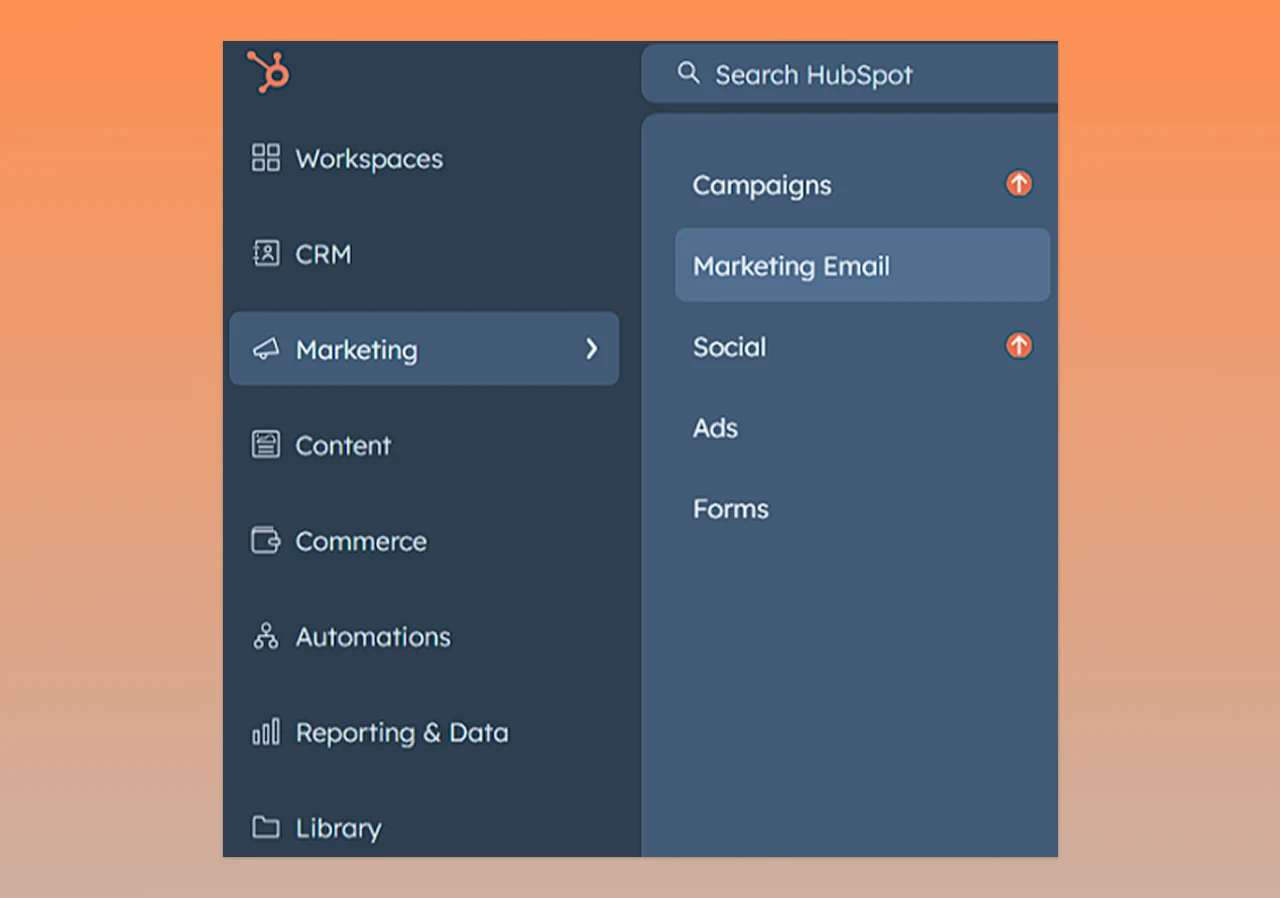
- Click on "Email Tools" > "Files" from the top-right corner
- Select all files, then Export all files in ZIP format to download all your files
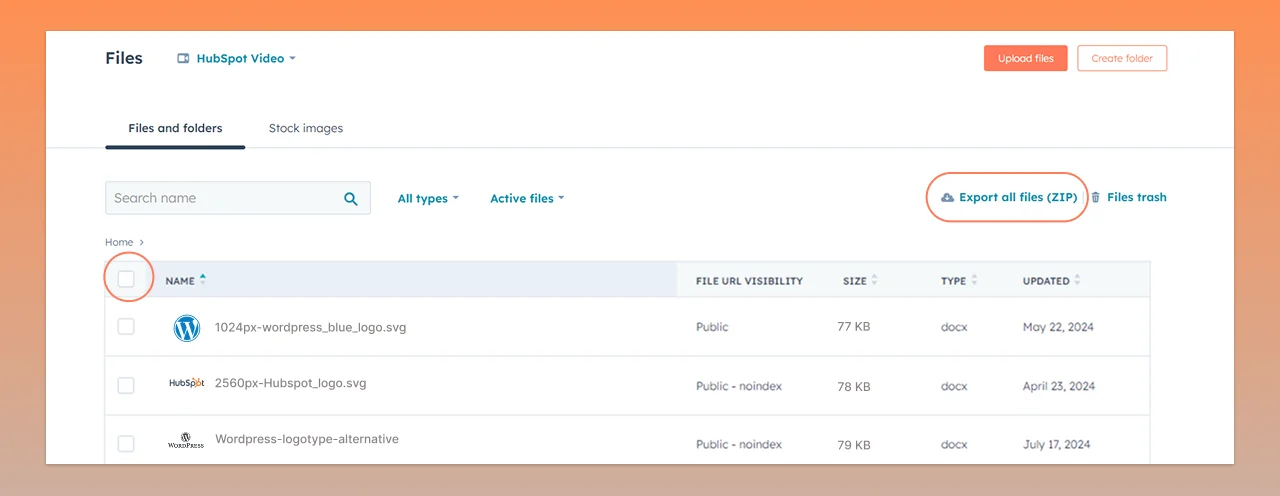
Optimize Images for Higher SEO Ranks & Responsiveness
Your website’s search engine rank depends on its loading speed. Optimizing the images before uploading to WordPress is a crucial step in this process.
Not optimizing large images will reduce the website’s loading speed, affecting user experience and SEO visibility.
You can optimize images using 2 methods:
- Pre-optimize Images: Free online tools like Compressor.io, Optimizilla, and TinyPNG easily compress image file sizes without reducing the image quality before uploading to WordPress.
- WordPress Plugins: You can also automate the image optimization task within WordPress using plugins like Smush, Imagify, and EWW Image Optimizer.
Process of Uploading Images To WordPress
- Extract the downloaded ZIP file.
- Go to Media > Add new media file
- Drag and drop all the images
Method 2: For Techies
HTML and CSS experts can download landing pages, website pages, images, and blogs in HTML from HubSpot. Here is how you do it:
- Go to Content > Website Pages on the HubSpot dashboard
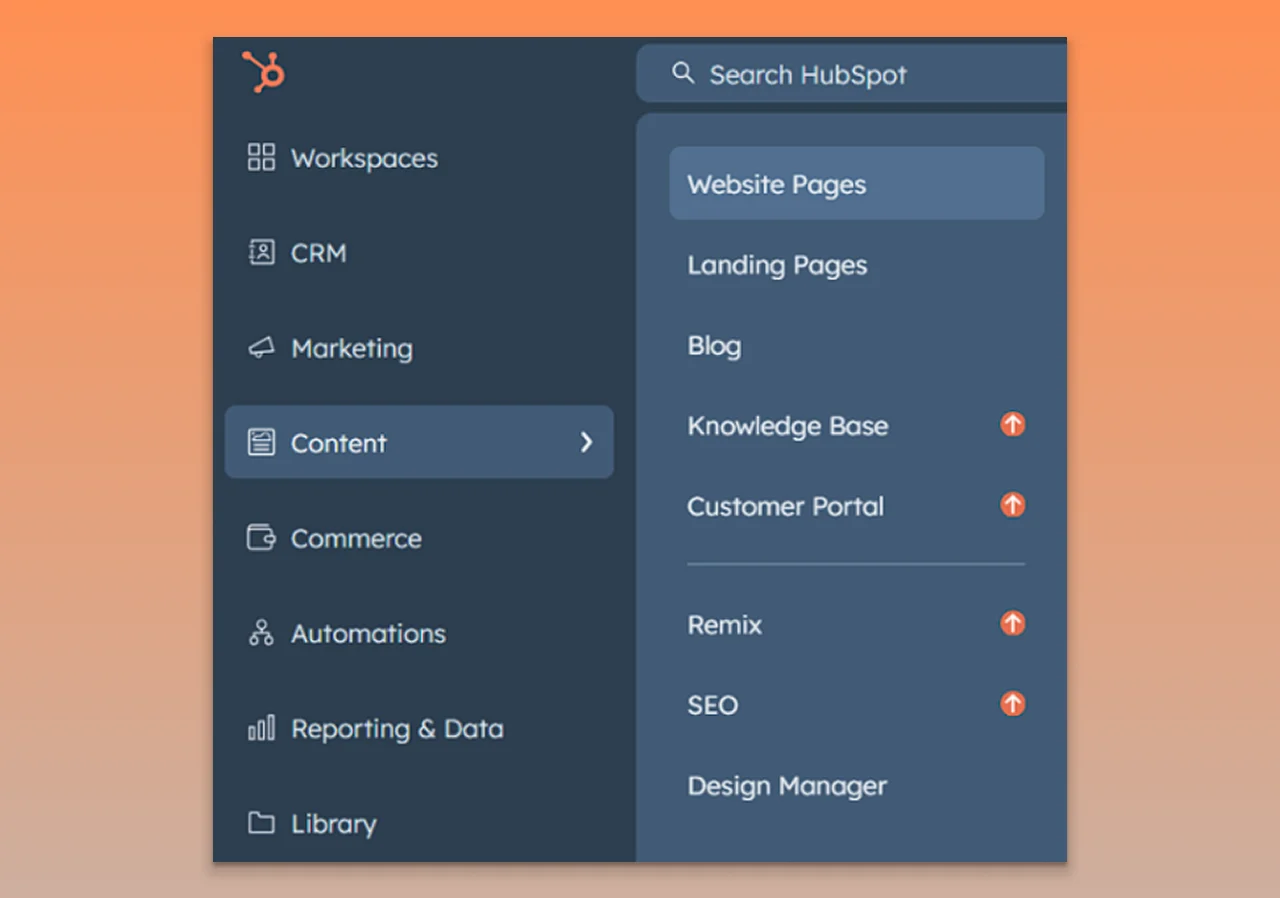
- The list of All Website Pages will appear.
- Click on the Actions button on the top-right
- Select Export all pages & blog posts (HTML)
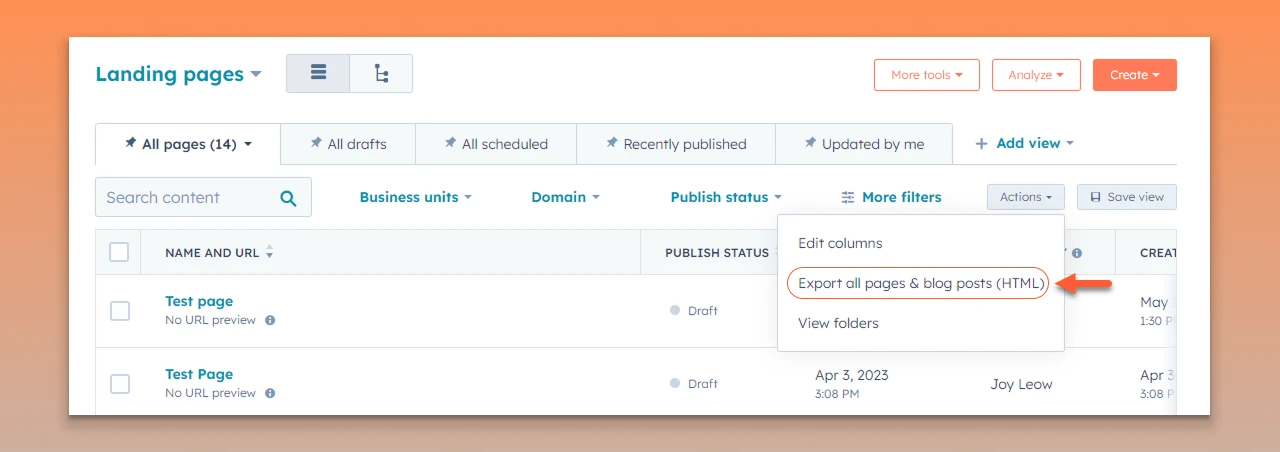
- HubSpot sends you the ZIP file via Email once the Export is completed.
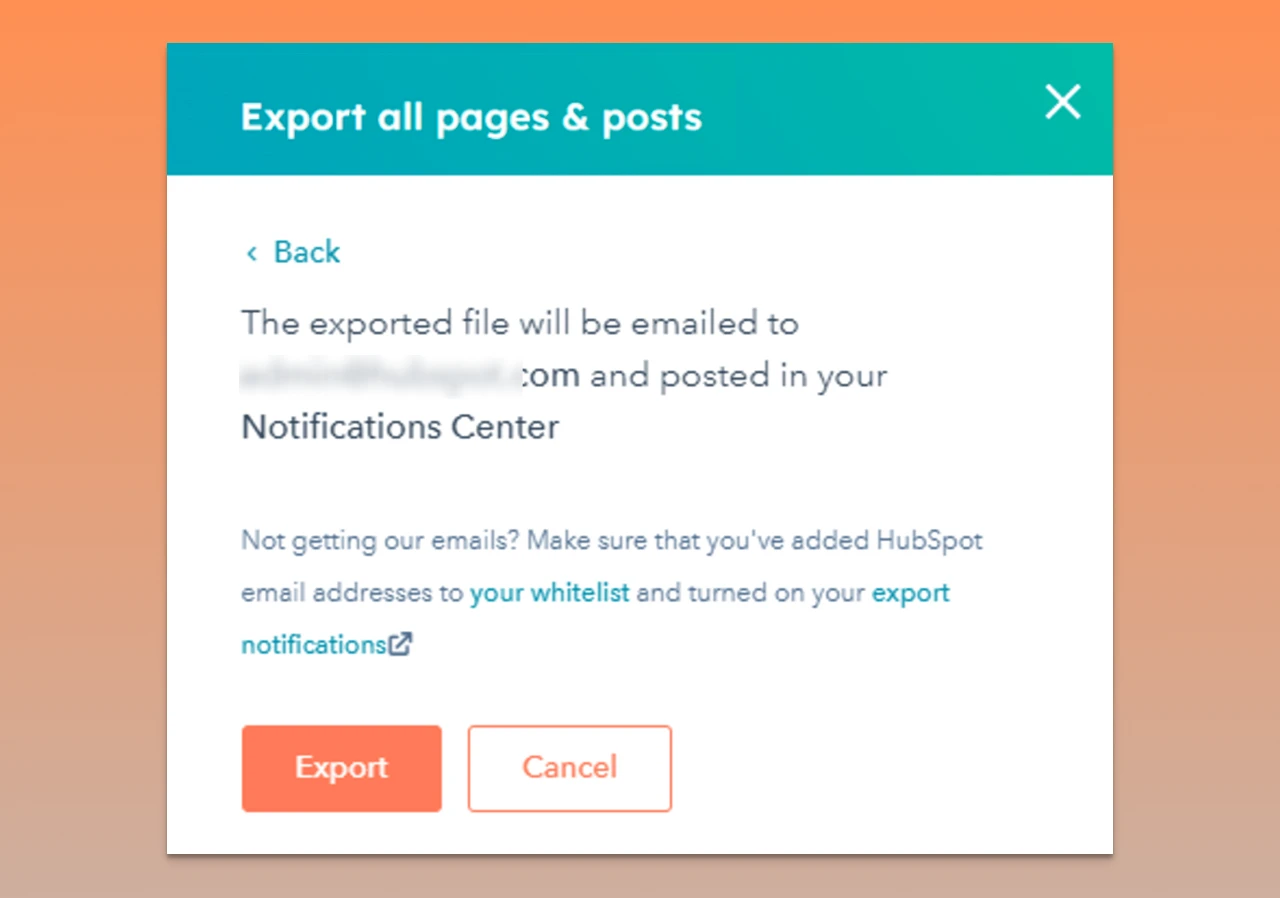
- Download the file and extract its content.
- Navigate to: \unzipped_folder\com\hubspotpagebuilder\your_domain
Something like the image below will appear on your screen:
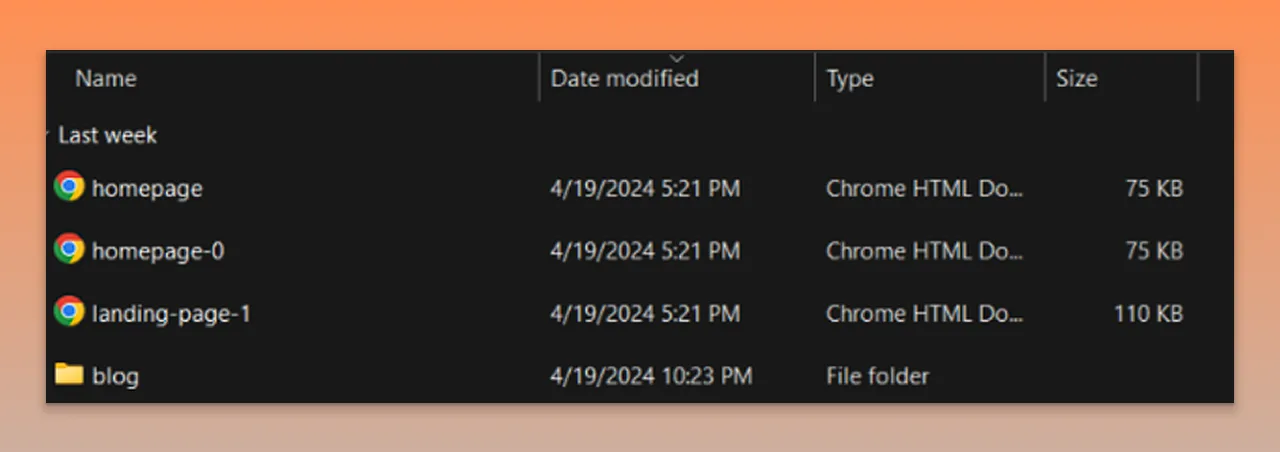
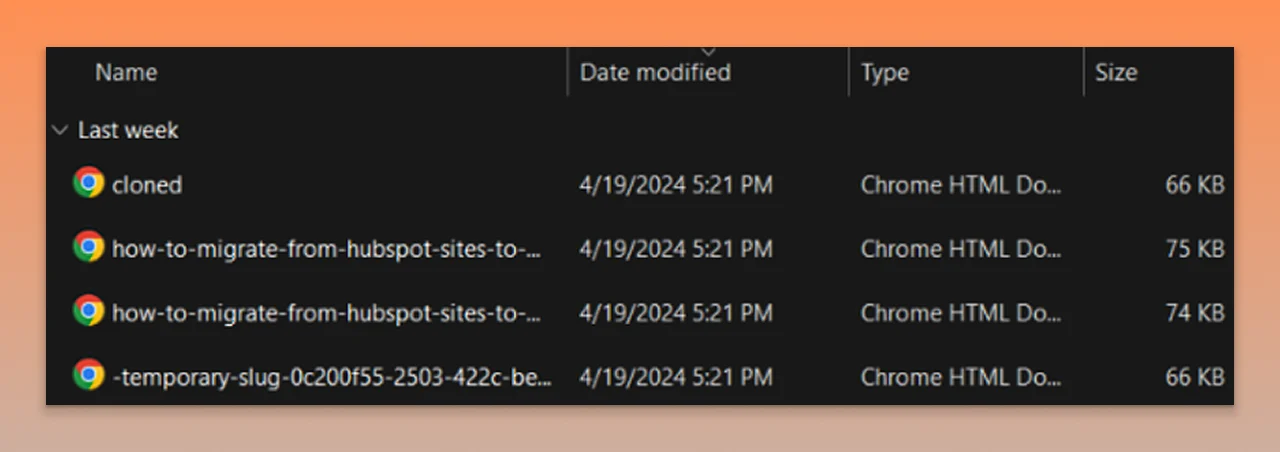
Once you open these files in your browser, you will have a similar layout, design, texts, images, and visual appearance to your HubSpot website.
This way, you get the HTML source code for each of the website’s landing pages and blogs so you can edit the code to adjust it accordingly.
Step 5. Migrate HubSpot CRM
If your current HubSpot CRM is adequate and you want to migrate it to the new website, that can be done at this stage.
Here are two ways you can keep your HubSpot features while transitioning your website to WordPress:
Option 1: Migrate Your Website While Keeping HubSpot CRM Active
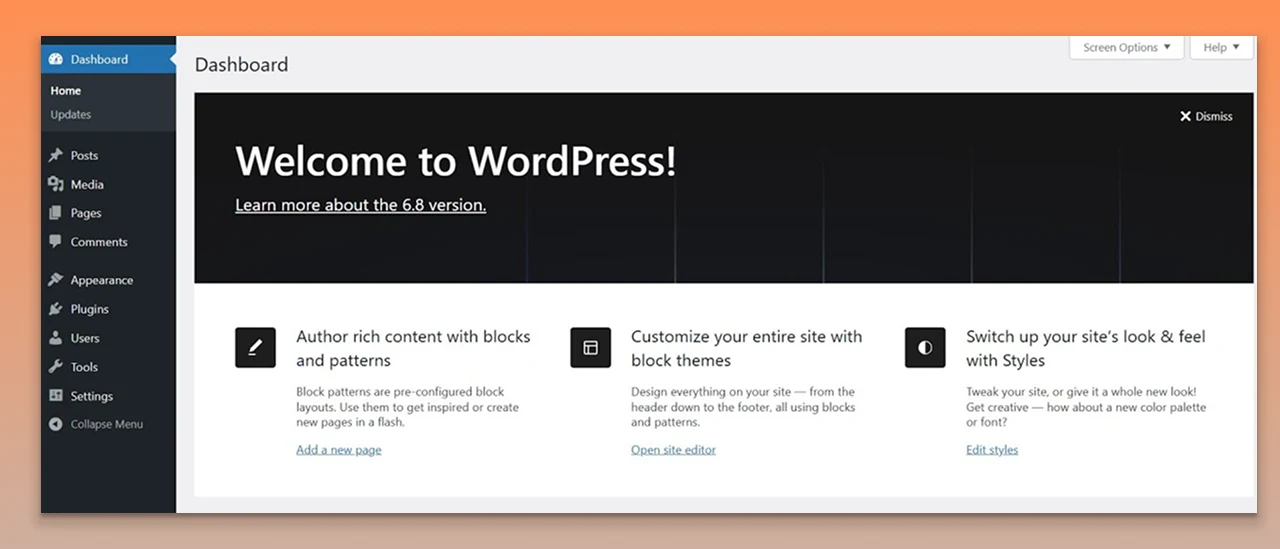
If you want to host your site on WordPress while using HubSpot’s CRM, marketing automation, or email tools, you can transfer your site’s content and features without interrupting your current HubSpot CRM setup.
Option 2: Integrate with the HubSpot WordPress Plugin
The official HubSpot for WordPress plugin creates a smooth connection between your site and your HubSpot account.
Here’s what it offers:
- Easy Integration: Quickly link your WordPress site with HubSpot.
- Built-in Tracking Code: Automatically includes HubSpot’s tracking code on every page for precise analytics.
- Direct Tool Access: Access essential HubSpot tools right from your WordPress dashboard for a streamlined workflow.
Step 6. User Data Migration
This is the step that requires the most care and precision. User data is highly confidential, and its misuse or misplacement can lead to legal actions. You should be aware of the following regulations:
User Consent
Always ensure to get clear and explicit permission from users before sharing any personal information. This not only promotes transparency but also helps build trust and protects you from any potential disputes or claims down the line.
Data Minimization
Only transfer the essential data you need for your new setup. Steer clear of moving unnecessary or outdated information, as this minimizes your risk in case of a breach and keeps your system running smoothly.
Secure Transfer
Implement strong encryption protocols and secure transfer methods, like SFTP or HTTPS, to safeguard data from being intercepted or accessed without authorization during the migration process.
Compliance
Make sure your migration process aligns with relevant privacy regulations, such as GDPR for users in the EU or CCPA for those in California. This not only helps you avoid hefty fines but also reinforces your dedication to protecting user privacy.
Step 7. Check for Errors
Now that most of your content and data are migrated from HubSpot to WordPress, it is time to double-check everything. Make sure everything is in place and all your content has been accurately migrated, not missing anything.
Post-Migration Checklist
Wrapping up your WordPress migration is just the beginning; what you do next is crucial for ensuring your visitors have a smooth experience instead of running into frustrating hiccups.
Conducting a detailed post-migration audit is key to spotting any overlooked issues before they start affecting your site's performance, conversions, or search rankings.
Check Mobile Responsiveness
A website that looks perfect on a desktop can easily fall apart on smaller screens. Make sure to test your site on various devices and screen sizes to confirm that elements like menus, images, and text stay properly aligned.
Tools like Google’s Mobile-Friendly Test can quickly highlight problems like oversized buttons or text that’s too tiny to read.
Test All Forms and CTA Buttons
During migration, forms can often be rebuilt or reconnected, which might lead to broken submissions or missing integrations. Be sure to submit test entries for contact forms, newsletter signups, and lead capture pop-ups.
Also, click through all your call-to-action (CTA) buttons to ensure they direct users to the right pages or trigger the intended actions.
Confirm Redirects Are Working
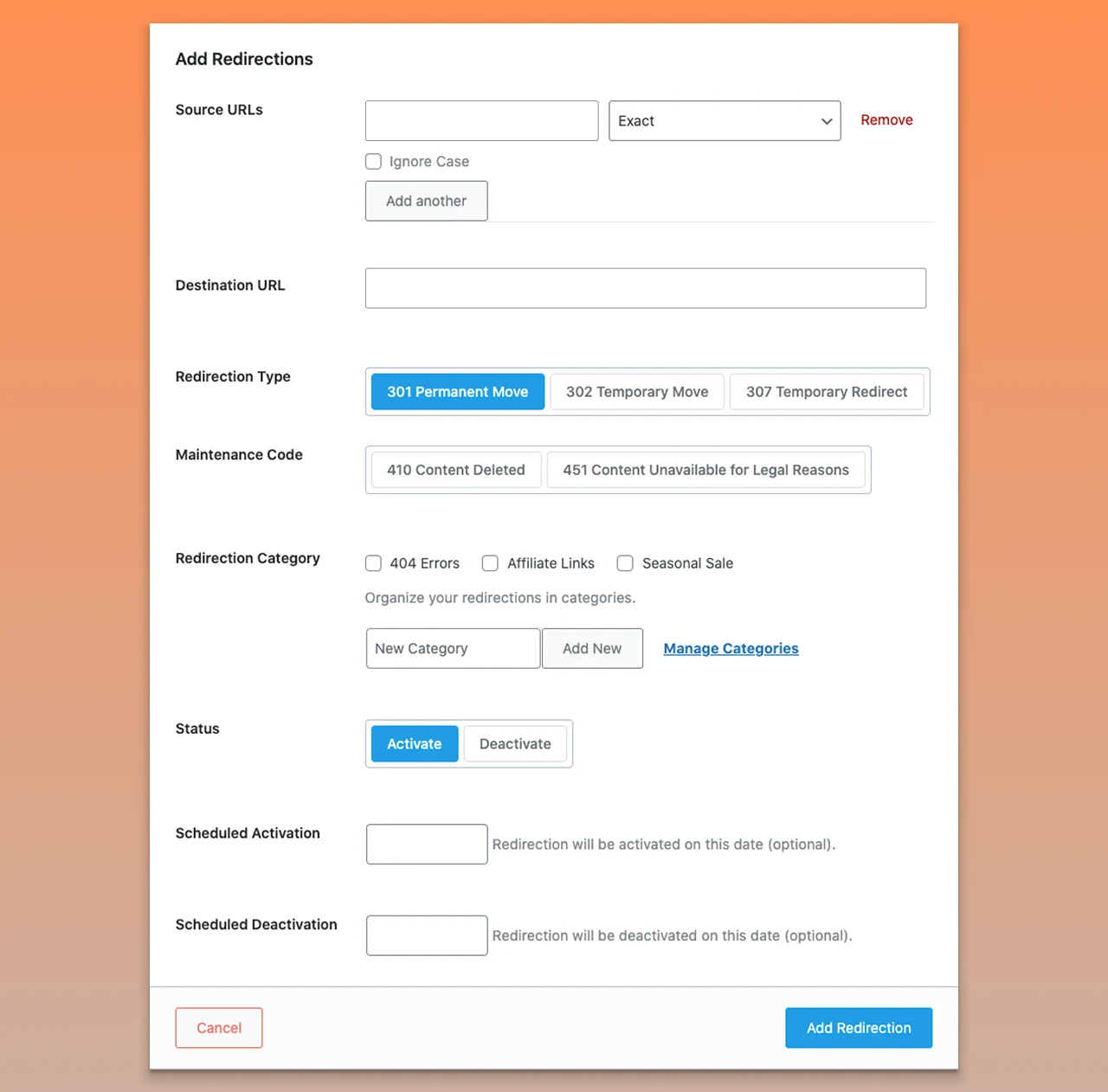
Incorrect redirects can hurt your traffic and SEO rankings. Use a crawling tool to verify that all old URLs are correctly pointing to their new locations, especially for high-value pages. Pay special attention to 301 redirects, as these help maintain your SEO equity.
A broken link can cause ‘Error 404’, and the user sees the ‘website not found’ message. You can set up a redirect using the ‘Rank Math’ plugin for built-in redirection management.
- Open the WordPress dashboard
- Go to Rank Math > Redirections
- Add redirects from the old HubSpot URL to the new WordPress URL
Test Site Speed
Changes made after migration can affect your site's performance. Utilize tools like PageSpeed Insights or GTMetrix to check load times and find areas for optimization, such as image compression, caching, or code minification. A slow site can negatively impact both user experience and search engine rankings.
Validate Schema Markup
Schema markup is essential for helping search engines understand your site’s content. Run your site through Google’s Rich Results Test to ensure that your structured data is intact and error-free. Missing or incorrect schema can diminish your visibility in search features like rich snippets.
Reconnect Analytics and CRM Tools
Lastly, all your tracking codes, analytics dashboards, and CRM integrations should be reconnected and working properly.
Common Challenges and How to Solve Them
1. Challenge: Low traffic and engagement
Solution: Tracking the success with analytics
- Integrate Google Analytics and other similar tools to analyze your website performance.
- A properly migrated website shows good numbers, but tracking the performance is crucial to find gaps, if any.
2. Challenge: Data loss and storage issues
Solution: Maintain security measures
- WordPress offers timely and automatic updates. Make sure to check this with your service provider.
- While the HubSpot website is being migrated to WordPress, get all the data safely migrated to the new site.
3. Challenge: Lapses and errors in migration
Solution: Complete Testing of Migrated Content
1. Functionality and Display
- Go through all the migrated content, including pages, blog posts, menus, and forms.
- Make sure to test each element to confirm it works smoothly without any hiccups.
- Check for consistent formatting across different sections to maintain a polished look.
2. Images and Links
- Ensure that all images load quickly and are at the right resolution.
- Test every internal and external link to make sure they lead where they’re supposed to.
- Address any broken images or links right away to avoid frustrating users and losing SEO value.
3. Responsive Design Check: Since most users are browsing on mobile devices, it’s crucial that your site looks great on all screen sizes.
How to Test Responsiveness:
- Browser Developer Tools: Utilize the built-in tools in Chrome, Firefox, or Edge to mimic various devices and screen sizes.
- Mobile Emulators: Use emulators to see how your site looks and functions on different smartphones and tablets.
Tools and Plugins That Help in Migration
Migrating HubSpot to WordPress is a complicated task. Using various plugins and tools can make the process more enhanced and effective. However, experts might not use plugins because they prefer manual migration over automated plugins.
For that, multiple tools are available to ease the manual migration task. We have created a list of effective plugins and other tools to make the HubSpot to WordPress migration easy:
FG HubSpot to WordPress
This specialized migration plugin is crafted just for moving content from HubSpot to WordPress. It makes importing pages, posts, and media files a breeze while keeping your content structure intact. It’s particularly handy for small to medium-sized sites that want a straightforward migration solution.
WP All Import
When it comes to large migrations with hundreds of pages or blog posts, WP All Import is a game-changer. It lets you import XML or CSV data into WordPress with detailed mapping, giving you control over how your content, metadata, and custom fields are organized.
Redirection
To keep your SEO intact during migration, it’s crucial to manage URL changes properly. The Redirection plugin is here to help you handle 301 redirects, monitor 404 errors, and make sure that both visitors and search engines find their way to the right pages after the transition.
Rank Math / Yoast SEO
These two plugins are fantastic SEO tools that assist you in preserving and optimizing your metadata throughout the migration process. They make it easy to transfer title tags, meta descriptions, and focus keywords, helping to keep your search rankings steady.
WPForms / Gravity Forms
If your HubSpot site relies on forms for lead generation, these WordPress form builders will help you recreate them effortlessly. They also integrate smoothly with CRMs and email marketing platforms, ensuring you can keep capturing leads even after the migration.
Elementor / Divi
Maintaining design consistency can be tricky when shifting from HubSpot’s templates to WordPress. Elementor and Divi are popular page builders that allow you to replicate layouts, customize elements, and ensure your new site reflects your brand identity perfectly.
Broken Link Checker
After migration, it’s easy for broken links to go unnoticed, which can hurt both SEO and user experience. This plugin scans your site for any broken internal and external links, giving you the chance to fix them before they cause any issues.
Additional Tip: Developers opting for manual migration can still use the above-mentioned tools for various purposes. For example, the Redirection tool allows quick and error-free SEO optimization and maintains SEO integrity throughout the migration process.
When to Hire a Professional Migration Team
HubSpot to WordPress can be migrated with plugins and some technical knowledge, which means you can do that. But the process requires precision and careful planning that can only be done with the assistance of a professional migration team. You should consider contacting an expert service provider like PSDtoHTMLNinja when:
Professional Training
Your website is going to be visible to millions of online users. It should be perfect, user-friendly, and load at the optimum speed. A migration expert has years of experience in handling complex migrations. They manually migrate all the content, data, forms, and even website themes to your new WordPress website without missing anything. So, hire a professional migration team if you are seeking a perfectly migrated website.
SEO Preservation
Suppose your current website has a very high search engine ranking. Now imagine it vanishes because SEO preservation was not done during migration. This will be a huge loss, both in terms of money and time investment. But when you trust a migration professional, all the SEO data, strategy, and rankings are maintained and improved.
Reduced Migration Downtime
An experienced developer ensures minimum downtime while the website is migrated to a new theme. This keeps your site running at optimum speed and it stays visible to users throughout the process. They achieve this by deploying changes during low traffic hours.
Must Read: Top WordPress Website Migration Agencies in 2026
Final Thoughts
WordPress has proven its mettle in the website development industry. Migrating HubSpot to WordPress is done with the assistance of an expert and certified website development company. The option of shifting to a more advanced and open-source platform like WordPress allows website owners to enjoy full control over their site.
WordPress also excels in terms of community support and theme customization, where you can select a theme of your choice. Developers access community forums to seek help when they feel stuck.
If you are looking for a reliable website migration company to help you migrate HubSpot to WordPress, then PSDtoHTMLNinja is your go-to partner. We have over 13 years of experience, and our migration experts create a solid plan for your project. They use cutting-edge tools, meticulous strategies, and testing procedures to ensure 100% accurate migration. We maintain SEO rankings and optimize website performance for the best results.
FAQs
1. Will website migration affect its SEO rankings?
No, our team follows a strategic plan that not only retains your current SEO rankings but improves them.
2. What happens to the user survey forms when my website is migrated?
We create their backup and migrate them to the new site along with the rest of the content.
3. Do you migrate all blog posts and articles to the WordPress site?
Yes, every component of your existing website is migrated to the new one. Our team conducts thorough testing to avoid data loss or incomplete content migration.
4. Can I use my HubSpot CRM after migration?
Yes, you can access your HubSpot CRM with an API or a HubSpot for WordPress CRM.
5. How do you avoid downtime during the migration process?
Our team completes the migration during low traffic hours so your website’s online engagement does not get disturbed.

Jayveer Ker serves as the Business Development Manager at PSDtoHTMLNinja.com, specializing in assisting organizations with overcoming web development hurdles. His insightful and informative posts deliver practical solutions and valuable insights.
Couldn't find what you were looking for?
Let us know how we can help!

Related Blog Posts