Table of Content
An ecommerce business requires a solid online store to keep the customers coming! But at one point, you might want to shift to an online store that grows with your business.
WordPress powers most online businesses, but the platform has certain limitations that can hinder your business growth:
- Not highly scalable
- Limited performance with a slow loading speed
- Plugin-driven nature
This is where WordPress to Shopify migration makes sense.
The transition process can be challenging, as it requires specialized technical knowledge and expertise. But we are here to help!
Our experts created this simple and comprehensive guide to help you with a smooth migration from WordPress to Shopify.
How to Migrate from WordPress to Shopify?
The overall process is lengthy and is divided into various stages. Let us kickstart with identifying the data that needs to be migrated.
This can include the customer information, order history, product details, etc. Now there are multiple methods of shifting to Shopify from your existing WordPress website.
Once you have finalized the method that best matches your requirements, you will need a clear roadmap so the migration is flawless.
Small online stores can be easily migrated with a copy-and-paste method because there is not much data to be transferred. But a well-established process is necessary for large-scale websites with a larger volume of data.
You can either use a direct plugin, which is an automated tool. Or you can take expert help through a dedicated Shopify Migration Service, where specialists manually handle the migration using WooCommerce extensions to avoid data loss and compatibility issues.
Let us move to the next section and understand how you can migrate from WordPress to Shopify using a WooCommerce extension. This method will help you transfer the following data:
- Product information
- Customer details
- Order history and related information

Related blog: Top WordPress Website Migration Agencies: Trusted Experts to Hire
Step-by-Step Transition of Product Details from WordPress to Shopify
Step 1: Gather the Product Information
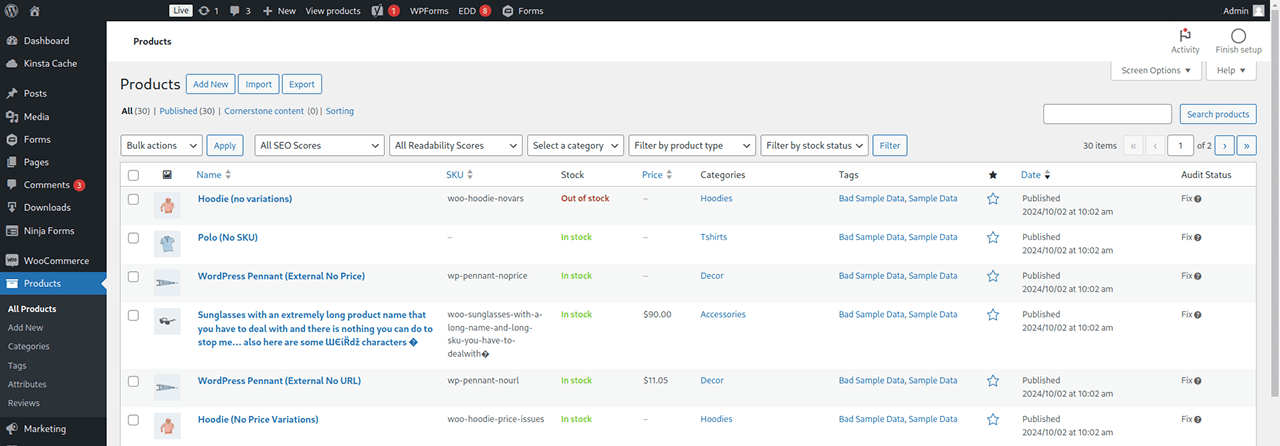
We will use the WooCommerce extension to gather the product information:
- Open the WooCommerce dashboard
- Click on ‘Product’ from the left panel > select ‘All Products’
- Click on the ‘Export’ button visible at the top of the product list
You will see a new window, providing the options for product details to be exported. Select all the required columns, products, and categories, and click on Export. The system will generate a CSV file for your selected details.
Step 2: Edit the CSV File
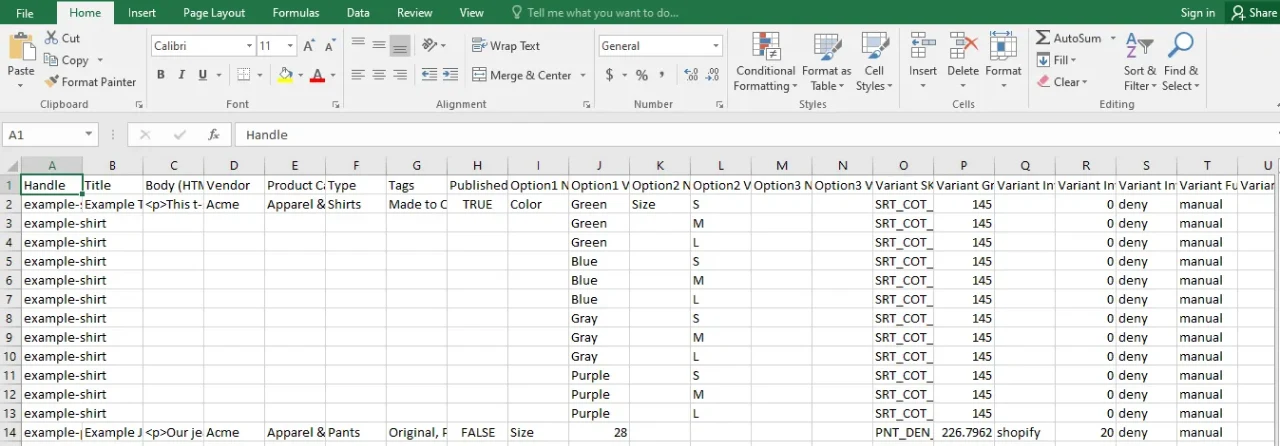
Since Shopify follows a different format for organizing product information, the downloaded CSV file would need some edits.
1. Open the CSV file downloaded using the WooCommerce extension.
2. Rename the column headers in the following format:
- Change Name to Title
- Change Description to Body (HTML)
- Change Attribute 1 name to Option1 Name
- Change Attribute 1 value(s) to Option1 Value
- Change Attribute 2 name to Option2 Name
- Change Attribute 2 value(s) to Option2 Value
- Change SKU to Variant SKU
- Change Weight (lbs) to Variant Grams
- Change Stock to Variant Inventory Qty
- Change Regular price to Variant Price
- Change Images to Image Src
3. Save the edited file.
Step 3: Import these details to Shopify
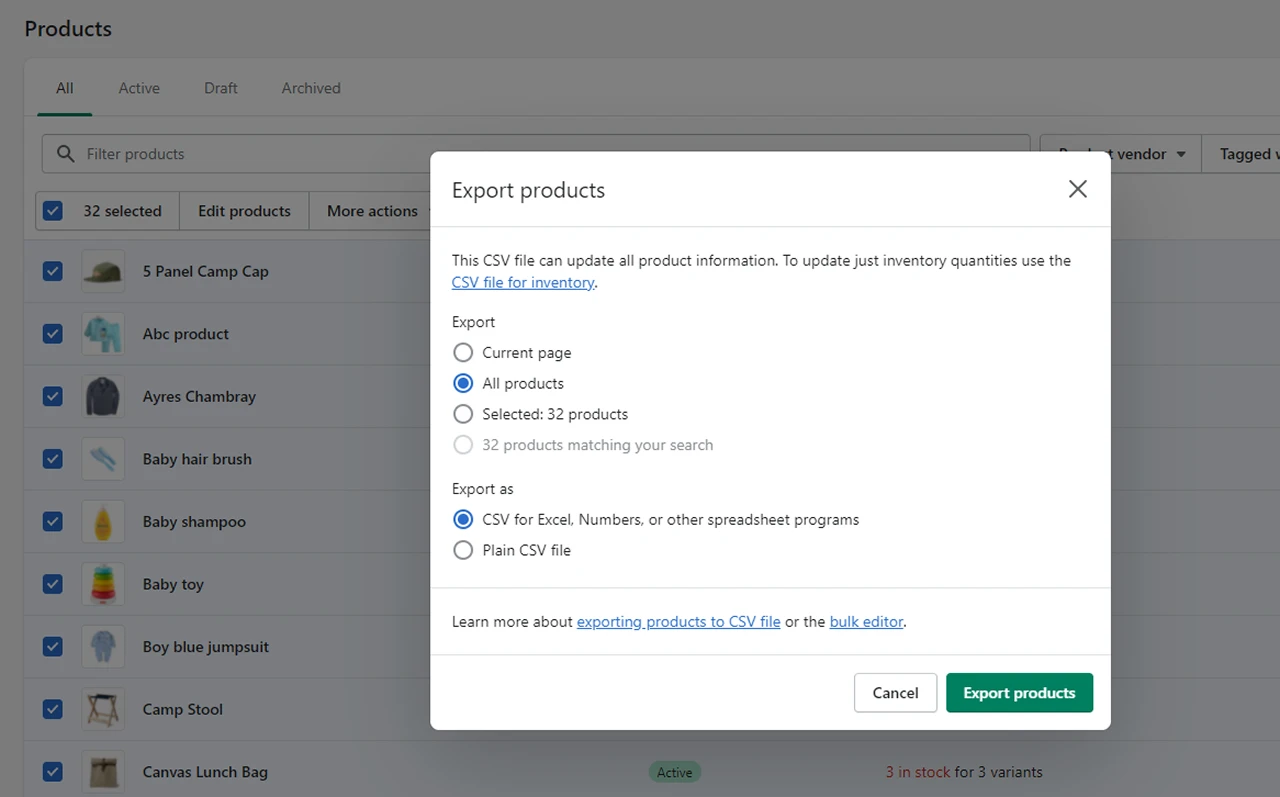
Since all the product details are properly named and formatted, you can start importing this data to Shopify by following the steps below:
- Log in to your Shopify account
- Open the Admin panel
- Click on Products from the left menu bar
- Click on the Import button located at the top of the products list
- A new window will open, requesting the CSV file. Select the modified CSV file and click on Upload File
Step 4: Check all the details
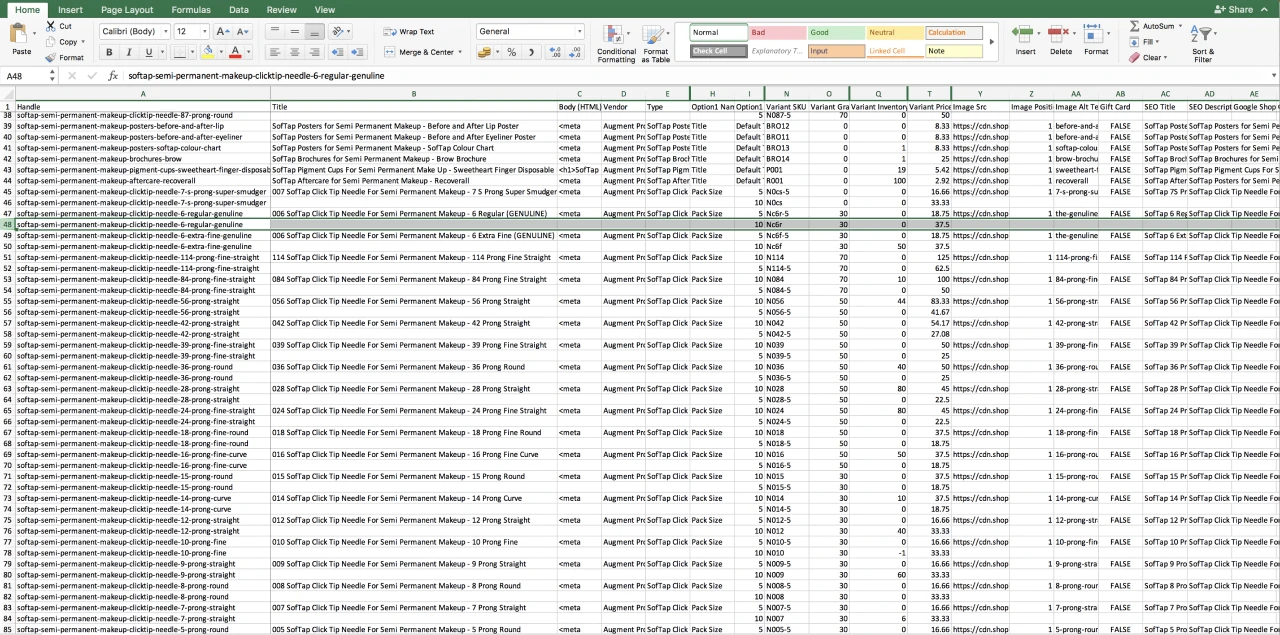
Once the Import is processed, you will see all the details visible on the screen. You can re-check all the information manually to avoid errors.
Check all the titles, product details, variants, prices, description, etc., before saving the changes. Match all this information with the original data you downloaded from your WordPress website.
Make changes wherever necessary, and you can move to the next step.
Read this: What is the Cost to Build a Shopify Store?
Migrating Customer Data from WordPress to Shopify

Transferring product details to your new Shopify store is not enough. You would not want to lose the existing and valuable customers. Here are the steps to follow that will allow you to migrate the customer information.
Step 1: Export Customer Data from WordPress
Since WordPress does not have an in-built data export option, you need an external plugin to help with the task. Download the ‘Import Export Suite for WooCommerce’ by logging into your WordPress dashboard. Follow the steps below to download all the customer-related data:
- Once the plugin is activated, a new menu item will appear on the dashboard.
- From the plugin menu, select the ‘Export’ option for customer data.
- A CSV file will be generated, which needs to be edited to match the format acceptable in Shopify.
- Open the CSV file on Google Sheets or Microsoft Excel.
- Edit the column headers similar to what we did in the ‘Product Information’ section.
Follow the given format:- Change First_name to First Name
- Change last_name to Last Name
- Change user_email to First Email
- Change billing_company to Default Address Company
- Change billing_address_1 to Default Address 1
- Change billing_address_2 to Default Address 2
- Change billing_city to Default Address City
- Change billing_state to Default Address Province Code
- Change billing_country to Default Address Country Code
- Change billing_postcode to Default Address Zip
- Change billing_phone to Phone
- Save the edited file on your system
Step 2: Import Customer Data to Shopify
- Log in to your Shopify admin page
- Click on the Customers option from the left menu bar
- Click on Import Customers
- A new window will open > Upload a file > Select the CSV File > Upload File
All the customer data will be imported to Shopify from your existing WordPress website.
Step 3: Review and Edit
It is always wise to double-check the details before saving them. From your Shopify admin page, re-check the details and make changes if necessary.
Migrating Order Details from WordPress to Shopify
Moving your order history and details is as crucial as transferring the production and customer information. Here is how to do it:
Step 1: Export the Data from WordPress
Like we did in the previous section, open the ‘Import Export Suite for WooCommerce’ plugin and select the Export option to begin the process. This will generate a CSV file containing all the orders made through your WordPress store.
Step 2: Import Orders to Shopify
You would need an additional extension for this task since Shopify does not allow a direct import for Order history like it does for customer details.
- Open the Shopify App store and install an extension developed for this purpose.
- Follow the instructions to import and map your data to match Shopify’s requirements.
Post-migration Checklist
A successful migration does not end with importing all the data to Shopify; you should tick all the boxes in the post-migration checklist to make it a full-proof success.
At PSDtoHTMLNinja, we ensure your transferred data remains clean and well-structured in your Shopify admin panel. Our experts can help you execute a seamless WordPress to Shopify migration with complete accuracy.
To make things easier, we have prepared a thorough list of all the factors to keep in mind once migration is completed:
Data Verification
Make sure that all the data is transferred to your Shopify store. Product details, user data, and order information should be in a format acceptable to Shopify.
All the details should be properly organized so your team can easily locate everything whenever a need arises. Apart from this information, carefully skim through the website content.
The images, formatting, font, and all the related content should be clearly visible on your new Shopify website.
SEO and Redirects
When you move your website from one e-commerce platform to another, a lot of things change. This also includes your website’s search engine ranking, which is heavily affected by broken links.
To avoid this during the migration process, 301 Redirects should be implemented for all the old WordPress links so they match the new Shopify URL.
All the other internal links should also be updated in the format that runs on Shopify to keep your new website running at full speed.
Decommission the Old CMS
Why keep the old WordPress CMS running when your new Shopify-powered website is actively functional? Once all the data is successfully migrated, make sure to decommission the old CMS.
Performance Testing and Optimization
This is one of the crucial tasks to perform once the migration work is done. Test your new Shopify website to assess its overall performance. Check the following performance metrics:
- Cross-device compatibility to ensure the website loads perfectly on different screens.
- Website loading speed so the SEO ranking is not affected.
CDN Setup
When it comes to caching and setting up a CDN, make the most of Shopify’s global CDN to speed up content delivery. It is essential to configure caching correctly for returning visitors.
This not only enhances load times but also eases the strain on your server, leading to a smoother and more consistent browsing experience for users around the globe.
Why Prefer Shopify Over WordPress?
What makes business entrepreneurs turn to Shopify? WordPress and Shopify have their specific pros and cons. The actual selection depends on your business size, usage, and your requirements.
Shopify offers a better atmosphere for ecommerce businesses and large-scale enterprises. Its built-in ecommerce features make it an advanced choice that benefits you in the long run.
Here is a detailed comparison of both platforms to help you make a sound choice:
Centralized Environment
Shopify is designed as a dedicated ecommerce platform, which means it offers more advanced features related to the ecommerce industry when compared to WordPress, which is simply a content management system.
Shopify does not require extensions or plugins like WordPress, where you have to use a plugin to conduct various tasks.
User-Friendly Setup
Shopify is very easy to use, which means your team easily adapts to its functionality and usage. There are no complexities involved throughout the product management cycle, making it an effortless experience.
WordPress, on the other hand, needs ongoing maintenance and updates, often requiring you to manually do everything.
Fast Loading Speed
Shopify uses a global CDN that speeds up the performance of websites created on this platform. A Shopify site loads faster compared to a WordPress website that often runs on heavy plugins.
Customer Support
You can expect 24/7 chat, email, and phone support from Shopify since it presents itself as a dedicated ecommerce platform. WordPress, however, is open-sourced and lacks a proper centralized support system.
Is this table have any title or not?
Must Read: WooCommerce vs Shopify vs Magento: Which Is Best for Your Online Store?
Shopify vs WordPress: Key Feature Comparison

Key Takeaways
Migrating WordPress to Shopify is a key step towards expanding your e-commerce business. The process is fairly simple, but it brings the best results when done under the supervision of a professional migration agency.
The process requires you to create multiple backups, manually export and import the data, and properly initiate other critical tasks. For that, you need assistance from a migration expert to ensure everything goes smoothly.
At PSDtoHTMLNinja, we specialize in Shopify migration services, ensuring a seamless transfer with zero data loss. Our experienced team manages every migration project with precision, guaranteeing complete data integrity throughout the process.
We’re here to assist you every step of the way. Get in touch with us today. We’ll be happy to schedule a quick consultation to discuss your project requirements.
FAQs
Why is Shopify better than WordPress?
Shopify and WordPress both come with their own sets of benefits. But Shopify leads when it comes to developing a user-friendly and feature-rich ecommerce platform with built-in tools.
It offers a highly suitable environment that is easy to set up and runs smoothly, especially for large and mid-sized enterprises.
How much do you charge for a WordPress to Shopify migration service?
The migration cost depends on the size of your current WordPress website, customization requirements, and delivery timeline. You can connect with our experts for a price estimate.
Will my SEO rankings be retained?
Yes. Our dedicated migration team ensures your search engine rankings are preserved through URL redirects, meta tag migration, and proper site structure setup.

Jayveer Ker serves as the Business Development Manager at PSDtoHTMLNinja.com, specializing in assisting organizations with overcoming web development hurdles. His insightful and informative posts deliver practical solutions and valuable insights.
Couldn't find what you were looking for?
Let us know how we can help!

Related Blog Posts