Table of Content
Most websites today run on a CMS (content management system). It’s what allows you to publish blogs, manage pages, and update content without touching code.
But over time, the CMS you started with may not keep up. You might notice slower performance, limited flexibility, or increasing costs as your website grows.
At that point, sticking with the same system can start affecting both your workflow and your website’s performance.
This is where CMS migration comes in.
In this guide, we’ll walk you through a practical CMS migration checklist, explain the complete process step by step, and cover important CMS migration SEO considerations, including how to handle SEO migration for a custom CMS without losing your rankings.
What is CMS Migration?
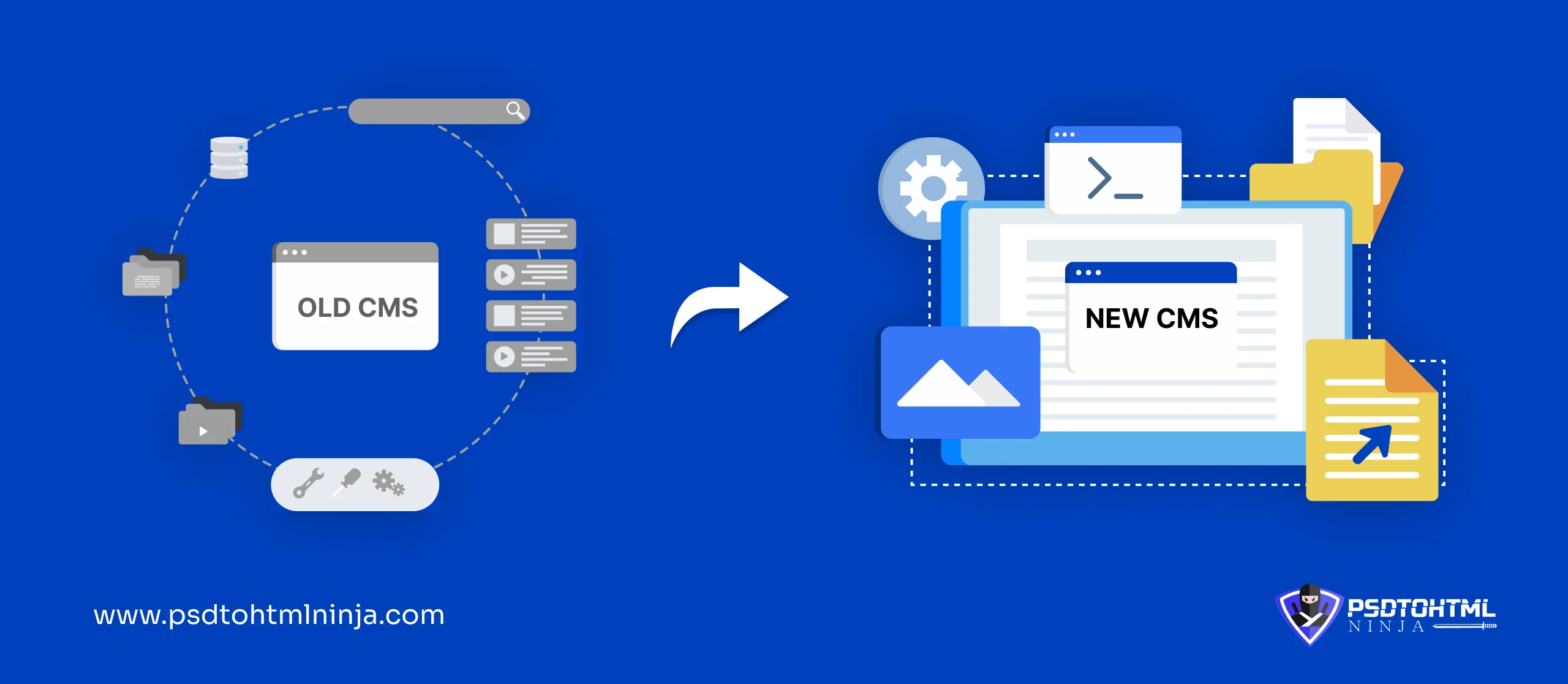
The process of transferring everything from your CMS to a new one is called CMS migration. The following assets are transferred during migration:
- Website content
- Blogs, articles, comments, forms, etc.
- Images, graphics, icons.
- Metadata and site structure
- Cart and customer details for e-commerce stores
Examples of CMS Migration
Different CMS platforms offer various advantages, and you can choose based on your business and website needs. Here is a list of the popular CMS migration types:
- Drupal To WordPress
- WordPress to Shopify
- HubSpot to WordPress
- Custom CMS to Shopify
- Magento to WordPress
- Custom CMS to Headless CMS
Why Businesses Migrate To a New CMS?
Switching to a more capable CMS becomes necessary when your current system starts limiting performance and growth.
Moving to a new and updated CMS elevates your website loading speed, boosts online traffic, and makes content management an easy task.
There are lots of reasons why businesses in 2026 migrate to a new CMS:
- Outdated technology: An old and outdated version of a CMS depletes the website's performance and is often prone to cyberattacks. With such a CMS, data security and performance are both affected.
- Slow website performance: The old CMS might have backend issues. The version may also have larger image sizes, which ultimately slows down the website loading speed.
- Limited SEO capabilities: SEO rules change frequently, and using an outdated CMS is a huge mistake that businesses make. Switching to a new and better CMS means more online traffic if the right SEO strategies are followed.
- Poor scalability: Some CMS versions cannot be scaled because of old architecture, plugin dependency, and other limitations. They lead to problems in attaining online traffic and handling large databases.
- Difficulty in content management: Some CMS make it difficult to organize, update, and manage large amounts of data, content, and user database. This slows down your work efficiency and the website’s functionality.
Benefits of Modern CMS Platforms
- Improved performance: A faster website delivers improved user experience, leading to higher leads and online traffic. Choosing an updated CMS with a lightweight architecture and better caching features proves beneficial for your online strategy.
- Better SEO control: The majority of the modern CMS offer built-in SEO tools to optimize metadata, image text, descriptions, and URLs. Basically, they handle your website’s SEO for you. Hence, switching to an advanced SEO ups your SEO game.
- Easier content management: Modern CMS platforms come equipped with user-friendly dashboards and drag-and-drop editors, helping to create, edit, and organize content without requiring any technical skills.
- Better integrations: Updated CMS platforms work seamlessly with a variety of third-party tools, including CRM systems, analytics platforms, marketing automation tools, payment gateways, and social media channels. This integration helps businesses streamline their operations and improve their digital ecosystem.
CMS Migration Checklist (Step-by-Step Guide)
Even though it may seem straightforward, a CMS migration requires careful planning and attention to detail. A small mistake can lead to data loss or SEO issues. To avoid this, here is a practical CMS migration checklist you can follow to keep your data, design, and SEO intact.
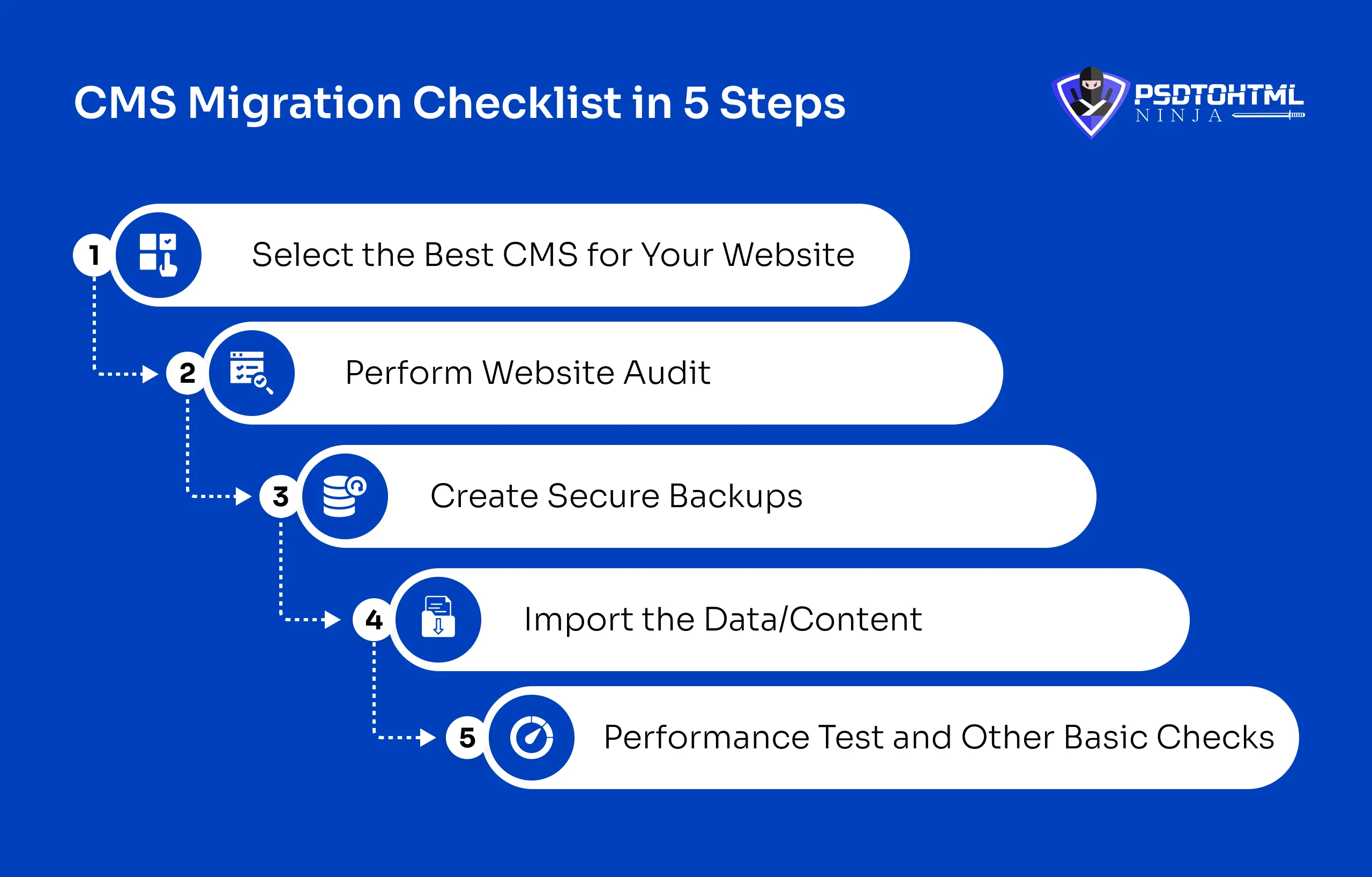
Step 1: Select the Best CMS for Your Website
The migration process starts with you finding the right CMS platform for your website based on its size, requirements, and growth prospects.
Tip: You can always consult CMS Migration Experts to help you make the right choice.
In case you want to make the choice yourself, here is a list of factors to consider:
Scalability Prospects: Choose a platform that grows with your business. For example, an e-commerce store needs a CMS that can handle the large database and customer details as it grows with time. The ability to handle a large amount of traffic is also important.
Usability: Select an easy-to-use CMS that does not require excessive technical knowledge. Your team should be able to navigate through the CMS without worrying about the technical aspects or complicated features.
Customization Spectrum: Do not settle for a static platform that does not meet your customization needs. Your website needs custom features like templates, themes, customized UI/UX design, etc. Keep the scope open for customization with a tailored CMS.
SEO-friendliness: Find a CMS that holds your hand while you sail through the tough SEO journey. Try finding a CMS that offers meta tag customization, custom URLs, and XML sitemaps.
Website Security: Look for more advanced security features that keep your website tightly safe from cyberattacks and data loss. A CMS with automated updates stays in the best shape and safeguards your customer data.
Step 2: Perform Website Audit
Conduct a thorough audit of your website to check which content needs migration, and segregate it from the outdated content that is no longer needed.
This will help you create proper backups of the content, ensuring no data is lost during migration. You will have to manually check all the webpages for content, images, and everything else.
For larger websites, you can use tools like Screaming Frog SEO Spider to crawl your site and generate a complete list of existing pages.
Based on the information you gather, you can merge the duplicate content files and delete the ones that are not required.
Step 3: Create Secure Backups
There is always a risk of data loss with CMS migration. You should be 100% prepared by keeping your data safe through backups.
Here is what you need to backup when you migrate from CMS to another:
- Text and descriptions
- Images, graphics, and videos
- All databases essential to run your website
- Custom codes, stylesheets, and scripts
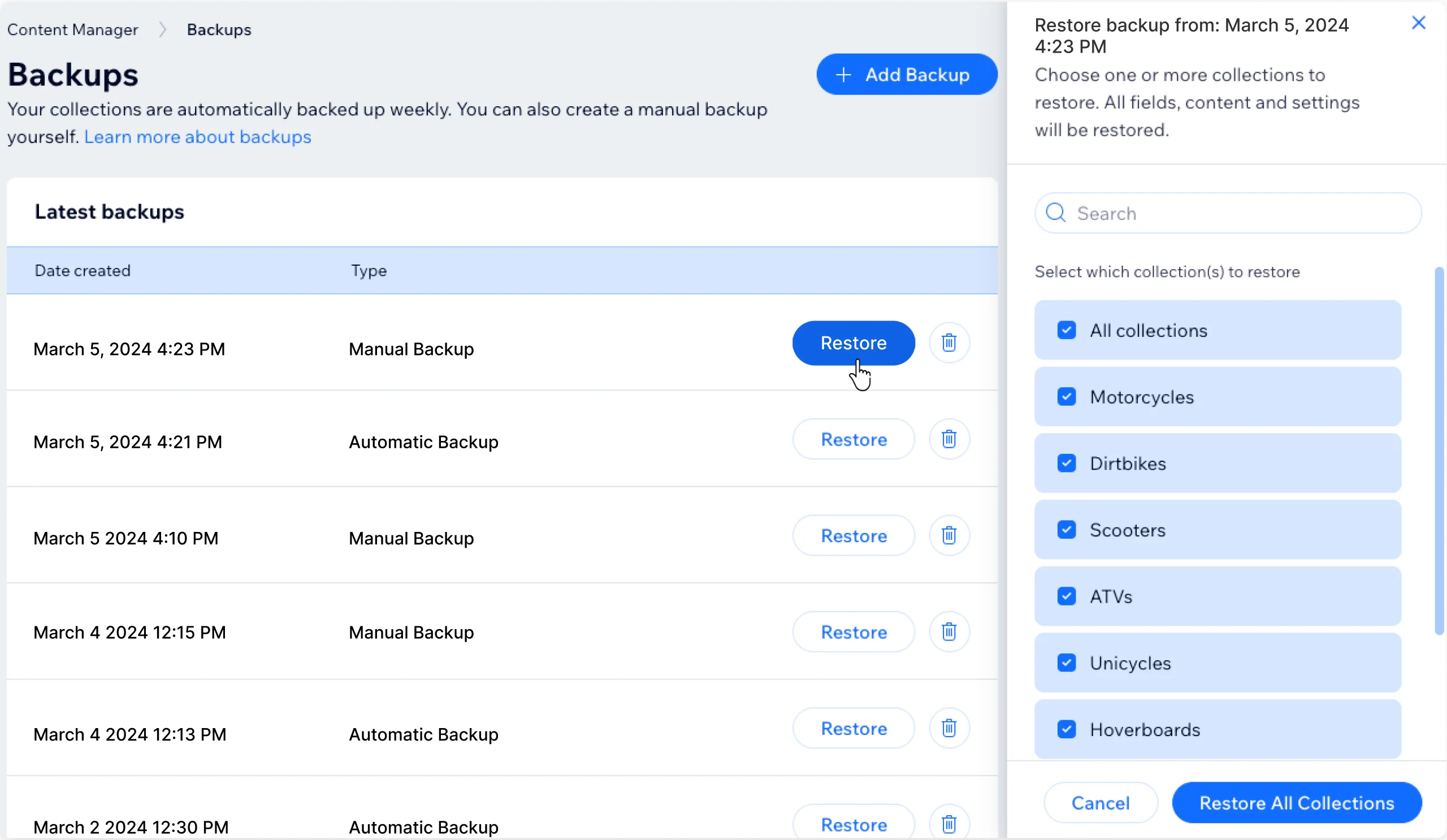
A manual backup is usually done. The process may vary depending on your hosting provider.
For example, the backup interface for Wix looks something like this:
Step 4: Import the Content
Once you've got your CMS platform up and running, the next thing on your to-do list is to bring in your existing website content. This means you will be importing pages, blog posts, images, media files, and all that important data.
Luckily, many CMS platforms come with handy import tools or plugins that make this easy and fast. If you are switching from another CMS, there are migration tools or automated services that can help you move your data smoothly.
Just make sure to keep an eye on the content structure, categories, and tags to ensure everything stays organized. Before you dive into the next phase, take a moment to review the imported content for any formatting hiccups, missing media files, or broken links.
Step 5: Performance Test and Other Basic Checks
Check each element and functionality of your CMS after completing the migration process. It includes the overall website performance that affects the user experience.
We have prepared a complete QA checklist:
- Website loading speed should be checked multiple times
- SEO and other related performance checks are necessary.
- Check the formatting and layout of your website, and fix issues if any.
- Test the website forms, customer data, and other information for accuracy.
- Check the complete checkout process if it’s an e-commerce website
- Ensure that the images and graphics are displayed properly.
Test your website across different browsers to ensure it works smoothly for all users. You can also use tools like BrowserStack to automate cross-browser testing and quickly identify any compatibility issues.
Read this: How Much Does It Cost to Migrate a Website?
CMS Migration SEO: How to Protect Rankings & Traffic
Brands often wonder why CMS migration SEO matters for their online presence. Higher visibility in search results directly impacts your traffic and leads. Your website’s rankings depend on how well your SEO is maintained during the migration.
CMS migration often causes a change in the website. For example, broken links, missing metadata, duplicate content, etc.
Why CMS Migration Can Hurt SEO
- Broken links: Certain URLs of your webpages may not direct users to the correct page, leading to a drop in online traffic.
- Lost metadata: Details like meta descriptions, meta titles, image alt text, etc., can be lost during migration, severely affecting your search engine rankings.
- Missing redirects: Missing redirects tell the search engine that the website address is not found, leading to Error 404.
- Duplicate Content: Duplicate content hurts your search engine rankings as Google crawlers view it as spam.
SEO Elements That Must Be Preserved
- Page titles
- Meta descriptions
- Header tags
- Structured data
- Canonical tags
Redirect Strategy
A well-planned redirect strategy is essential during a CMS migration to preserve existing search rankings and prevent traffic loss. Implementing 301 redirects ensures that users and search engines are automatically directed from old URLs to the corresponding new pages.
This type of redirect signals to search engines that the page has permanently moved and helps transfer most of the existing link equity to the new URL.
Without proper redirects, visitors may encounter 404 errors, negatively affecting user experience and SEO performance.
It is important to create a complete URL mapping list and test all redirects after migration to confirm that every important page correctly points to its new location.
Sitemap and Robots.txt Updates
When you switch to a new CMS, it is crucial to update your XML sitemap and robots.txt file to keep your site properly indexed and crawled by search engines. Your XML sitemap should accurately represent the new structure of your website, including any updated URLs, categories, and pages.
After you have created it, make sure to submit it to search engines using tools like Google Search Console. This helps them find and index your new pages quickly.
Do not forget to check your robots.txt file as well, ensuring that important pages are not inadvertently blocked from being crawled. Getting these files configured correctly is key to helping search engines navigate your site efficiently and keeping it visible in search results.
SEO Migration for Custom CMS
When it comes to SEO migration for a custom CMS, careful planning is key to keeping your search rankings, traffic, and indexed pages intact during the move.
Unlike standard platforms, custom CMS setups often need a bit of manual tweaking for SEO settings and technical details.
Taking a structured approach can help you dodge common SEO pitfalls like broken links, duplicate content, or lost metadata.
Here are some essential steps to follow:
- Audit your current URLs, metadata, and keyword rankings
- Develop a comprehensive URL mapping plan
- Set up proper 301 redirects for any old pages
- Keep your meta titles, descriptions, and heading structure intact
- Update your XML sitemap and robots.txt files
- After migration, keep an eye on performance with tools like Google Search Console
Following these steps helps you ensure your SEO remains stable and that indexing goes smoothly.
What Are the Different Types of CMS Migration?
CMS migration is a vast method of getting a brand new CMS with all the data and content intact. Depending on the requirements, preferences, and your current setup, CMS migration can be of 5 types:
Platform migration
Platform migration is all about shifting a website from one content management system (CMS) to another. This move is often made to enhance functionality, scalability, or customization options. Businesses typically opt for this change when their existing CMS can’t keep up with their growth or technical needs.
Example: Migration from Drupal to WordPress for a more user-friendly content management experience, or switch from OpenCart to WooCommerce to tap into superior eCommerce features and plugins.
Hosting migration
Hosting migration involves relocating a website from one hosting provider or server setup to another. This is generally done to boost website performance, security, uptime, or scalability.
Example: Moving from a shared hosting environment to cloud hosting solutions like AWS or Google Cloud to better manage increased traffic and ensure greater reliability.
Domain migration
Domain migration refers to the process of changing a website's domain name. This can happen for various reasons, like rebranding, mergers, or expanding a business. To keep search rankings and traffic intact, it's crucial to set up proper redirects and SEO configurations.
Example: A brand switching a website from oldbrand.com to newbrand.com.
Content migration
Content migration is all about moving website content, think blog posts, product pages, images, and metadata, from one system to another. This process is vital to ensure that important content remains intact during a transition to a new content management system (CMS).
Example: Transferring thousands of blog articles from an outdated CMS to a new headless CMS, all while keeping their SEO metadata and URLs in place.
Design migration
This migration type involves upgrading or transferring the website’s layout, themes, and interface. The process aims to move to a better-looking and user-friendly CMS theme for improved user experience and responsiveness.
Example: Migrating from an outdated website to a responsive WordPress theme.
Post CMS Migration Checklist (Step-by-Step)
The risk of data loss and depleted performance does not just end after the CMS migration. There are certain things that you should be mindful of in order to protect your CMS data and overall performance.
Here is a post-migration checklist to help you:
- All your data should be backed up, even after the migration is completed. Having an extra backup always protects you from last-minute problems.
- The webpage URLs should be assigned correctly.
- For links that are no longer working, set up 301 redirects to inform the search engine that the page has been shifted to a new URL.
- Different CMS platforms follow distinct URL structures. Make sure to update the URL structure of your new pages.
- Match all the design and layout sections properly to fix any misalignment.
Common CMS Migration Mistakes
CMS migration is a complicated process, and even a small mistake can lead to a loss in online traffic and complete data loss in extreme cases. Avoiding common mistakes that most people usually make can smooth your CMS migration and give positive results.
Not paying attention to URL mapping
One of the biggest blunders people make is not having a solid URL mapping strategy in place. If old URLs aren’t properly redirected with 301 redirects, you could end up with broken links and a hit to your SEO authority.
Incomplete Content Migration
Many organizations tend to overlook important assets like images, downloadable files, or embedded media. When these assets are missing, it can disrupt page layouts and hurt the overall user experience.
Avoiding Metadata and SEO
Crucial SEO components such as meta titles, descriptions, canonical tags, and structured data are sometimes forgotten during migration, which can lead to fluctuations in rankings.
Poor Data Structure Planning
When migrating content, failing to align fonts, categories, and custom fields with the new CMS setup can result in a messy content organization and make content management very challenging for your team.
Skipping Performance Testing
Some teams rush to launch right after migration without checking things like page speed, caching settings, or database queries. This oversight can result in slow loading times and a frustrating user experience, leading to a drop in online traffic.
Tools for CMS Migration
When it comes to CMS migration, having the right tools is essential for a smooth process. These tools help automate data transfer, ensure data integrity, and lighten the manual workload.
The best choice of tools really hinges on how complex the migration is, which CMS platforms you're working with, and how much content you need to move.
Automated Migration Tools
For large-scale migrations, automated solutions can be a game-changer. They efficiently map database fields and transfer content with ease.
There are many popular automated plugins for eCommerce CMS migrations, allowing you to move products, orders, customers, and categories with very little manual effort.
Database Migration Tools
If you are facing a more intricate CMS structure, database-level migration tools can be invaluable for accurately transferring structured data.
Tools like WP Migrate DB or phpMyAdmin make it easy for developers to export, import, and sync databases across different environments.
Content Scraping and Transfer Tools
When it comes to legacy or custom-built CMS platforms, tools that enhance the SEO and help with content transfer are invaluable. They can thoroughly crawl your entire site, pulling out URLs, metadata, and page structures to help you map out your content effectively.
Backup and Staging Tools
Before you dive into migration, having staging environments and backup tools in place is essential. Solutions such as server-level backup systems are great for safeguarding your existing data and setting up test environments.
When to Hire a CMS Migration Expert
Imagine losing your crucial data while migrating the CMS. Recovering this essential information is going to be challenging. It can also lead to additional costs for data recovery.
This is why CMS migration experts exist. They handle all the intricate stages of your CMS migration while you focus on other important aspects of business.
Hire a CMS migration agency that offers:
- Guaranteed data transfer
- Zero risk of downtime
- Fast website loading speed post-migration
- Expert support
PSDtoHTMLNinja excels in all the listed criteria. We have served over 2500 clients with the ultimate precision and 98% on-time delivery rate. Our team of migration experts and CMS developers is updated with the right skills to meet your expectations.
Our wide range of CMS migration services includes:
- Any CMS to WordPress
- Joomla to WordPress
- Shopify Migration
- HubSpot to WordPress
- Django to WordPress
- Drupal to WordPress
- WordPress to Shopify
If you are looking for a CMS migration company to safely migrate your existing CMS to a new one, then PSDtoHTMLNinja is your one-stop solution for all the migration-related requirements.
Feel free to contact us, and our team will get in touch with you shortly.
Final Thoughts
CMS migration is a huge step, especially when you aim to improve your website’s performance and user experience. The overall step-by-step CMS migration requires you to manually download all the data, upload it to a new CMS, and then run multiple checks.
The best time to switch to a new CMS is when your current one becomes outdated and fails to handle the large traffic volume. In such cases, you need a full-fledged CMS migration solution that preserves your search engine rankings and keeps the website secure.
Get a new CMS migrated by experts who are well-versed in the complete CMS migration process. Make sure your selected team follows the CMS migration checklist we mentioned in this blog.
FAQs
1. What is CMS migration?
The process of moving to a brand new CMS involves the complete database, content, forms, and all other data. The process also includes migrating the design, layout, and media files to a better and upgraded CMS.
2. What Are the Benefits of CMS Migration?
Migrating to a new and updated CMS improves your website’s loading speed, enhances the user experience, and strengthens your website's security.
3. How do you migrate a CMS without losing SEO?
Our team preserves your SEO by following the basic checklist that includes setting up 301 redirects, checking the URL structure of each webpage, and safely migrating all metadata.
SEO is an integral part of CMS migration, and we follow the industry-best standards to ensure you do not lose SEO and online traffic.
4. How long does CMS migration take?
The exact time of the CMS migration majorly depends on your website size, CMS features, data volume, and customization requirements. SEO preservation and website performance enhancement further add to the delivery timeline.
5. Does CMS migration affect SEO?
If done right, CMS migration boosts your search engine rankings. Always go for professional CMS migration services to secure your crucial website data and SEO.
6. What are the risks of CMS migration?
The major risks of CMS migration include data and SEO loss. During migration, your data and website structure are moved to a new platform. This can also lead to design and layout problems.
7. How do I improve my CMS migration?
The best way of ensuring a smooth migration is by following the step-by-step CMS migration process, as followed by the experts.

Jayveer Ker serves as the Business Development Manager at PSDtoHTMLNinja.com, specializing in assisting organizations with overcoming web development hurdles. His insightful and informative posts deliver practical solutions and valuable insights.
Couldn't find what you were looking for?
Let us know how we can help!

Related Blog Posts