Table of Content
Introduction
When running an online business, it is crucial to evolve with changing technological advancements and rising customer demands. Whether you want to strengthen relationships with customers or attract new consumers, you need a flexible and robust e-commerce platform. It’s high time to switch to a highly optimized and flexible platform from Magento, and a perfect option would be WordPress. Consider to migrate Magento to WordPress as a win-win act for your organization.
WordPress has emerged as an excellent alternative for every business looking for a perfect combination of simplicity, power, versatility, and cost-effectiveness. Even though Magento is a decent platform to kickstart your ecommerce store, sometimes a platform’s limitations can affect innovation and growth. WordPress’s extensive capabilities can help your store meet the unique requirements of your customers and business.
So, are you ready to migrate from Magento to WordPress? If yes, this detailed guide on how to migrate Magento to WordPress will help you with a smooth transition. Let’s get started.
Platform Overview - WordPress and Magento
Magento

This open-source platform is widely utilized to develop e-commerce stores. It is a comprehensive e-commerce solution designed to offer an e-commerce-first approach. Magento provides users with multiple features, like:
- Multiple integrated payment gateways
- Tax and shipping management
- Inventory, catalogue, and order management
- Content management
- Shipping cart features
- Customer management
- Marketing, sales, SEO, and Conversion tools
As per a report, more than 660 million websites or e-commerce platforms across the world are currently running on Magento. Besides, it has around an 8 percent share of the total ecommerce market.
The platform is completely customizable, and one can modify it with the help of code and third-party extensions. However, some businesses may find it complex to use. They need to understand the command line to install and use Magento.
WordPress

WordPress is an extensively used Content Management System. It allows users to develop different types of websites without any technical skills. You can just get started with it by installing a theme and using plugins to manage different functionalities. Even though it is not a dedicated online store platform, you can easily create one using its plugin, WooCommerce. It offers many impressive features to run your store successfully, such as:
- Shopping cart and checkout
- Easy payments integration
- Catalog management
- Tax management
- Huge collection of the official extension
- Built-in blogging
- Unrestricted customization
More than 43 percent of websites are using WordPress. On the other hand, the total market share of the official ecommerce plugin of WordPress, WooCommerce, is more than 20 percent.

Why Migrate Magento to WordPress: Reasons and Comparison
As mentioned above, Magento is an excellent platform to build online stores that can grow perfectly with time, but most stores face issues when it comes to managing this platform. The process is overwhelming and requires an expert’s intervention. Magento may shine well in high-volume and complex environments.
On the other hand, WP has gained massive popularity for its easy setup process, customization capabilities, and easy management. Here is why migrating from Magento to WordPress would be a wise decision for your business:
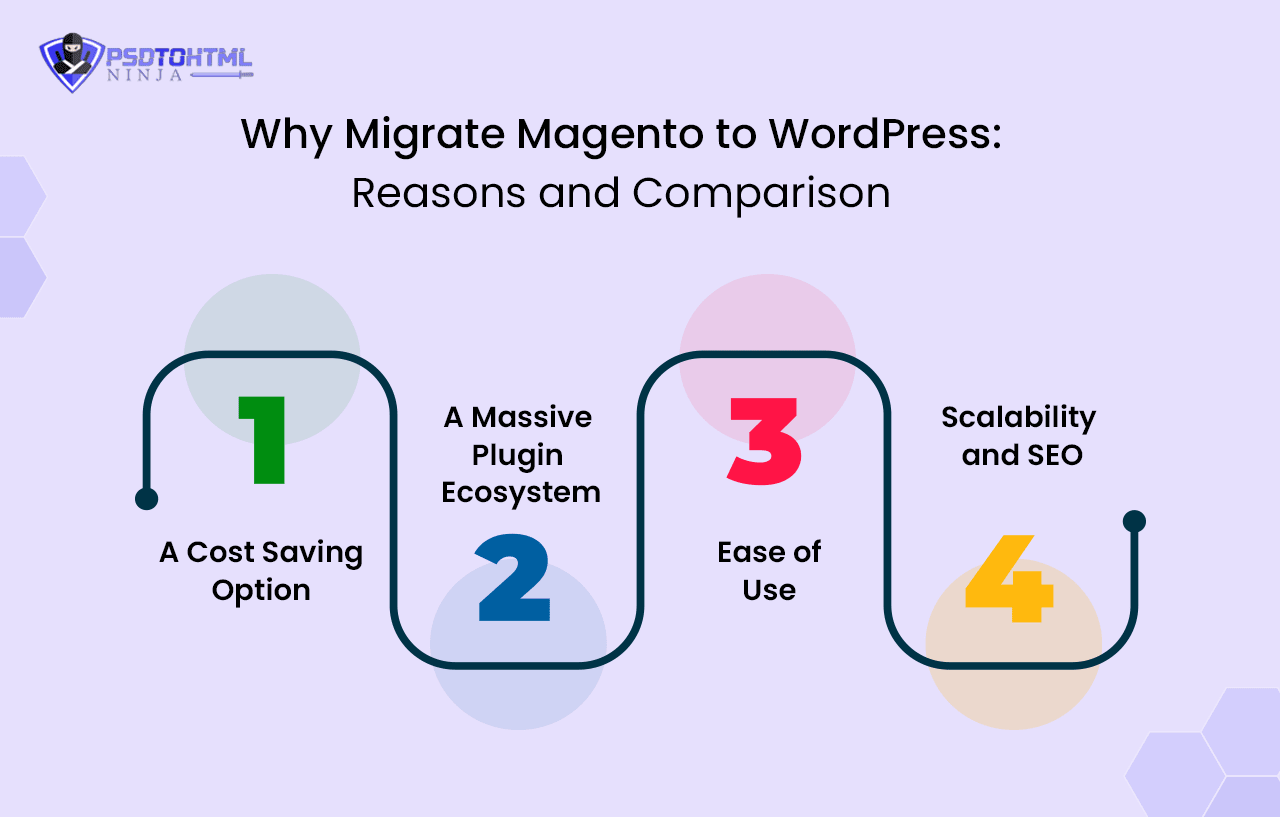
#1. A Cost Saving Option
With WordPress, you can avoid the high development costs and licensing fees related to Magento. Both WP and WooCommerce are open-source technologies that are free to use. They have lower barriers to entry.
#2. A Massive Plugin Ecosystem
Both WordPress and WooCommerce boast a massive library of useful extensions and plugins. Using these, you can easily customize and expand your online store. The best thing is that many of them are affordable and free.
#3. Ease of Use
WP is simple to use, and one can easily manage the WooCommerce store through its intuitive interface. It doesn’t require any coding skills.
#4. Scalability and SEO
The WordPress platform is scalable. That’s why it is an ideal choice for small to large businesses. Besides, it offers many plugins to increase SEO, helping you attract more organic traffic to the store.
Here we have the WordPress vs Magento comparison table for detailed analysis.
Preparation For a Hassle-Free Magento to WP Migration: Pre-Migration Checklist
Before beginning the Magento to WordPress migration, make sure you go through the following points to ensure a smooth transition process.
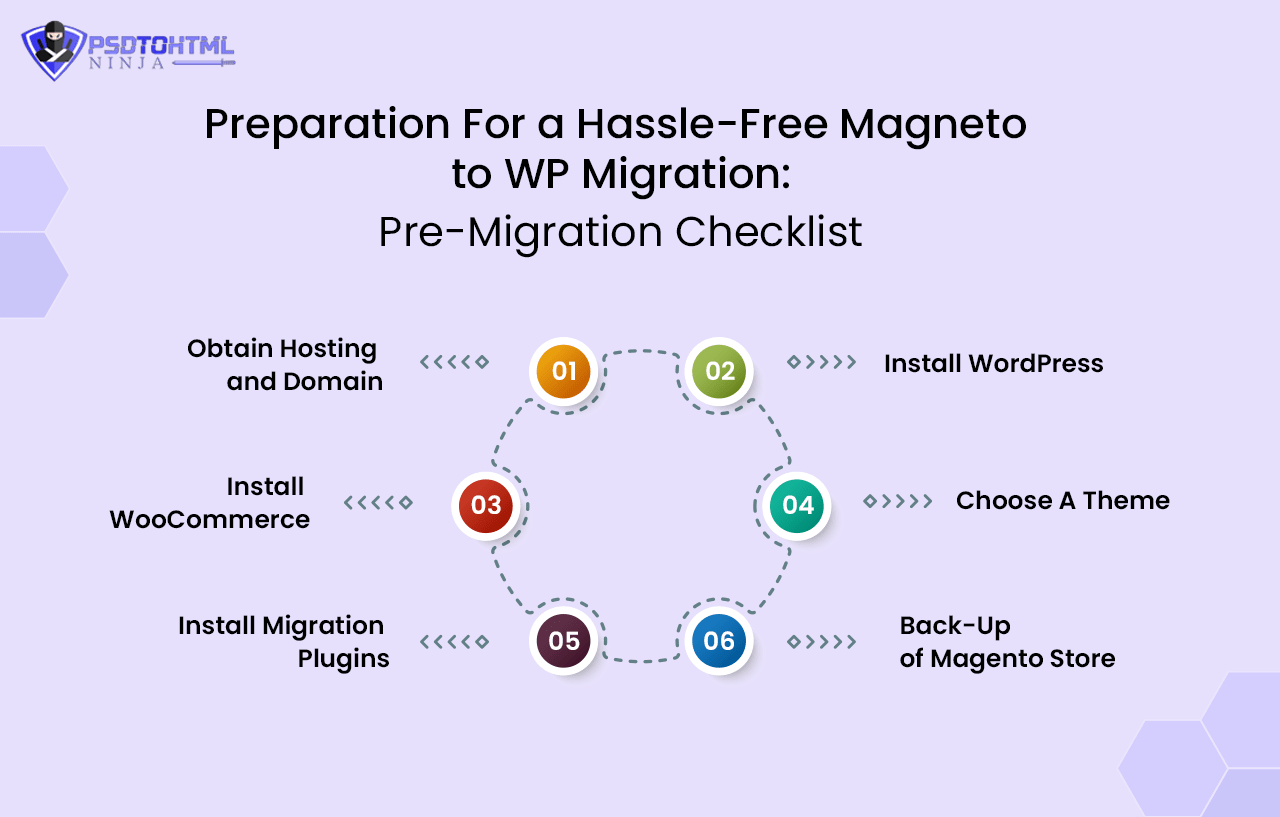
1️⃣ Obtain Hosting and Domain
WordPress doesn’t offer self-hosting features. So, before you can migrate your Magento store, you need to obtain a web host. Prefer to choose a trusted and top-rated web hosting service provider. Furthermore, you may also need to get a domain for your new site. If you are looking for reliable options, you can opt for Hostinger, WP Engine, Bluehost, HostGator, and GoDaddy.
2️⃣ Install WordPress
Most web hosting platforms come equipped with WordPress. Some also offer features like Auto Installer, where you can download and install WordPress. Log in to your hosting platform’s dashboard and choose the Auto Installer option. Now select WordPress and then enter website details to install it.
3️⃣ Install WooCommerce
Once you are done installing WordPress, you need to install the WooCommerce plugin. It allows you to migrate Magento to WordPress. Click on the Plugin tab on the WP admin dashboard. Next, click on the ‘Add New’ option and look for WooCommerce. And then, install that plugin and activate WooCommerce.
4️⃣ Choose A Theme
If you want your online store to have a new appearance/look, install a new theme. For the same, you will have to download the theme ZIP file. Then, visit the Themes section in the WP and then go to the Add New section. Now, choose that ZIP file. Next, you need to click on the ‘Install’ option to begin installation. Once done, activate the theme.
If your online store has already created a robust brand identity, you can definitely use your old and established theme.
5️⃣ Install Migration Plugins
There are multiple useful plugins to help you with the Magento to WooCommerce migration. Some options you can try are FG Magento to WooCommerce or Lite Extension.
6️⃣ Back-Up of Magento Store
Although it is not a mandatory step, it is always a good idea to create a backup of the online store. Don’t worry, the backup process is simple and short. Here are the steps you’ve got to follow:
➤ Log in to your Magento admin panel.
➤ Click on the ‘Systems’ option and choose the ‘Backup’ option.
➤ You will see three large orange-colored buttons. Just choose a suitable option. We would suggest you choose the System Backup option, as it covers file systems and databases.
➤ Now, enter your desired backup name. Do not forget to activate the Maintenance option. Click on the OK button to confirm your backup.
Once your Magento site is correctly backed up, you can start the Magento to WooCommerce migration process.
Read this: How to Convert PSD to WooCommerce?
Step-by-Step Process: Migrate Magento to WordPress
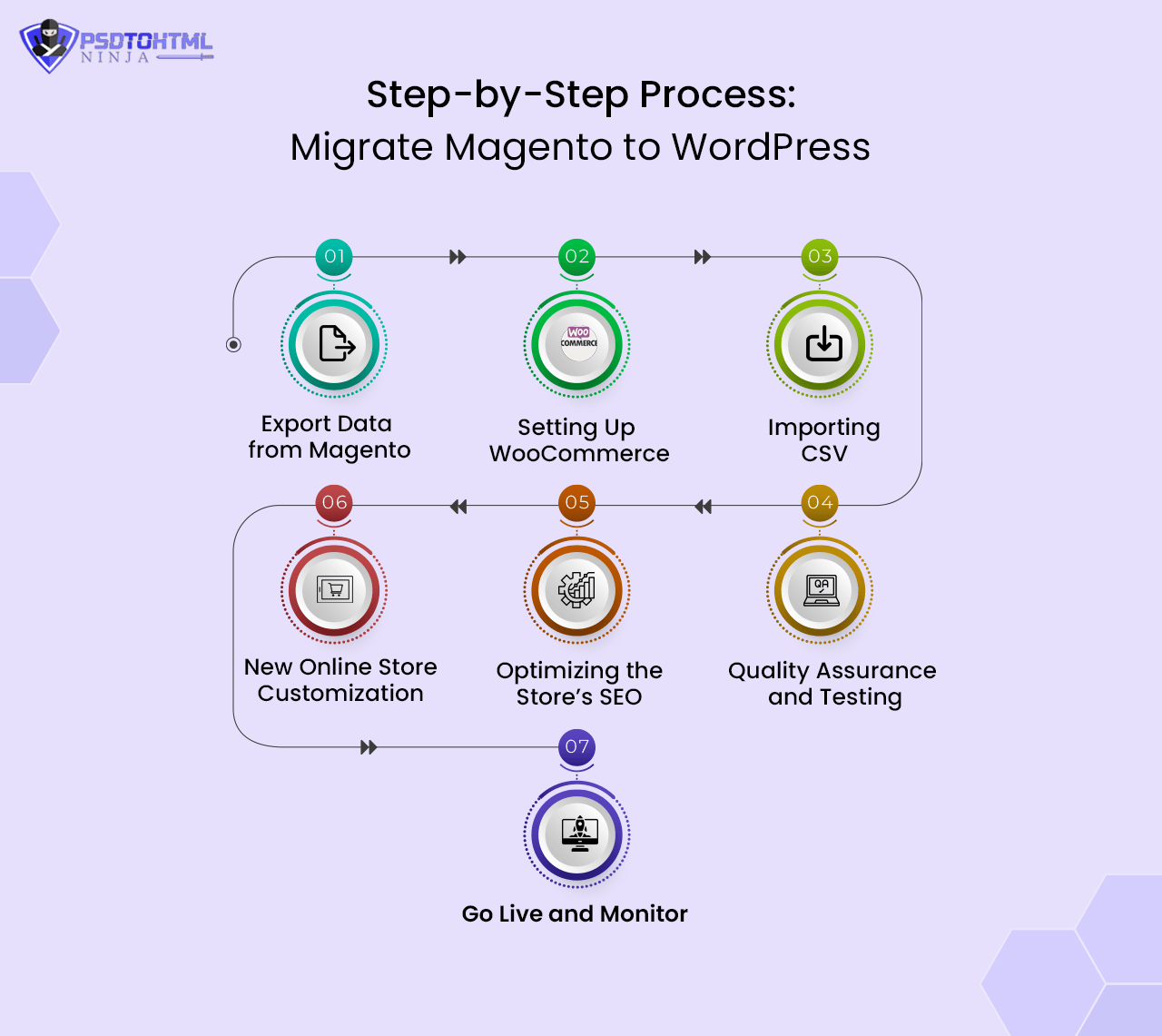
Step 1: Export Data from Magento
You can do this manually or by using a data migration extension. For doing it manually, here are the steps you should follow:
➔ Visit the Magento Admin pane and click on the System option.
➔ Next, click ‘Import/Export’ and select the ‘Export’ option.
➔ Choose the data you wish to export, such as Customers, Products, Stock Sources, etc.
➔ Select CSV as your file format.
➔ If required, you can customize additional options.
➔ Click on the Continue button.
If you are still feeling confused about this, it is advisable to hire a professional WordPress developer to ensure the successful export of Magento data.
Step 2: Setting Up WooCommerce
As you have already installed WooCommerce, it’s time to configure it for your new store. Go through the WooCommerce setup wizard. Next, you will have to fill in the required details under the following tabs:
- General settings
- Product settings
- Payment settings
- Shipping
- Tax settings
- Recommended extensions
Step 3: Importing CSV
After setting up your WooCommerce store, it's time to import the CSV file from Magento to WooCommerce.
➔ Format the CSV file to ensure that it matches the structure of your new WooCommerce site. This may include data types, aligning column headers, and formatting requirements.
➔ Next, visit the WooCommerce dashboard.
➔ Click on the ‘Add Products’ button.
➔ Then, click on the Import Products button.
➔ Then, select the CSV file and complete the process. Use plugins like Import Export Suite to import customers and order data.
Once completed, properly check and validate the store to ensure the successful import of data. You can also check the database connection by clicking the Test the Connection button.
Step 4: New Online Store Customization
Based on your WooCommerce store needs, you can make some customizations. Here is how you can perform it:
✔️ Layouts & Themes: Using the CSS or theme customization options, you can customize fonts, layouts, colors, and other elements.
✔️ Image Sliders: Insert an image slider to demonstrate your products in a stunning way.
✔️ Widgets: Add widgets to allow customers to perform quick actions like add-to-cart, newsletter sign-up, product comparisons, etc.
✔️ Code Customization: If you want to make complex or specific customization, it can be done by editing the PHP code.
Step 5: Optimizing the Store’s SEO
The process to migrate Magento to WordPress will remain incomplete without optimization. Optimizing your new WooCommerce store for SEO is vital to increase the rankings.
➔ Take the help of SEO audit tools to check your store’s crawlability and find other issues.
➔ Optimize category as well as product page using keywords, meta descriptions, etc.
➔ Make sure that all old URLs are redirected to new pages correctly. Install plugins such as Redirection to create redirects.
➔ Create product slugs or permalinks.
➔ Don’t forget to use Alt-Text for all your product images.
➔ Take the help of WooCommerce SEO plugins such as Rank Math SEO, All in One SEO, Yoast SEO, etc.
Step 6: Quality Assurance and Testing
Before you can deploy your new WP WooCommerce store, test it thoroughly. Some crucial tests to carry out are compatibility, usability, functionality, and performance tests. If you find issues, fix them promptly and also check that the new store is performing perfectly on different browsers and devices.
Step 7: Go Live and Monitor
After testing and addressing all the issues, it’s time to launch your WooCommerce online store. While preparing for the store’s final deployment, consider some important factors like setting up DNS, activating SSL certificates, optimizing servers, etc. It is advisable to set a planned downtime window to reduce disruption to the store’s customers and visitors. Deploy it and then monitor it closely. Address post-migration concerns and issues quickly.
Post-Migration Checklist
Post-migration care is crucial for the long-term success of your online store. Consider these duties as a priority to capitalize on emerging trends and technologies. These include:
- Regularly monitor the performance of your new website, including server response duration, page load speed, etc.
- Gather and evaluate user feedback to detect areas of improvement. Fix issues raised by your visitors or customers promptly.
- Keep the WooCommerce themes and plugins updated by applying security patches and other updates.
- Analyze sales data, customer behavior, and store traffic to find optimization opportunities.
- Optimize your server resources, upgrade the hosting platform, and carry out regular performance enhancements to efficiently handle higher loads.

Also Read: Convert Design Prototype to WordPress: Step-by-Step Guide
Conclusion
Migrating a successful online store from one platform to another can be an overwhelming process. But, it is always a great decision to take calculated risks when you know the positive points of the results. If your current website looks complicated to manage, you can consider migrate Magento to WordPress. This will empower your business with a feature-rich and robust ecommerce platform.
From the pre-migration planning to data migration to the launch of your new site, along with the post-migration care, every step mentioned in this blog is important to ensuring an error-free migration. Once completed successfully, you can take advantage of WooCommerce’s massive ecosystem.
If you need any help or want to avoid errors during this process, we, as reputable and experienced WordPress development and migration experts, are always present to help you. Our WordPress experts will assist you throughout the process and create a well-executed plan to migrate Magento to WordPress.
FAQs About Magento Store to WordPress WooCommerce
How Does the Migration from Magento to WP Process Work?
The process generally involves exporting from your Magento site and then importing it into the new WooCommerce platform. It also involves customization of various elements to make the new site perform smoothly.
What Is WooCommerce Primarily Used For?
It is widely used to build ecommerce stores. The platform has made it super easy to develop as well as manage online stores by offering multiple options such as shipping, taxation, payment gateways, and inventory management.
Is WooCommerce Challenging to Learn?
Even though WooCommerce is simple to use, users may need to understand some technical details to manage it properly.
Is It Possible to Integrate Magento With WP?
Yes. Using extensions or plugins, you can achieve this. However, to ensure a successful integration, hire a professional migration expert.
Is WooCommerce Still Relevant in 2025?
Yes. It is still popular as a widely used and flexible platform to create online stores. Millions of ecommerce sites are powered by WooCommerce, and it offers customization and scalability.
Is WooCommerce Free to Use?
Yes. As it is an open-source platform, you can use it for free. However, as your business grows, you may need to invest in some premium themes and extensions.
Why Should Businesses Hire an Expert to Migrate Magento to WordPress?
When you work with a professional, you can access tailored migration solutions, specialized experts, and technical support for a successful migration. They have the expertise and experience to handle complex migration and ensure maximum efficiency and minimal downtime.

Prince Jadiya holds the position of Chief Marketing Officer at Psdtohtmlninja.com, where he assists organizations in overcoming web development obstacles. He is also known for him informative and engaging blog posts.
Couldn't find what you were looking for?
Let us know how we can help!

Related Blog Posts