Table of Content
In this competitive business world, having a well-designed website is crucial. It should be perfectly optimized to function well on various search engines and bring the best results. You can create stunning designs for a website and an excellent website prototype using Framer with its intuitive visual editor. But now, where to give life to these designs?
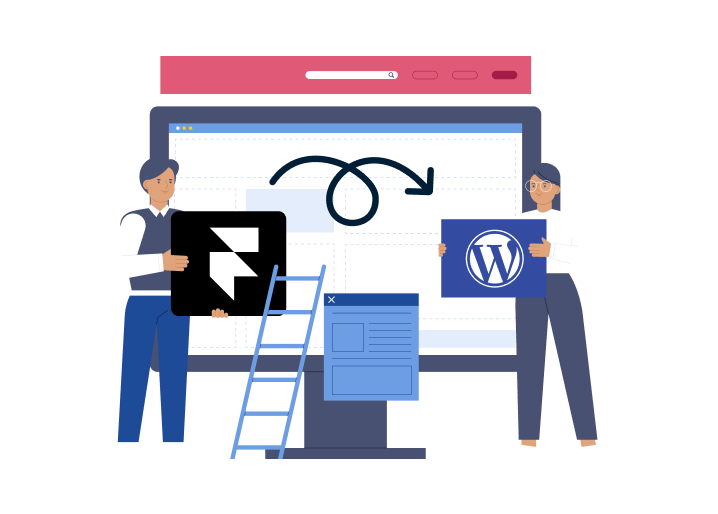
On that note, WordPress comes as an advanced and flexible option to create a well-optimized and functional website. Just transfer your Framer designs to this platform to develop visually appealing websites. For the same, you have to understand the process of converting Framer to WordPress. This can be a daunting task, but our detailed guide on Framer to WordPress Conversion can make it hassle-free.
This guide covers the major reasons to move from Framer to WordPress. Besides, you will also learn the steps for an error-free Framer to WordPress conversion process. So, let’s get started.
Understanding Framer and WordPress
What is Framer?

Framer is a popular prototyping and web design tool utilized by developers and designers around the globe. It allows developers to create professional-looking designs without going through any intricate coding. Whether you want to create a complex or simple prototype, this platform has all the tools to complete it.
Besides, it has many customizable and reusable components. More than 156,000 websites have been designed using Framer, and the number is increasing.
What is WordPress?
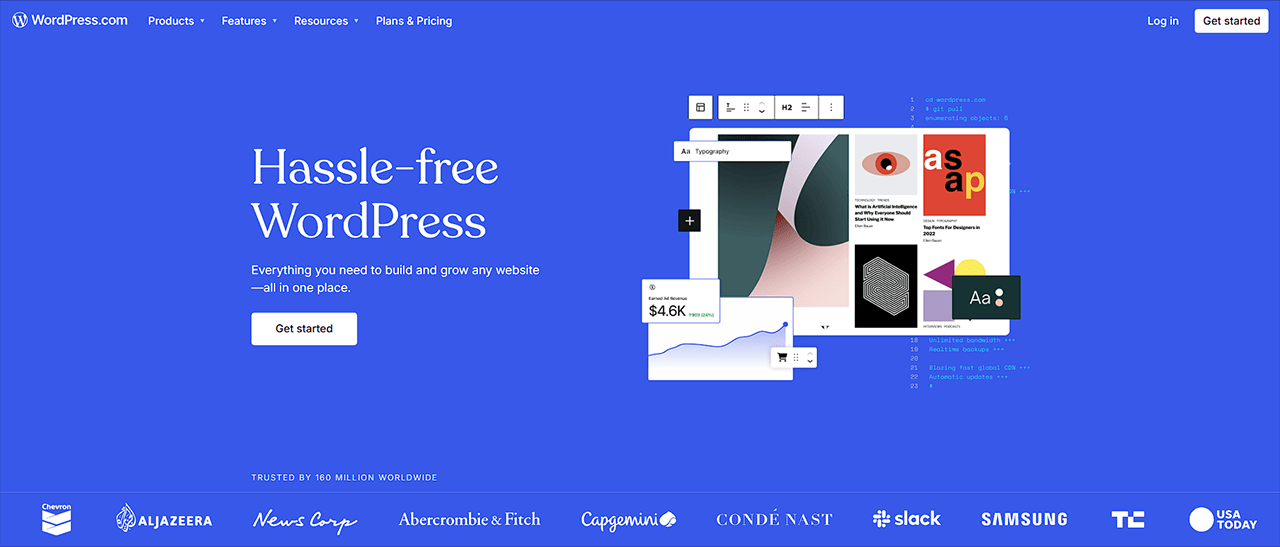
Do you know WordPress was launched as a blogging tool? Yes, you heard it right. But now it has become the world’s most popular CMS- Content Management System. More than 470 million websites are now running on WordPress, and it covers around 63 percent of the global CMS market. It offers thousands of plugins and themes to create stunning websites.
Besides, WordPress is SEO-friendly. Furthermore, it can be used to develop any website you want, like eCommerce stores, blogging websites, company websites, real estate websites, and more. The best part is that you can easily import the designs from platforms like Framer, etc., to develop an SEO-friendly and scalable website.
Why Shifting Framer to WordPress Makes Sense?
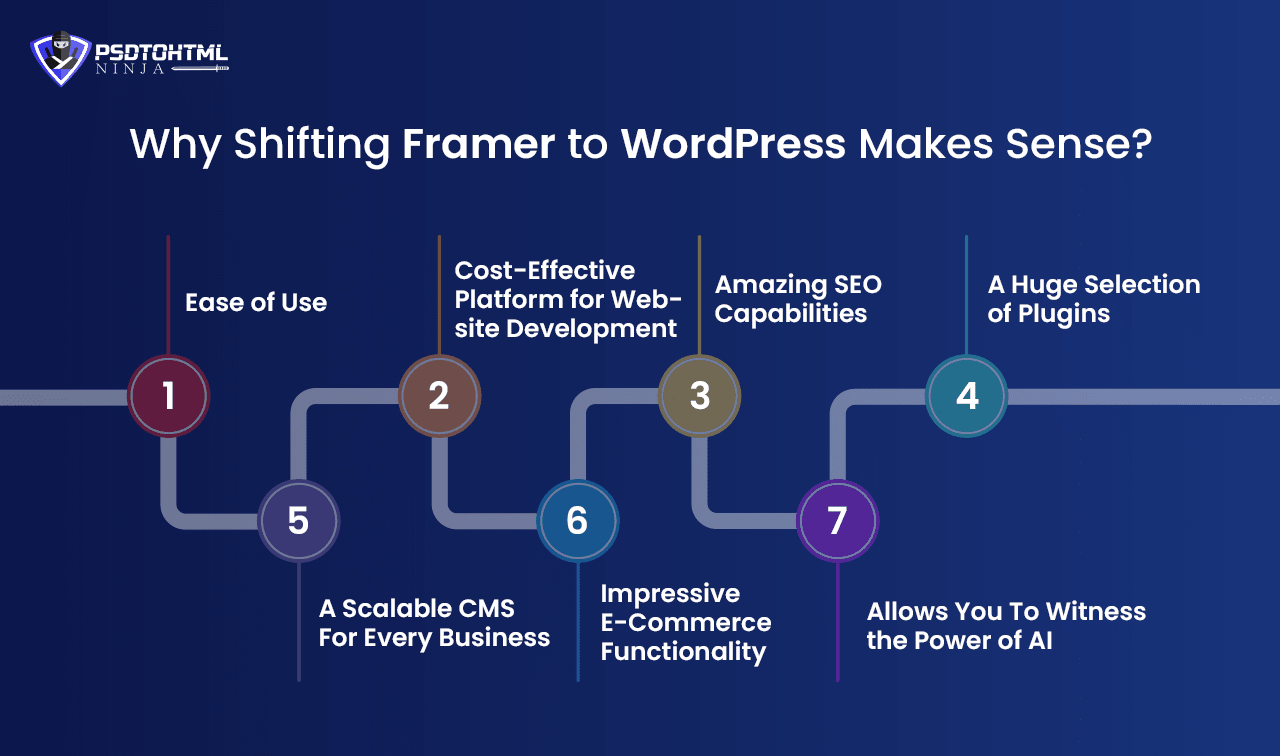
#1. Ease of Use
WordPress has a very user-friendly and easy-to-navigate dashboard. Using its available page builders, such as Elementor and Breakdance, you can create beautiful websites without worrying about coding. Updating content and maintaining your site would be super easy.
#2. Cost-Effective Platform for Website Development
WordPress is a free CMS. It even offers a lot of free themes. Businesses can scale their WP-based website as per their budget. Well, some plugins and themes are a little costly, but they offer excellent value by increasing functionality and customization of the site.
#3. Amazing SEO Capabilities
One of the strongest points of WordPress is SEO. It provides users with a huge collection of SEO tools such as Rank Math, Yoast SEO, AIOSEO, Schema Pro, and more. Using these tools, optimizing a website would take a few minutes. Whether you want to simplify XML sitemap creation or on-page SEO evaluation, all can be done with a few clicks.
#4. A Huge Selection of Plugins
You will find more than 59,000 plugins in WordPress that can be used to add new features and functionalities to your site. You can also develop and use your own custom WordPress plugins. These plugins allow you to customize your website the way you want. You can create a dynamic, static, or fully responsive website based on your requirements.
#5. A Scalable CMS For Every Business
With WordPress, you can easily scale your website to handle increased content and traffic as your business grows. Besides, you can use different caching techniques to ensure optimal performance of the site during the high-traffic season.
#6. Impressive E-Commerce Functionality
Using plugins such as WooCommerce, you can easily create a fully functional ecommerce site. It allows you to create stunning storefronts, customize pages, and use different marketing features to enhance your business.
#7. Allows You To Witness the Power of AI
WordPress doesn’t have any built-in AI features, but it allows you to take advantage of this powerful technology with multiple AI plugins. For example, Rank Math SEO offers AI-powered content analysis. Plugins like Jasper and AI Writers can generate text inside your site. Want to create a custom code snippet? You can take the help of CodeWP. The options are endless.
Also Read: Figma to WordPress: Top 3 Ways to Convert Your Figma Design into a WordPress Website
A Pre-Conversion Checklist for Framer to WordPress Conversion
This pre-conversion checklist will help you ensure that all the requirements are in place before the conversion so that you can enjoy a trouble-free process.
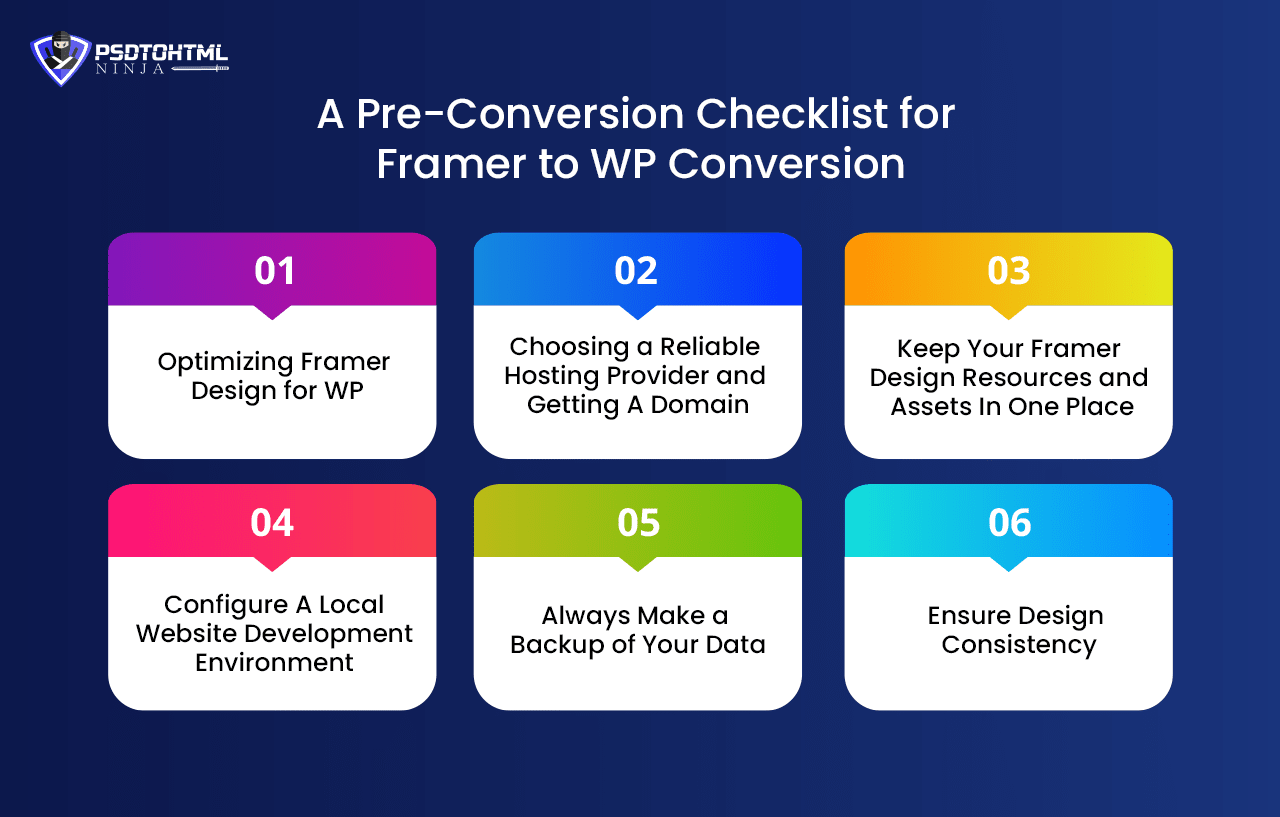
1️⃣ Optimizing Framer Design for WordPress
Before you begin with the conversion process, you should simplify the required Framer components and designs. Eliminate unnecessary components. Besides, make sure that colors, fonts, spacing, and typography are consistent. While exporting images or visual elements, choose SVG, JPEG, or PNG format.
2️⃣ Choosing a Reliable Hosting Provider and Getting A Domain
Select a domain name and choose a trusted hosting platform. You can opt for options like Bluehost, Hostinger, WP Engine, DreamHost, etc. Most hosting providers offer a free SSL certificate and domain name. Besides, check the scalability features of the hosting.
3️⃣ Keep Your Framer Design Resources and Assets In One Place
It is advisable to keep all the required assets and resources in a single folder to keep everything organized. This will make things easily accessible. You can also use Brandfolder, Filr, FileBird, or File Manager for storing files.
4️⃣ Configure A Local Website Development Environment
Use tools such as Flywheel’s Local or XAMPP to create a local website development environment. Using this, you can test the site without affecting its live version.
5️⃣ Always Make a Backup of Your Data
Make a complete backup of the Framer data. While the chances of facing issues during the conversion are low, it is still advisable to have a backup. It will help you retrieve data if anything goes wrong.
6️⃣ Ensure Design Consistency
To avoid any mismatch between the final WP website and Framer designs, ensure consistency in the design elements, especially in color palettes, font sizes, and typography scales.
Configure WordPress for Framer to WordPress Conversion
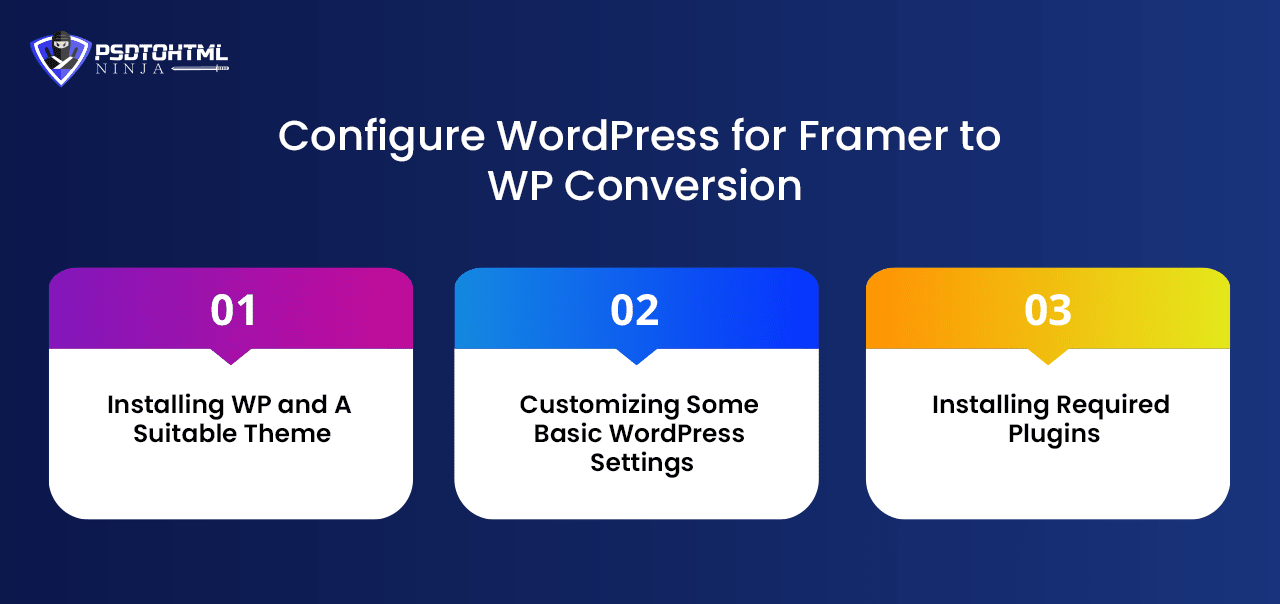
1. Installing WP and A Suitable Theme
Most hosting providers offer a 1-click WordPress installation process. Log in to your hosting account and then click on the WP icon to install it. Once done, you can visit the Theme Directory to install a theme based on your preference. Choose one with sidebars, shortcodes, beautiful templates, and an easy navigation menu.
2. Customizing Some Basic WordPress Settings
After the installation, click on the Settings option and enter the tagline and title for your site. You may also need to configure the site’s permalink structure. For it, visit the Settings and choose Permalinks. Choose the Post Name format to make your URLs look clean and SEO-friendly.
3. Installing Required Plugins
While setting up your new WordPress site, don’t forget to install useful plugins, as they can boost performance and functionality. You can find all the available plugins by clicking on the Plugins option in WP. Install the required plugins and activate them.
If you are wondering which plugins you should use, then check the section below to learn about some useful options.
Useful Plugins and Tools to Make Framer to WordPress Conversion Successful

We recommend the installation of below set of plugins and tools to make your Framer to WordPress transition smooth.
Plugins to Create a Page and Design
- Beaver Builder: This is a simple-to-use, drag-and-drop website page builder. It offers more than 160 pre-built themes. It is a perfect option to create complex designs and layouts.
- Thrive Architect: It can help you create a conversion-focused landing page. You will get more than 700 custom fonts and 200+ built-in layouts.
- Divi: It is a professional page builder and theme plugin. Divi offers many content modules and facilitates endless design possibilities.
Some other options you can go for are Elementor Pro, Themify Builder, and SiteOrigin.
Plugins For SEO
- Rank Math: It offers many useful features like Image SEO, Schema optimization, WooCommerce SEO, etc.
- AIOSEO: This plugin comes with SEO health analysis, XML sitemaps, Author SEO, in-built social media integration, WooCommerce SEO, and more.
- Yoast SEO: Along with XML sitemap and internal linking, this tool supports many amazing features like AI, language analysis, readability analysis, keyword optimization, and more.
Plugins For Asset Optimization
- NitroPack: Supports font subsetting, CDN, image lazy loading, JS, CSS, and HTML optimization.
- WP Fastest Cache: A good option for Gzip compression, Browser caching, JS, HTML, and CSS minification.
Plugins For Backup and Security
- Duplicator: An ideal tool for complete backups. You can back up media, databases, and files. It also supports custom backups.
- UpdraftPlus: It offers facilities like automatic backups, incremental backups, and off-site storage. Besides, it comes with a built-in migration tool.
- JetPack: This plugin can be used for your website backup as well as for security requirements. Along with real-time backups, it also offers robust brute force protection.
- WordFence Security: With this, you can protect your site from malware and prevent unauthorized logins. Besides, it supports reputation checks, two-factor authentication, endpoint firewalls, etc.
Plugins/Tools for Animations
- SeedProd: It helps you create visual effects while designing a page through its built-in animation blocks. You can also set the animation delay and duration.
- Soliloquy: It offers more than 100 customizable filters and hooks. Using its pre-made slider themes and templates, you can create professional-looking animations.
- Animate It: The tool is free to use and utilizes CSS3 animations. Even though it has a vast library of animations, it enables you to use your custom CSS.
- Master Slider: A great tool to add transition effects along with content and image sliders. It also allows you to embed or insert HTML links, images, texts, etc., into the slides.
Plugins For CSS Customization and ACF
- CSS Hero: Using this, you can change background colour, typography, font styles, and more to make your Framer design look more attractive.
- ACF: Use it to add custom field data anywhere on your website, including media comments, posts, or custom pages.
Learn More: Convert Design Prototype to WordPress: Step-by-Step Guide
Step-by-Step Process For Framer to WordPress Conversion
Now, after all the preparations, let’s start with this step-by-step guide to effortlessly convert your Framer designs into a WordPress website. These steps will guide you through every phase, reducing disruption and ensuring successful conversion.

Step 1. Set Up WordPress For the Process
The first step in this conversion process is to set up WordPress as learned above. Ensure that you have installed the latest version of WordPress and the theme. Besides, install the SEO tools, page builders, security plugins, etc.
Step 2. Export Content from Framer
Framer offers you an easy method for exporting your designs. However, you can export one page or a design at a time. To start exporting, click the Export button located on the bottom right of your screen. Now, click on the + icon. Then, you need to choose a size based on your requirements. If you want, you can add a suffix. Once done, select the file format ( JPG or PNG). Click on the Export button to complete the process. You may need to use the Framer desktop app for this process.
Step 3. Import Designs into WordPress
The easiest way to import Framer design files to WordPress is by using the Media Library. For this, click on the Media option and then on the Add New button. Now, you need to choose the desired design files and upload them. You can also display SVG files on your site by embedding SVG code or using an SVG Shortcode plugin.
Step 4. Customize the Pages Structure and Layout
Take the help of page builders such as Divi or Elementor to recreate the design and layouts. Create the site’s main pages and posts. Ensure that the site’s structure perfectly matches the original design.
Step 5. Integrate Animation and Other Interactive Elements
Use the above-mentioned WP animation plugins to add animations and beautiful interactive elements. Once done, make sure that every animation is working perfectly.
Step 6. Customize the Site’s Visual Appearance
To align the website’s style with the Framer design, either implement a custom CSS or edit the theme via Appearance. For that, go to the Appearance section and then click on the Customize option. Make the changes as per your requirements and ensure consistency in every visual element.
Step 7. Add Required APIs
APIs allow you to connect your website with multiple external sources to keep your site running smoothly. Plugins such as WP Webhooks or WP Rest API can help you with the necessary APIs.
Step 8. Conduct a Performance Test
Now that you are done with exporting the Framer design and customizing the site, it’s time to test your new site’s performance. Ensure that it runs smoothly on various browsers. Test the site’s mobile responsiveness. Broken links, functionality, and content accuracy are some common tests that you must consider before launching your website.
Once you are done with testing and if all the elements are functioning perfectly, you can launch your new site. Before that, make sure that your new WordPress website is highly responsive and SEO optimized. Here are some tips and methods to ensure both.
Read This: How to Convert Figma to Elementor Effortlessly?
How to Make Your New WordPress Site More Responsive?
Make your website more responsive to ensure a seamless user experience. Consider the following tips:
➔ Use a responsive theme for your site.
➔ Ensure that the images are adaptive, and you can utilize the source set attribute for it.
➔ Try to lower the number of HTTP requests.
➔ Use the lazy loading option to load certain assets.
➔ Always create Accelerated Mobile Pages using the AMP Plugin.
Useful SEO Optimization Methods to Consider After Framer to WordPress Conversion

After making your site responsive, it is time to work on optimizing SEO factors so that it can rank higher in SERPs. Here are some methods that you can use to make your site SEO-friendly.
✔️ Use SEO-friendly slugs and Permalinks.
✔️ Don’t forget to install Secure Sockets Layer- SSL or Transport Layer Security -TLS certificate once you are done creating your WordPress site.
✔️ Use security plugins such as JetPack, Defender Security, Astra Security Suite, WordFence Security, or All-in-One security to boost your site’s security features.
✔️ Organize your pages and posts through tags and categories.
✔️ Use the right SEO plugins (you can always go for the options mentioned above).
✔️ Submit the sitemap of your website to Google directly. To automate the process, you can install sitemap plugins such as SEOPress or Yoast SEO.
✔️ Take the help of EWWW Image Optimizer, reSmush, Envira Gallery, or WP Rocket to compress images without affecting their quality.
✔️ Use tools like PageSpeed Insights and GTMetrics to evaluate your page speed.
Ready to Launch: Some Crucial Tips to Keep in Mind
After a successful Framer to WordPress conversion process, a few major steps remain to make sure the new site is all set to function flawlessly. Some important considerations are:
#1. Ensure Your Site Is Visible to Search Engines
To enable this, visit the Settings and then click on Reading. There, you will find the Search Engine Visibility option. Uncheck the Discourage search engines from indexing this site.
#2. Integrate Google Analytics
For this, you can use the embed code offered by Google Analytics or install Plugins such as MonsterInsights’ Google Analytics to get it done.
#3. Install a CDN
You can use CDNs like MaxCDN, Amazon CloudFront, Bunny CDN, or Cloudflare to increase load times, improve security, and lower the server load.
#4. Google Search Console
This helps a lot in SEO as it can identify your site’s structural issues. Besides, using this, you can check sitemap issues, index status, crawl errors, external link structure, and more.
#5. Beware Bots
You should keep the contact forms protected from bots. For that, you can add Captchas using Google ReCAPTCHA or Turnstile from Cloudflare.
#6. Website’s Accessibility
A major factor that most websites forget to consider is accessibility. While developing your site, prefer to consider the WCAG- Web Content Accessibility Guidelines rules.
Must Read: Converting HTML to WordPress Website: A Detailed Guide
Conclusion
Framer is a powerful tool for creating stunning designs that can be used in WordPress. Converting Framer’s designs to WordPress is not a one-click approach, but it can be achieved using the right strategies and tools. Besides, the conversion process will also depend on your technical skills, specific requirements, and budget. By following all the above-mentioned steps, you can complete the process easily.
However, it is always advisable to get expert assistance to ensure an error-free Framer to WordPress conversion. While making the entire process quick and simple, a professional WordPress service provider can help you with SEO optimization and maintenance requirements.
FAQs About Framer to WordPress Conversion
1. How to convert Framer design to WordPress?
Converting a Framer design into a fully functional WordPress website involves carefully translating visual layouts and interactions into WordPress-compatible code. This means manually coding the design using HTML, CSS, JavaScript, and PHP—preserving the look, feel, and animations from Framer while ensuring it's optimized for WordPress. It’s not an automatic switch, but with the right developer, the results can be spot-on.
2. Should I Choose Framer or WordPress for My Website?
Framer is ideal for designers looking to create sleek, interactive prototypes and websites quickly. It’s highly visual and intuitive. WordPress, on the other hand, is a content powerhouse—great for blogs, business websites, and anything that needs a content management system. If design control is your priority, Framer might suit you. If you need a scalable, SEO-friendly platform with tons of plugins, WordPress is likely the better fit.
3. Is It Possible to Reuse a Framer Template in WordPress?
Not directly. Framer templates are built specifically for the Framer platform and aren't compatible with WordPress out of the box. However, a skilled developer can replicate the design manually in WordPress, matching the layout, visuals, and user experience by coding a custom WordPress theme from scratch.
4. What’s the Smartest Way to Move from Framer to WordPress?
The most effective approach is to manually rebuild your Framer design as a custom WordPress theme. This method ensures your site is responsive, cleanly coded, and fully editable in WordPress. While tools or plugins might promise shortcuts, manual development remains the most reliable way to preserve design integrity and performance during the migration.

Jayveer Ker serves as the Business Development Manager at PSDtoHTMLNinja.com, specializing in assisting organizations with overcoming web development hurdles. His insightful and informative posts deliver practical solutions and valuable insights.
Couldn't find what you were looking for?
Let us know how we can help!

Related Blog Posts