Table of Content
If you are surveying ways of creating a powerful WordPress website through your Canva design, then you are in luck. This guide is power-packed with the right information, backed with the technical knowledge of web experts.
Converting Canva to WordPress just got painless, and it is one of the ideal ways to breathe life into your website design. With so many methods available, it can be confusing to choose the one that best aligns with your budget and needs. But worry not, scour through this detailed guide, and you will get a step-by-step discussion of the most common ways of converting Canva to WordPress. This will also include the best possible way of transitioning into WordPress and challenges you might face. Without further ado, let’s explore.
Understanding of Canva and WordPress: Basics and Statistics
While we are exploring the industry-recognized method of transforming Canva to WordPress, let us first learn more about these two platforms. This will help you gain a basic understanding of these tools and how they function.
What is Canva?

Canva entered as a revolutionary tool in the graphic designing industry. A simple graphic design platform with mostly drag-and-drop functionality that is loaded with multiple templates to choose from. It helps people to create flawless and beautiful posters, website designs, cards, and even videos. The best thing about canva is that you don’t need advanced skills to use this tool, it is super easy and even a layman can use it to create stunning visuals.
Canva is accessible through the browser, which means it is a web-based app. You can also use it as a mobile app and create a design that you like. As a user, you can either edit a template to meet your expectations or create the design from scratch. The design can then be exported in multiple formats like JPG, PNG, mp4 (in case of videos), PDF, etc.
While this sounds like a cakewalk, you would eventually need the assistance of an expert to add advanced functionalities and make the design SEO friendly.
What is WordPress?
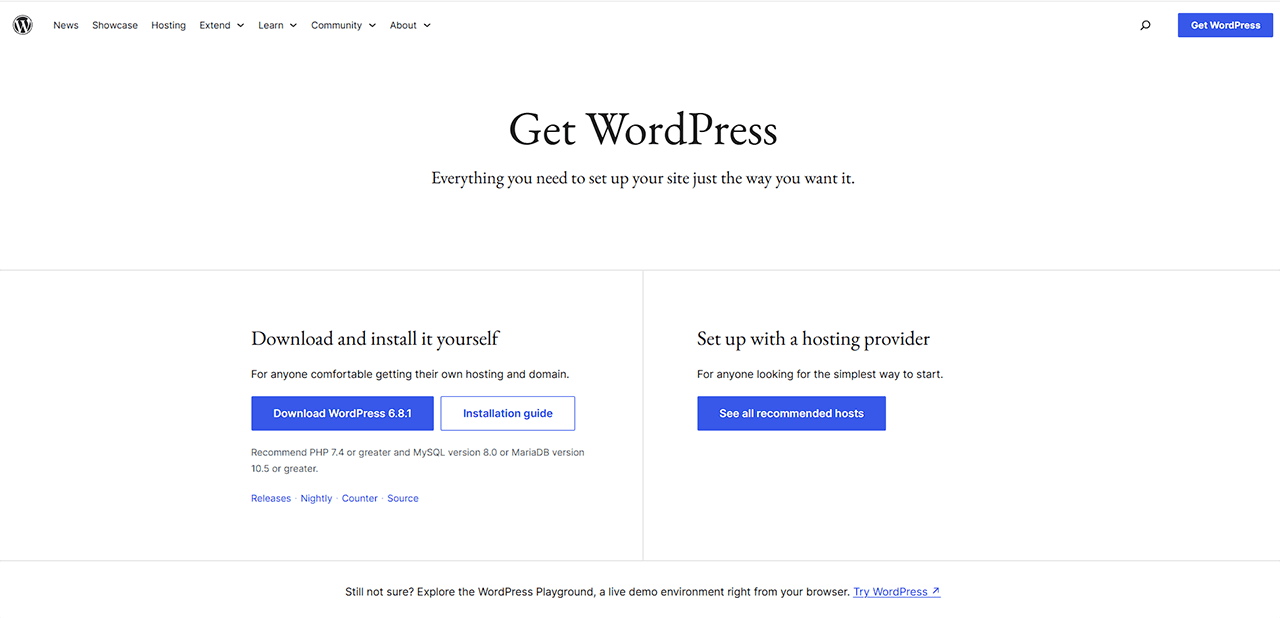
WordPress is a popular website building software, and it currently powers more than 43% of the total live websites worldwide. It is an open-source platform, meaning anyone can access it. The myriad of templates and themes make WordPress a top choice. In fact, tens of thousands of WordPress themes can be accessed from several marketplaces like WordPress.org theme directory has 13,000 themes, and Theme Forest boasts about 12,000 themes.
Apart from website development, WordPress helps in creating content management system (CMS) websites and eCommerce sites. A whole package for website developers, WordPress helps in building SEO compatible websites. In addition to that, pre-available themes make the development process easier and quicker.
Before we move forward, learning how Canva and WordPress fuse to create an impactful website is necessary. A design created in Canva is a simple visual piece, which needs to be transformed into a live website. That is where WordPress helps! It assists in creating a base code according to your Canva design. Various other steps are involved before you get a pixel-perfect website, which we will discuss in the next segment.
Read this blog: Figma to WordPress: Top 3 Ways to Convert Your Figma Design into a WordPress Website
Methods to convert Canva to WordPress
In this section, we will primarily discuss the three most effective and acknowledged methods of convert from Canva to WordPress.
Method 1: Hire An Experienced And Professional Agency To Convert Canva To WordPress
If you want to build a powerful and fully-functional WordPress website from your Canva design, then hiring an expert agency is the most time-effective and professional way of doing so. We at PSDtoHTMLNinja hold over 13 years of experience in providing high-end WordPress services to transform your appealing visuals into a live, functional, and responsive website.

We adopt an advanced approach where your Canva design is carefully studied before being built into a custom and fast-loading WordPress website. Our experts rigorously follow established protocols to ensure the website looks exactly what you envisioned. Here is how we make your Canva to WordPress project a hit:
- SEO-compatible code and metadata for higher search engine page rankings.
- Custom WordPress website development with features of your choice.
- Fast website performance with optimized images and media.
- Easily functional CMS to manage the content of your website without external help.
- Pixel-perfect conversion of your Canva design into a WordPress theme
- Mobile-friendly website so it can be accessed by the 7.21 billion smartphone users.
- Ample usage of the best WordPress themes for best results.
- Security and backup setup so your website remains 100% secure.
- Cost-effective WordPress development service that does not feel heavy on your pocket.
Also read: Craft CMS vs. WordPress: Which Is the Better CMS For Your Business
Method 2: Rebuild Canva Design Using A Wordpress Page Builder
This method is perfect for people looking for a relatively easier way of getting a WordPress website with minimum coding knowledge. However, you will have to recreate the Canva design elements in WordPress since Canva does not support direct export to WordPress. This is where a page builder helps by bringing your Canva to WordPress design to life.
Let us dive deeper into this step-by-step process:
Installing a WordPress Page Builder
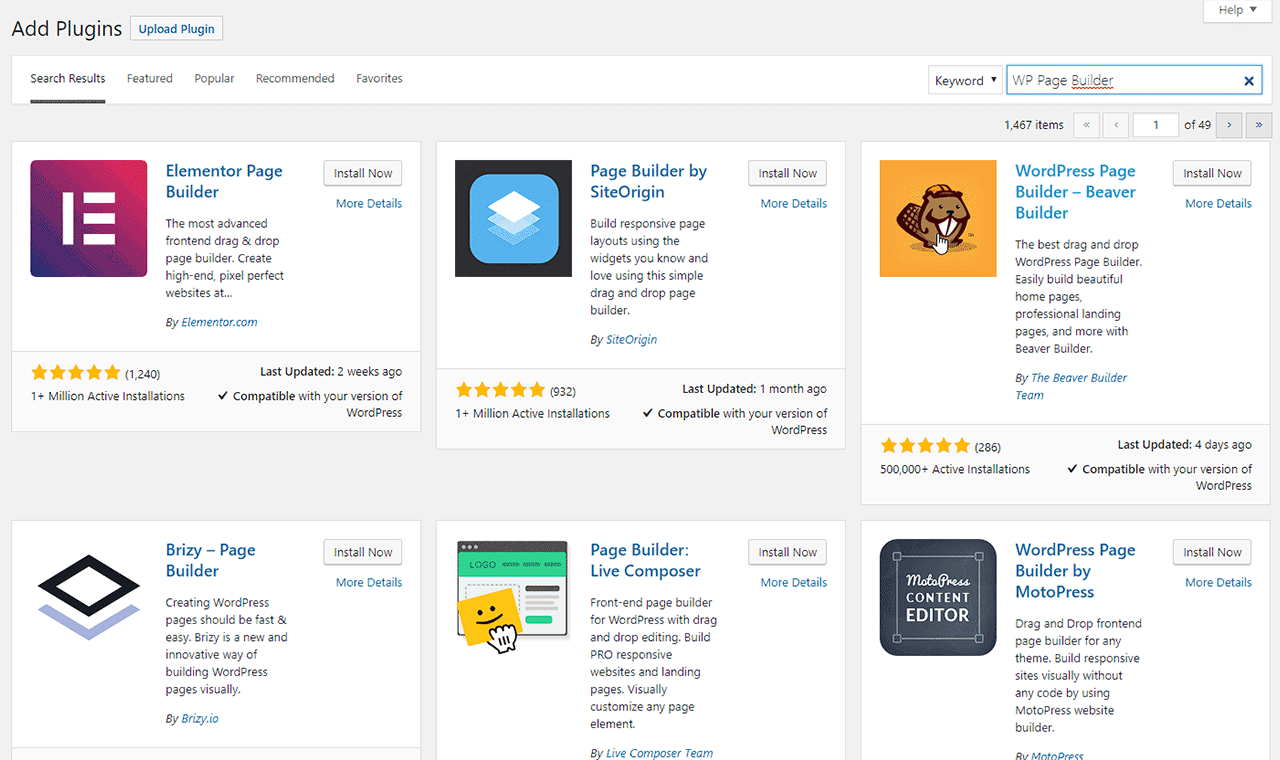
First thing first, install a WordPress page builder of your choice. You can choose one of the popular plugins like:
- Elementor: A top-ranked and famous WordPress plugin that helps you recreate your Canva design in WordPress. It offers a drag-and-drop functionality for accurate design recreation. Elementor allows effortless import of fonts and colors from canva, ensuring the design consistency.
- Beaver Builder: This WordPress plugin offers a developer-friendly approach by providing a clean code for your design. It is a drag-and-drop builder and also supports WooCommerce.
- SeedProd: Almost like the previously mentioned plugins but is more suitable for simple and less-complicated designs.
All the three canva to WordPress site plugins offer a free version for basic editing, further followed by premium packs to access advanced features.
Prepare WordPress And Launch The Builder
Go to the WordPress dashboard then select plugins and click on ‘Add New’. This will activate the page builder you installed, and a new Visual Editor page will automatically open.
Recreate Canva Layout in WordPress
You can recreate the design layout by either pasting the Canva embed code into the HTML block or use drag-and-drop elements to match the layout. Headings, text boxes, images, icons, and other graphics are rebuilt at this stage, to create a layout exactly like your Canva design.
Make Necessary Adjustments
Open the VS code software and make all the required changes. Do the additional customization if necessary, and finally check each element to ensure the Canva design was accurately converted into a WordPress site.
Running The Tests and Launch
Run performance tests and make the required adjustments. Once satisfied, you can launch your site created using the Canva design to WordPress plugin.
Pros
- No prior coding knowledge needed: While using a page builder, you do not need a professional level of coding knowledge. Basic understanding will be enough.
- Pocket-friendly: Since Canva and WordPress offer numerous free features and themes, the development costs significantly reduce.
- Full control over your design: You get 100% control over your Canva design without any interference.
Cons
- Tool familiarity: You should have a good familiarity of Canva and WordPress to create a website using page builders. Every step will rely on you since there is no expert agency here.
- Performance issues: Excessive animation and incompetent code may affect the website’s performance.
- Premium features: You will have to pay for premium features, in case you decide to use them in your design or WordPress template.
Who Should Use This Method?
● Small business owners with tight budgets
● People with limited coding knowledge
● Businesses requiring a basic and simple website
Method 3: Convert Canva To WordPress Using HTML Code
By using HTML code, you can perfectly convert your Canva design into a functional WordPress website. The process is pretty straightforward but requires a good understanding of coding language and basic tools.
Let us go through the process step-by-step:
Create Your Canva Design
Create and finalize your design in Canva. Make sure all the elements look exactly the way you want them to. The posters, graphics, font, textboxes, images, and colors should be double-checked before exporting the design. It is always wise to make the final adjustments before exporting the Canva design to WordPress.
Download Your Design Elements From Canva

Once finalized, download all the design elements like the logo, icons, images, etc. from canva.
Open your WordPress Site Account
Open our WordPress website and login using your credentials. Once you are in, you can begin working on making your Canva design fully-functional. Consider the WordPress dashboard as your control panel where all the media and design elements are uploaded before being edited and turned into code.
Upload Canva Assets To The Media Library
Open ‘WordPress dashboard’ then go to Media and click on Add New. This will open a window that will allow you to upload your design elements that were downloaded from Canva in the previous step. All the downloaded files will now be stored in the WordPress media library.
Create A New Page
Go to the ‘Pages’ section in WordPress and click on Add New to create a fresh page or post. A new content editor will open, and that is where you can begin editing the code for each design element. Keep adding your HTML code to make the design functional and build your WordPress website piece-by-piece.
Run Tests and Publish Your Page
The previous step will be timetaking because of all the coding work involved. Click on the Preview icon once you are satisfied with the page. It will show you the appearance of your website page. Carefully analyze this page and check all the content including header, footer, navigation menu, search bar, icons, and everything else. Make the required adjustments and finally publish it.
Congratulations! Your Canva to WordPress site is ready.
Pros
- Complete design control: You can control every aspect of your design element, and ensure that it is accurately replicated on the screen.
- No automated tools or plugins: The process involves manually writing the HTML code for each design element, eliminating the use of automated tools and errors associated with them.
- Good overall performance: Since the code is professionally written, the final website has minimum errors and delivers good performance.
Cons
- Timetaking: Writing the HTML code manually takes time.
- HTML/CSS knowledge needed: Before you adopt this approach, you need to be familiar with HTML and CSS coding.
- Complicated for beginners: Learning all the technical specifications can be complicated for beginners.
Who Should Use This Method?
- Tech professionals and developers
- Mid-sized business owners who want high-performing websites
- Page owners who prefer timeless and precise visuals of their website.
Best Tips to Transition Your Design from Canva to WordPress
Keep your design consistent
When you are converting from Canva to WordPress, the first step is to ensure everything visually aligns. Make sure your fonts, colors, spacing, and branding elements are uniform across the site. Even the tiniest inconsistencies can impact how professional your site appears and how much trust users place in it.
Select your web design and development agency wisely
Choosing the right agency can truly make a difference in your project’s success. Look for a team that has a solid track record in design-to-code conversions, WordPress customization, and responsive design. A dependable agency will not only replicate your Canva design accurately but also enhance it for better performance and functionality.
Make mobile responsiveness a priority
Your Canva design might shine on a desktop, but it needs to look just as good on smaller screens. With mobile traffic dominating the internet today, it is crucial that your WordPress layout adjusts smoothly across all devices and screen sizes.
Optimize your images and media files
Canva exports can be hefty. Use tools to compress your images without losing quality, and always select the right formats (like WebP for the web). Optimized media not only speeds up load times but also boosts your SEO.
Speed is essential for your website
No matter how beautiful your site is, users won’t stick around if it takes too long to load. Opt for lightweight themes, limit the number of plugins, enable caching, and keep your code tidy. A fast website enhances user experience and improves your search engine rankings.

Optimizing and Maintaining Canva Design on WordPress
Once your Canva design goes live on WordPress, the journey does not just stop there, it actually begins to grow. Keeping your website optimized and well-maintained is essential to ensure that your design stays functional, speedy, and visually cohesive over time.
Let us kick things off with optimization
Make sure to compress all images and graphics you have exported from Canva using tools to help speed up page load times. Instead of uploading entire designs as static images, try extracting individual elements like icons and backgrounds, and recreate the layout with your page builder. This approach not only enhances SEO but also improves responsiveness.
Opt for clean, lightweight themes
These themes can accommodate custom design elements without adding unnecessary bulk. Stick to minimal, performance-driven plugins to steer clear of compatibility issues and slowdowns. But most important, prefer manually written code by experts rather than a plugin.
Keeping your design fresh
Regularly update it to align with evolving brand elements and user preferences. Make it a habit to check your site frequently for broken links, and test how it performs across different devices. Use tools like Google PageSpeed Insights to keep an eye on site speed and performance.
And don’t forget, always back up your website before making any changes. This way, your Canva-inspired WordPress site will not only look great but also remain technically sound and user-friendly long after its initial launch.
Read this: Step-by-Step Guide to Converting PSD to WordPress with Elementor
How to Avoid Common Challenges While Converting Canva to WordPress
Challenges are inevitable but having an experienced professional by your side while converting Canva to WordPress design helps a lot. Hiring an expert is the best way to avoid the common challenges you might face during the process of getting a WordPress site. We at PSDtoHTMLNinja offer WordPress development services at affordable costs. We possess the right expertise and high-end tools for converting your compelling Canva designs to a fully-functional WordPress website.
Our certified professionals help you overcome the challenges while converting Canva design to WordPress site. They maintain Web3 compliance and ensure the website loads at the optimum speed on different devices. A hand-coded WordPress site performs better than the one developed using plugins, and our team manually writes the code to ensure a pristine and error-free webpage.
Wrapping Up
Integrating Canva design into a WordPress template involves following the right process. In this blog, we discussed the three popular ways of converting a Canva design to WordPress. You can recreate the Canva design in WordPress by using a page builder, writing the HTML code, or by simply seeking help from an agency. Out of them, hiring a WordPress development agency is the best option. It saves time and allows you to focus on other essential tasks while the agency’s team brings your Canva visuals to reality.
You can contact PSDtoHTMLNinja by dropping an email on sales@psdtohtmlninja.com
FAQs About Canva to WordPress
Can I export Canva to WordPress directly?
Directly exporting the design to WordPress is not possible. But you can use a plugin as mentioned in this guide or seek help from a website development agency.
How long does it take to convert a Canva design to WordPress?
The exact timeline depends on a number of factors like your Canva design file size, WordPress template, and other additional requirements.
What’s the best file format to export from Canva for WordPress?
The different design elements will be exported in distinct formats, so there is no single format you can choose. Images and banners should preferably be in JPG and PNG, icons and logos in SCG, and videos in MP4.
What is the best way to convert Canva designs to WordPress?
The most ideal method is by hiring a professional agency who has experience in transforming Canva designs to WordPress. A trusted service provider like PSDtoHTMLNinja will handle the project with utmost responsibility and accurately convert Canva to WordPress.

Prince Jadiya holds the position of Chief Marketing Officer at Psdtohtmlninja.com, where he assists organizations in overcoming web development obstacles. He is also known for him informative and engaging blog posts.
Couldn't find what you were looking for?
Let us know how we can help!

Related Blog Posts