Table of Content
A great website starts with a vision, and Figma can bring your unique vision to life. But, Divi is a game changer.
With features like real-time collaboration, multiple design tools, and an intuitive interface, Figma has become a popular website design tool. However, it only allows you to create static designs or layouts; to transform them into an interactive and live site, you have to use a powerful builder such as Divi.
Divi offers a versatile visual page builder that can bring Figma designs to life, and you can do it without dealing with code. Divi Builder has made it a lot easier to complete the Figma to Divi theme conversion process, offering responsive, SEO-friendly, and fast websites. However, a successful conversion of Figma to Divi depends on more than just the replication of designs. It also includes preserving creativity while ensuring maximum performance, functionality, and responsiveness.
This detailed guide can help you master the entire process of Figma to Divi theme conversion. Here we will discuss all the stages, starting from the initial setup and process of conversion to customization and proper testing.
Going through this guide will equip you with the knowledge to convert your Figma design into a beautiful Divi theme. But, before diving deep into the “How”-the process, let’s understand the “What”- the source elements.
An Overview of Figma and Divi
Figma is a widely used cloud-based design tool that helps designers craft, prototype, and collaborate smoothly in real-time. It creates the architectural blueprint required for building a perfect website. Due to its real-time collaboration features, interactive prototyping, vector editing, and component-based architecture, it has become a top choice for UI/UX designers.
Coming to Divi, it is a popular visual page builder and also a WordPress theme. Developers can create professional and complex websites easily using its drag-and-drop interface. With unlimited design options, built-in responsive tools, and over 200 layouts, it is a powerful design system that every developer loves. Moreover, it supports multiple SEO tools and third-party plugins, making it an excellent choice to create future-ready and optimized WordPress websites.
The Figma to Divi conversion process involves recreating the Figma designs using Divi Builder. Read on to explore the steps to get it done.
Essential Setup for Converting Figma to Divi WordPress Theme
Before you can convert Figma to Divi, it will be better for you to establish a perfect foundation by configuring the tools properly. This will help you ensure an efficient and smooth workflow.
Getting Started With Figma: Installation and Workspace Familiarization
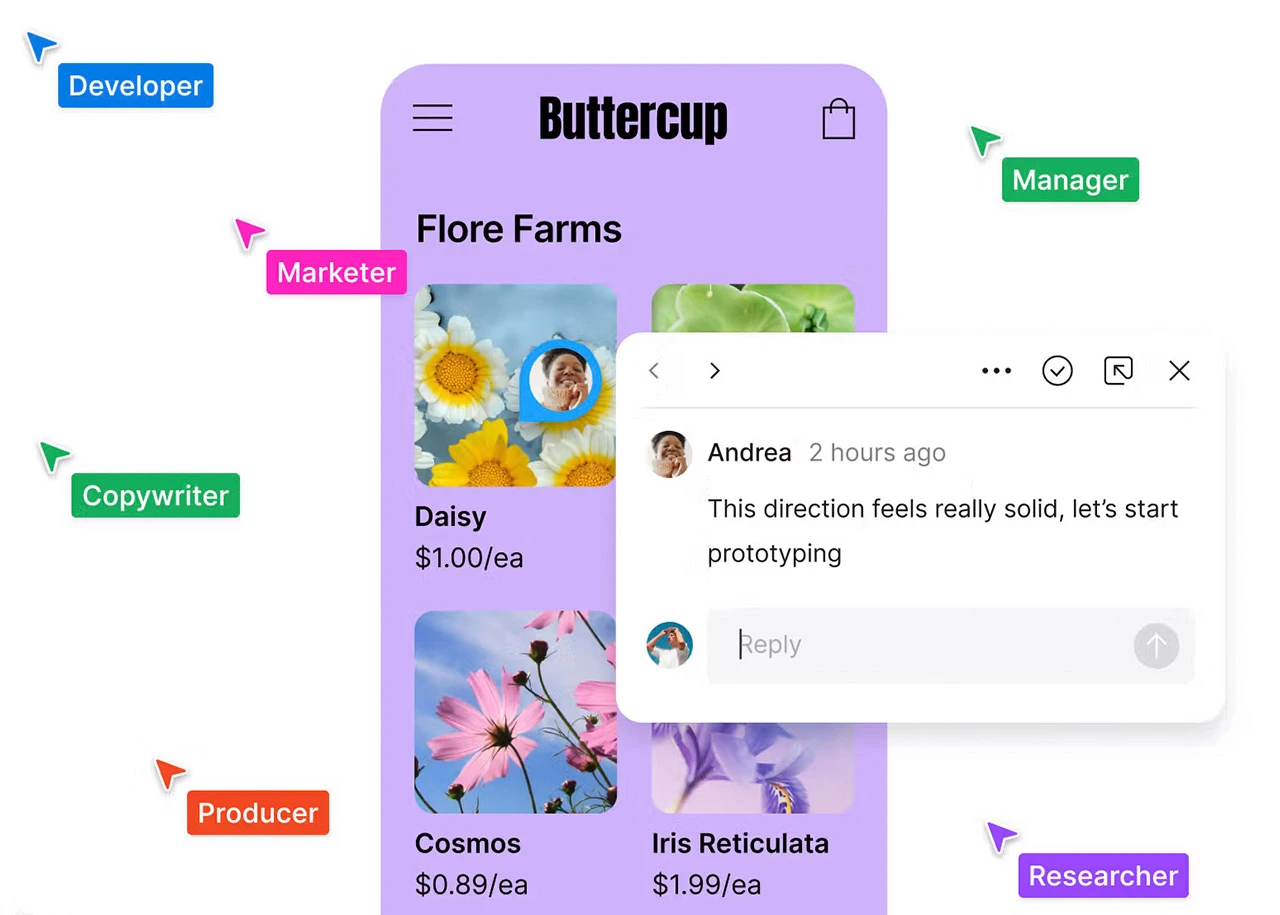
Installing and using Figma is quite simple. One can use it through any web browser or download the dedicated desktop application for a better experience.
Installation of Figma
First, you need to visit the official website of Figma and then create a free account. Once done, you can start designing using your browser. To download the Figma Desktop app, click on the Downloads option located in the footer section, and from there, you can choose the application for macOS as well as Windows.
Familiarize Yourself With The Workspace
Once you are done installing Figma, spend some time exploring the environment. You can find the Assets and Layers panels on the left sidebar. These panels contain all the design elements. On the right sidebar, you will get the Design and Prototype tabs, containing elements like fonts, CSS properties, colors, position, and more.
Visit the Help Center to explore more about the platform and understand its every element.
Divi Theme: Installation, Activation, and Initial Configuration
With the Figma platform ready, you can now move to the next step in the Figma to Divi conversion, i.e, setting up WordPress and Divi Theme.
Installation of Divi
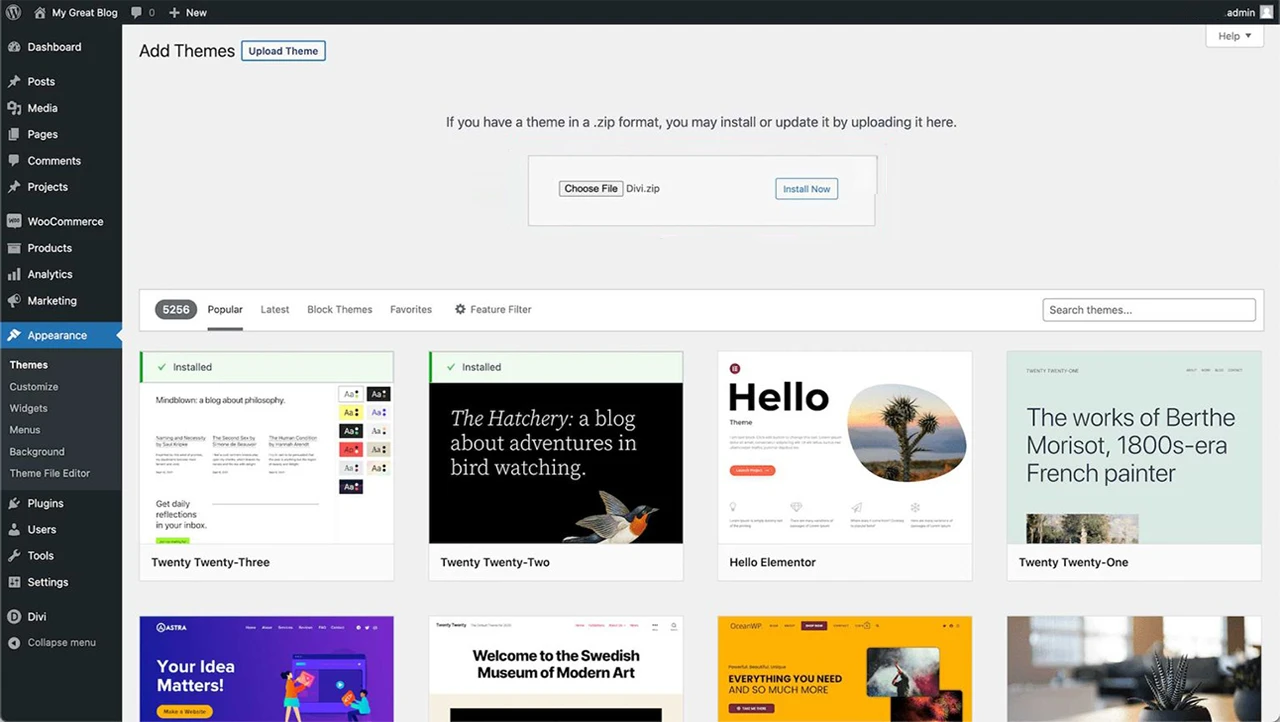
To use Divi (the latest version is Divi 5), first, you need to install WordPress for your website. Once done, visit the Divi membership page and select a plan that meets your requirements. It is available in two different plans, i.e., Divi Pro (USD 23.08/month) and Divi (USD 7.42/Month). After that, download Divi. Zip file.
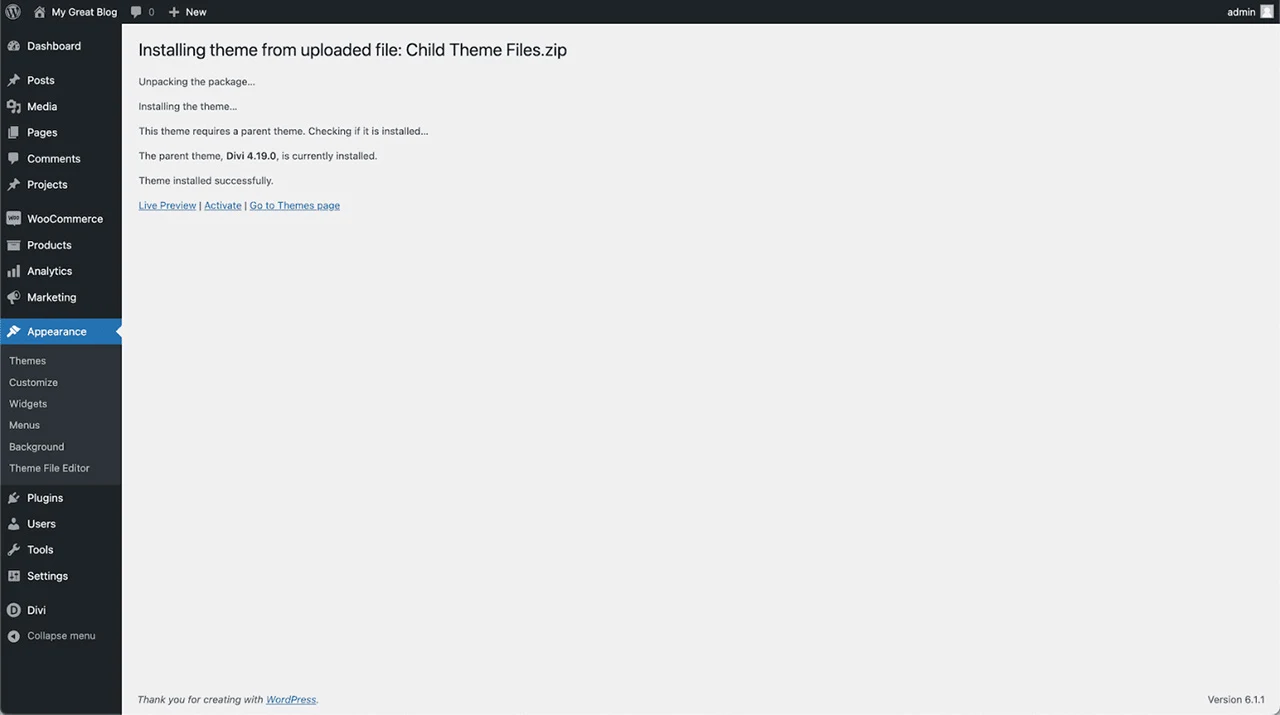
Now, go to the WordPress dashboard and click on the Appearance option. Click on Themes and choose the Add New option.
Now, select the Upload Theme option and upload the theme file. After that, you can click on the Install Now option to begin installation.
Once installed, you can click on the Activate button to activate your new Divi theme.
Initial/Basic Setup of Divi Theme
To update the theme plugins and Divi, you need to add the APU key to the theme. You can get it by visiting your Elegant theme account. After that, see the Theme Options in WordPress and click on the Updates tab to enter the API key.
Apart from this, you can also add your logo and social media links in the footer section of your theme using the built-in options.

Mastering The Divi Builder: A Deep Dive Into Its Interface and Core Functionalities
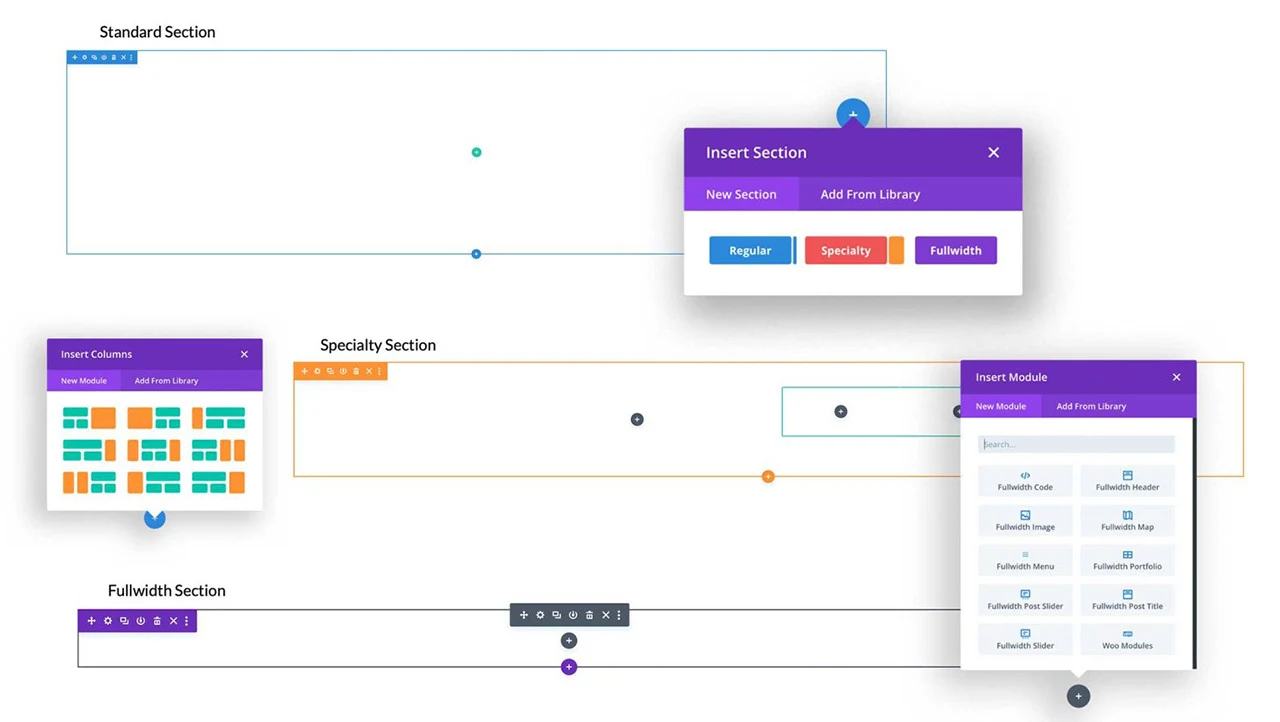
If you are using Divi for the first time, it's important to understand the platform to avoid errors during the Figma to Divi theme conversion. Enable the Divi Builder on a new page to explore its structure, elements, and modules. In general, the architecture of Divi is colour-coded and hierarchical. Some useful points to keep in mind about the interface are:
- You can access a module’s settings by clicking anywhere on it.
- By right-clicking on a module, you can open a custom context menu.
- Divi allows you to access multiple settings plans at the same time.
- Dark mode and light mode theme switching can be accessed from the builder settings.
- Divi uses Blue, Green, and Grey colours for Sections, Rows, and Modules, respectively.
By clicking on the gear icon on any module or section, you can access the Settings window where you will find three tabs, i.e., Content, Design, and Advanced. Spend some time understanding the options available in the Design tab, as this will be your main hub for transforming Figma’s design specs into Divi layouts and styles.
Architecting Your Website: Strategic Divi Setup for Seamless Design Implementation
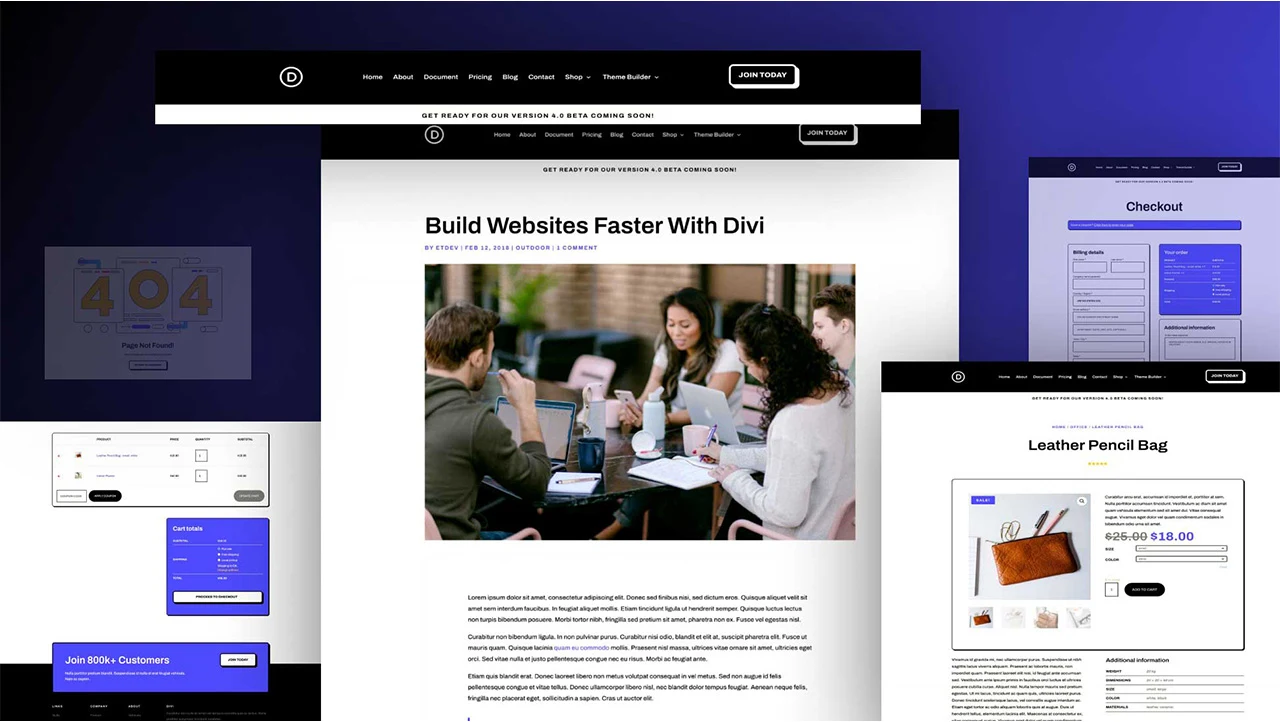
Before you start creating Divi pages, for a Figma to Divi conversion, a strategic configuration can help you save time while ensuring sitewide consistency. Besides, it will also help you align Divi with your new website’s goals. Some important points you need to consider here are:
- Ensure that you have a new layout ready in Divi to begin with the conversion.
- Configure global settings such as title, tagline, SEO settings, default colour palette, etc.
- Create a new global header and footer based on your Figma design.
- Customize the global button appearance to ensure it matches Figma’s design call-to-action buttons.
By architecting your site, you can ensure that all the foundational design elements are in the right place. You can spend more time on content and layout while working on the Figma to WordPress conversion.
Read this: Figma To HTML: The Ultimate Guide To Convert Your Figma To Code
The No-Code Blueprint: Convert Figma Designs to Divi Theme
Converting your beautiful Figma designs into a functional WordPress website with Divi is simple. Here, we will break the entire Figma to Divi conversion process into different phases so that it becomes easier for you to get started with the conversion process.
Step 1: Efficient Export Strategies for Your Figma Designs
As you can’t integrate Figma design in Divi directly, you need to export the design files. Figma allows you to export your designs in different formats like SVG, JPG, or PNG. Exporting designs as SVG is an ideal choice as it offers crisp and scalable graphics. To export:

- Open Figma and choose your design.
- Go to the Inspector panel and click on the Export option.
- Select your desired export format.
- Click on the Export button to complete the process.
Keep all the exported files in a folder to avoid confusion while importing them to Divi.
Step 2: Initiating Your Divi Project: Creating a New Page
After exploring your Figma design, you need to open Divi and create a new canvas for your Figma to Divi project. You can opt for a new blank canvas or choose from pre-built templates to start working with the design.
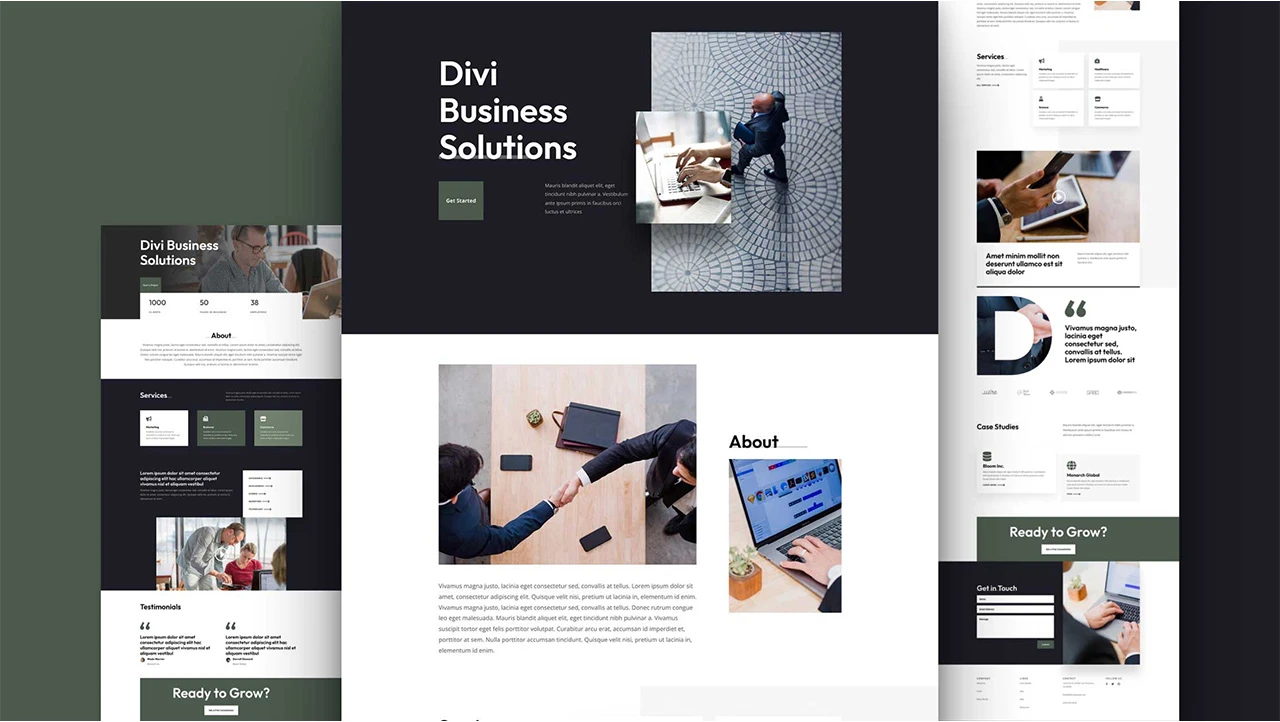
- Launch WordPress and then go to Pages. Click on the Add New option and start with the Divi Builder.
- Choose a pre-made layout as your base, or you can click on the Build From Scratch option for maximum creative control.
Step 3: Structuring Your Layout: Building Sections and Rows in Divi
This is where you begin transforming the Figma design into the Divi theme’s structure. Start by adding rows and sections to your page layout. Each section may include multiple rows, enabling you to organize blocks to mock your Figma design easily.
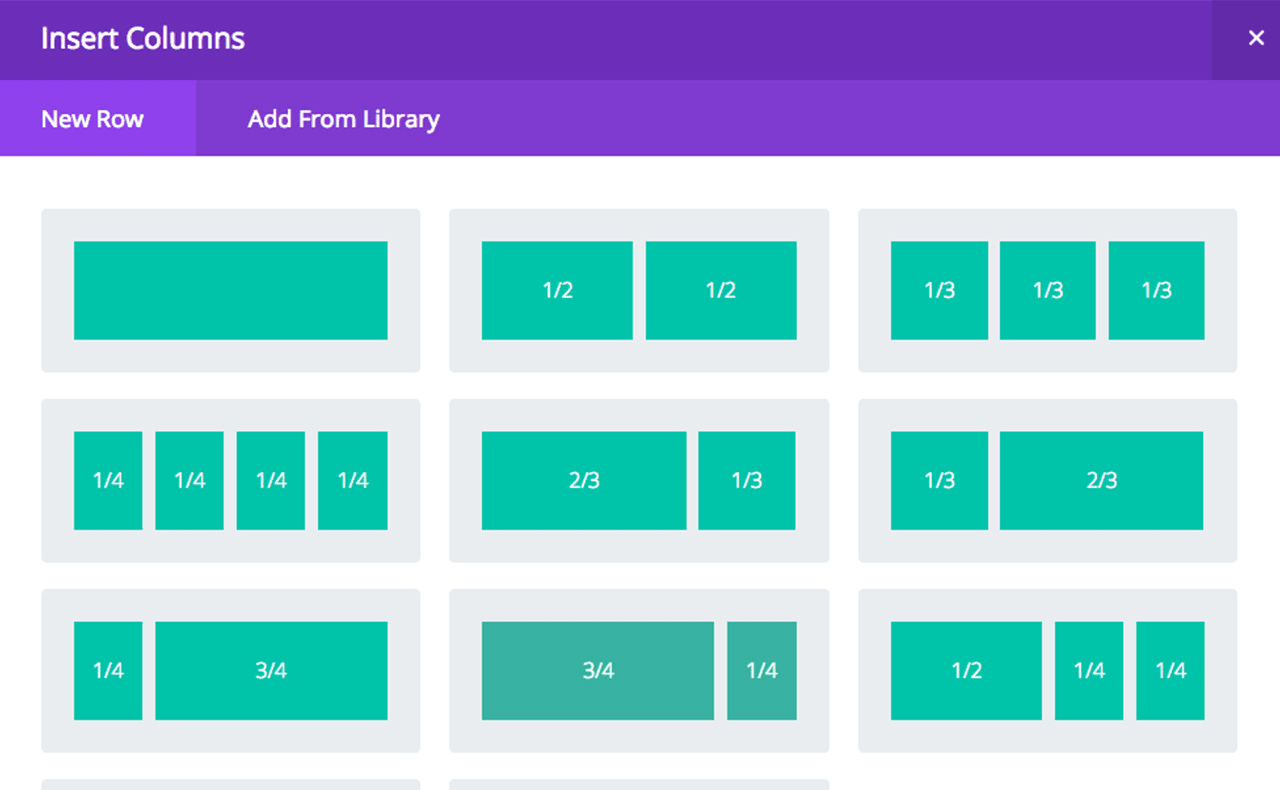
While creating rows and sections, consider these useful tips:
- Use Global Sections to repeat elements such as headers and footers
- Take advantage of pre-built rows and sections
Match the alignment and spacing from the Figma design with the help of margin/padding controls.
Another Figma Guide: How to Convert Figma to Elementor Effortlessly?
Step 4: Populating Your Design: Integrating Divi Modules
Once you are done working on your canvas, you can further optimize the layout using the multiple modules offered by Divi. There are modules for different types of content you need to add to your website. And the best part is that you can customize every module’s spacing, color, and font. Just drag and drop the module you want to use, and you are ready to go.
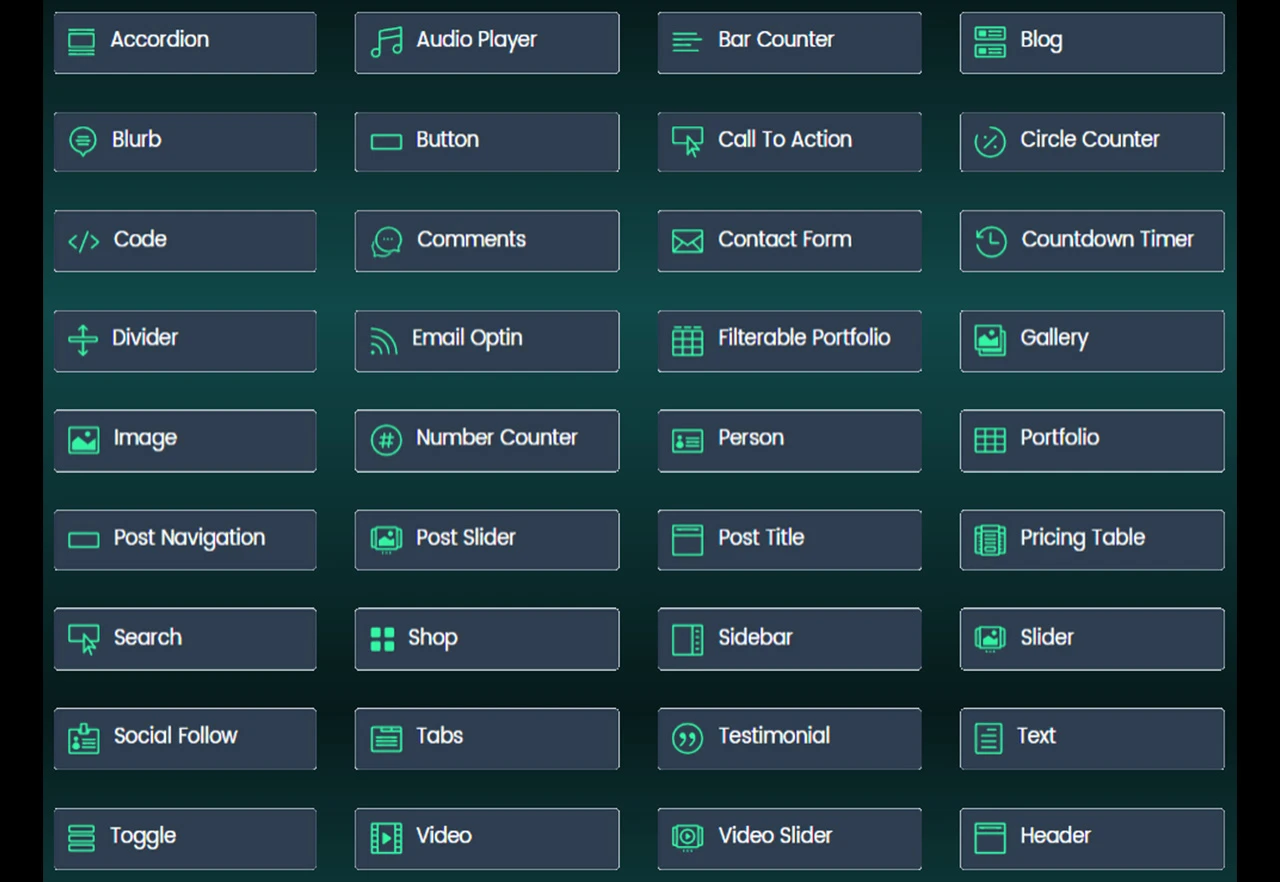
While working on a section or row, you can click on the “+” icon to open the module library.
Step 5: Refining the Aesthetics: Customizing Your Divi Design to Match Figma
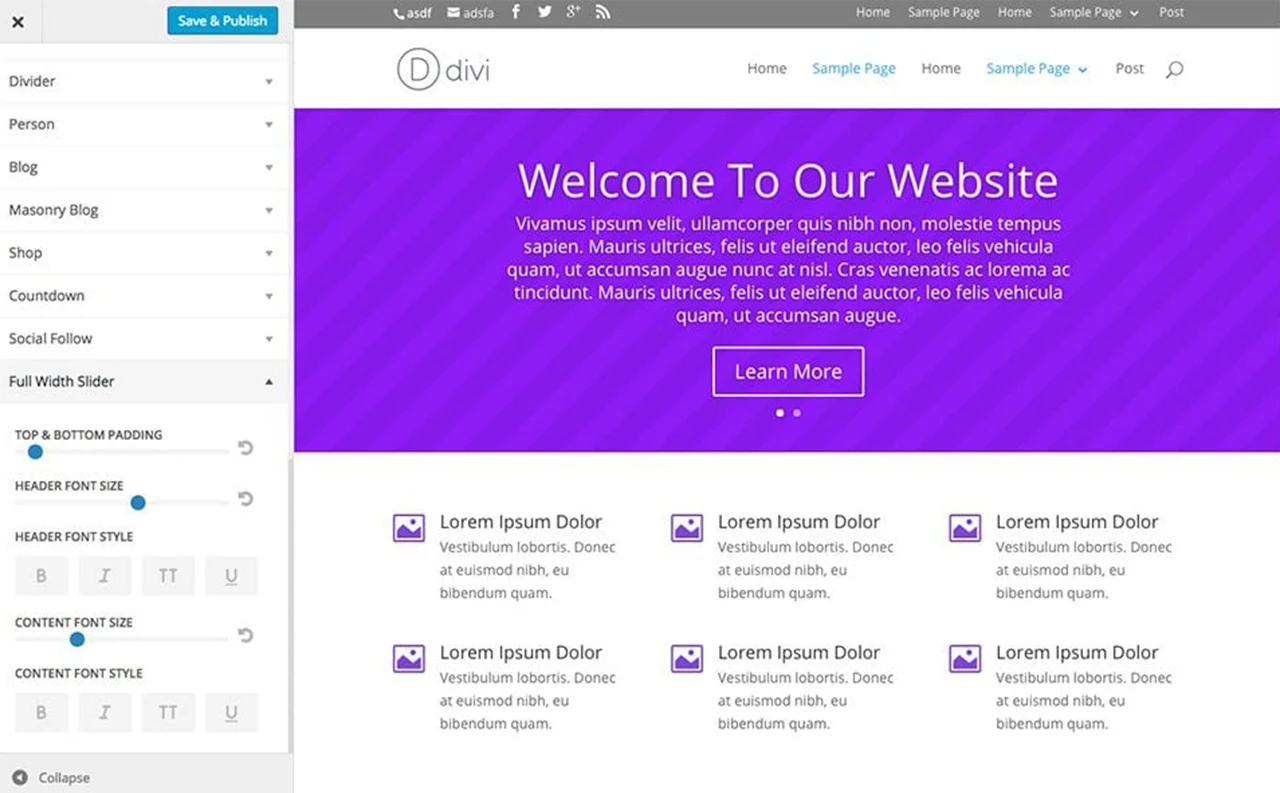
This is where the real magic happens. Divi offers so many customization options to optimize every aspect. To customize every module, visit Divi and then click on Module Customizer. Now, you can customize style, custom spacing, shadows, borders, and sizes. For more options, you need to go to the Design Settings.
Prefer to style one module at a time and move methodically to avoid any issues.
Step 6: Bringing Designs to Life: Implementing Interactive Elements
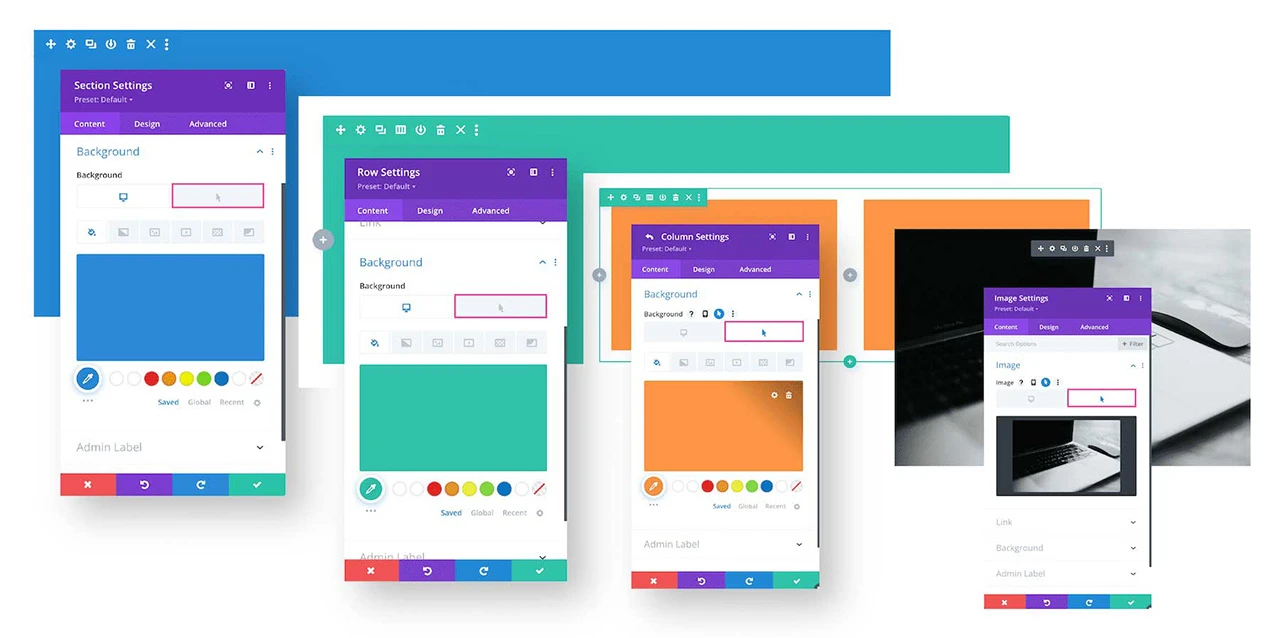
Once you are done customizing your theme, it's time to add interactivity and motion.
- Use built-in animations in Divi, like zoom, slide, or fade, to add subtle effects. Access them in the Design > Animation.
- You can also use hover states for images and buttons.
- Modules and plugins for different types of interactive content, such as quizzes, polls, puzzles, and interactive timelines.
Explore More – Figma Comparison Insights:
→ Figma VS Adobe XD
Elevating Your Divi Build: Advanced Strategies For Design Fidelity and Functionality
In some Figma to Divi transformation cases, the built-in options or native tools in Divi will not be enough to replicate a complex Figma design accurately. That is where you may need to go for some advanced techniques.
Leveraging Custom CSS For Unique Design Elements
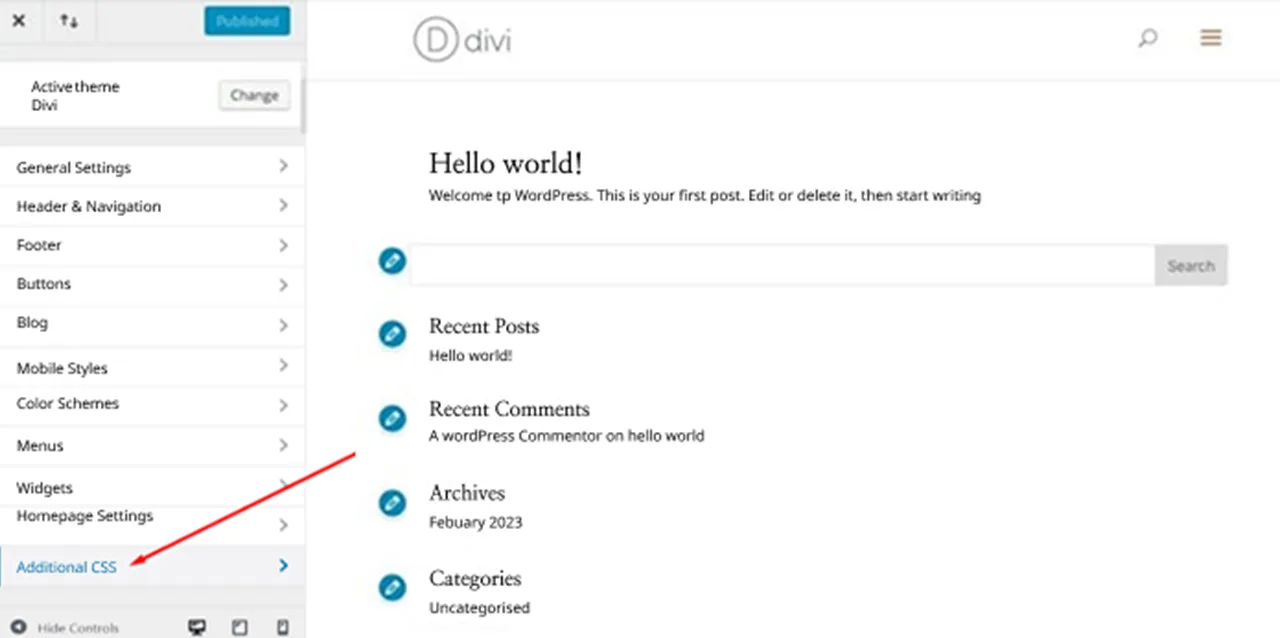
With the help of custom CSS in Divi, you can optimize every single detail of your site’s appearance. Custom CSS can be used for complex layout customizations, typography optimization, and more. To access custom CSS, follow these steps:
- Open WordPress and then visit the WordPress Dashboard.
- Click on Divi and go to the Theme Options.
- Choose the General Tab and click on Custom CSS.
- Scroll down, and you can find the Custom CSS area.
- Enter the CSS code there and then click on the Save Changes option to save your work.
You can also access this by visiting the Theme Customizer section and then clicking on the Additional CSS area.
Using custom CSS:
- You can customize the spacing, colors, fonts, and more to ensure your website aligns with your vision.
- You can add special design effects and animations.
- It lets you future-proof your design and make it scalable.
Also Learn: How to Convert Design Prototype to WordPress
Seamless Integration Of Third-Party Plugins and Advanced Functionality

There are many third-party plugins that you can use to extend the capabilities of your Divi theme after the conversion of Figma to Divi websites. These plugins are designed to meet specific functionalities as Social Media, Forms, SEO, E-Commerce, etc. Some popular plugins you can try are:
To install plugins, follow the steps mentioned below:
- Visit your WordPress Dashboard and click on the Plugins option.
- Click on Add New and then choose Upload Plugin.
- Click on Choose File and select the plugin zip file you want to install.
- Once uploaded, click on the Install Now option.
After that, tap on Activate Plugin to complete the process.
Ensuring Excellence: Rigorous Testing And Performance Optimization
Even though you have created a beautiful website through Figma to Divi theme conversion, it will only be effective if it functions flawlessly for all users. Here are some important points that you should consider to ensure your site’s effectiveness.

1. Universal Appeal: Comprehensive Cross-Browser Compatibility Testing
After the Figma to Divi transformation process, carry out a test run of your website on the latest versions of different browsers such as Microsoft Edge, Safari, Chrome, Opera, etc. Carefully check the animations, spacing, and font rendering to ensure a consistent user experience.
2. Speed and Efficiency: Strategies for Performance Optimization
If your website takes more than 3 seconds to load, it will increase the bounce rate. There are certain factors that you can optimize to boost your site’s performance and loading speed.
Use plugins like ShortPixel, TinyPNG, or Smush to compress all your images to load them faster without sacrificing quality.
It is also advisable to take advantage of caching by using plugins such as WP Rocket or W3 Total Cache.
Leverage tools like Google PageSpeed Insights to check performance data and tips to improve your page. This platform also informs about the performance of core web vitals like LCP (Largest Contentful Paint), FID (First Input Delay), and CLS (Cumulative Layout Shift).

You can also work around Divi’s built-in performance options. For instance, enabling the “Dynamic Module Framework” and “Dynamic CSS” options can boost loading speed.
To access these options, go to Divi and then click on the Theme Options. Tap on the General tab and choose the Performance option.
3. Inclusive Design: Key Accessibility Considerations For your Divi Site
Ensure that the website is easily accessible and usable by people with disabilities. For this, you can integrate features like a screen reader and an on-screen keyboard. Use alt text for images and ensure that the color contrast meets WCAG standards. If possible, optimize content following ARIA (Accessible Rich Internet Application) attributes
Also Learn: Figma to WordPress: Top 3 Ways to Convert Your Figma Design into a WordPress Website
Navigating Challenges: Effective Troubleshooting For Common Conversion Hurdles
#1. Preserving Design Integrity: Addressing Visual Discrepancies
Sometimes, the design files may not translate from Figma to Divi perfectly, resulting in discrepancies in spacing, typography, and layout. To avoid such issues, focus on critical design elements. Use correct pixel values in spacing controls. If required, use custom fonts. The most important thing to consider here is clear communication between developers and designers.
#2. Handling Feature Discrepancies: When Figma Outpaces Divi
Figma design may include features such as parallax effects, advanced animations, or sticky headers that Divi may not support natively. In such cases, you will have to use Divi extensions or custom code. Experiment with the built-in modules available in Divi or a suitable alternative for advanced features.
#3. Responsive Design Mastery: Overcoming Adaptation Challenges Across Devices
Figma designs are generally desktop-friendly. Even after you have converted them from Figma to Divi, they may not work properly on all devices. Before launching your website, test it on various devices. While customizing the design, follow responsive design principles and adjust padding, layout, and font sizes according to the device.
#4. Front and Icon Integration: Best Practices for Custom Assets
Sometimes, a custom font or icon may not work properly in Divi. To prevent any issues, you can upload custom fonts by visiting the Upload Fonts section inside the Theme Options. Besides, you can use custom SVGs or FontAwesome for custom icons. Ensure that assets are optimized properly.
#5. Complex interactions: Strategies for Replectating Advanced Figma Animations
Figma animations or Smart Animate can lead to complex micro-interactions, and can be challenging to replicate without using custom code. For such issues, you can use built-in animation effects in Divi. Lottie animations can be used for motion graphics. Furthermore, GSAP animations work well for advanced animation effects.
Final Thoughts
Figma to Divi theme conversion is more than just a technical task. It is a process that combines technical skills and design precision. It requires careful analysis and the right strategy. With the use of the correct approach, attention to detail, and the right tools, you can bring your unique vision to a tangible digital experience without dealing with coding.
Whether you are developing an eCommerce site or a business platform, the steps mentioned here offer you a roadmap to attain the desired results, i.e., a pixel-perfect website.
FAQs: Your Guide to Figma to Divi WordPress Conversion
Is a Direct Conversion of Figma Designs to WordPress Possible?
Plugins like Yotako or UiChemy can be used to automate parts of the Figma to Divi conversion process; these tools may not correctly replicate all the elements. You may face issues with interactive elements or complex layouts. The manual process mentioned in this guide is a safe and reliable method for achieving the desired result.
How Well Does Figma Integrate With the Divi Page Builder?
Even though Divi and Figma don’t have any native integration, these platforms complement each other perfectly. You can easily export layouts and assets from Figma and then redesign them in Divi with the help of its drag-and-drop interface. The process is simple and doesn’t involve coding.
Can a Figma file Be Directly Transformed Into A Functional Website?
Figma design can be converted into a functional website using tools or plugins such as Anima, Figment.so, etc., which can generate CSS, JS, and HTML code from the design. This code can be used to build a WordPress site’s structure and styling.
Exploring Alternatives: How to Convert Figma Designs for Shopify?
To convert your Figma designs to Shopify, you can use tools like Replo or Instant. These tools help you create responsive pages and make the process faster. While these tools are an excellent choice for creating landing pages or a fully functional website, you will have to edit the theme files manually through a Shopify page builder.
Which Popular WordPress Themes Are Ideal As Child Themes For Figma to Divi Builder Conversions?
In the process of Figma to Divi conversion, you can use Divi as a child or base theme to preserve all your customizations. If you want to explore options, go for Hello Elementor or Astra. While choosing a child theme, ensure that it is compatible with the Divi Builder and also SEO-friendly.

Jayveer Ker serves as the Business Development Manager at PSDtoHTMLNinja.com, specializing in assisting organizations with overcoming web development hurdles. His insightful and informative posts deliver practical solutions and valuable insights.
Couldn't find what you were looking for?
Let us know how we can help!

Related Blog Posts