Table of Content
Online store owners require a solid platform to support their growing needs. OpenCart is a popular option with multiple benefits. Its lightweight nature and open-source capabilities make it an easy-to-use platform.
But it gradually complicates things as your business grows. E-commerce businesses often migrate from OpenCart to WooCommerce for several reasons.
Built on WordPress, WooCommerce is a customizable E-commerce platform that offers unlimited benefits to store owners. It allows SEO support and gives store owners complete control over their website. You can also integrate premium marketing tools into WooCommerce.
Businesses looking to migrate from OpenCart to WordPress need a strong sense of both platforms.
In this guide, we take you through the step-by-step migration process, along with details on how you can preserve the SEO rankings and avoid data loss during the process.
Why Migrate from OpenCart to WooCommerce for Your Online Store?
More and more online businesses are switching to WooCommerce because of the numerous benefits it offers. From being a comfortable Content Management System to offering a comprehensive plugin library, switching your OpenCart store to WooCommerce comes with many advantages.
Integration with WordPress
WooCommerce is an extension of WordPress, which gives it access to an extensive library of plugins, themes, and templates.
This not only makes creating a store easy but also ensures a smooth performance of the online store. For example, WooCommerce offers a solid CMS to online stores and websites, allowing a quick and hassle-free process of blog editing, uploading, etc.
Comprehensive Customization
With WooCommerce, you can get a perfectly customized store. It allows you to change the store’s appearance using suitable themes and templates.
You can even customize the checkout experience of your customers using WooCommerce. This delivers an impressive user experience, reducing frequent cart abandonment.
Better SEO performance
WooCommerce, in collaboration with WordPress, elevates your store’s SEO capabilities.
- It provides tools and plugins to optimize metadata, product pages, and URLs.
- You get clean permalinks by creating search engine-friendly URLs for improved visibility.
Elevated Website Performance
WooCommerce has a modulated architecture, which means you can easily add or remove features as per your preference without affecting the key functionalities of the online store.
A variety of plugins help you elevate the website's performance and loading speed.
Active Community
Since WooCommerce is connected with WordPress, developers can leverage the wide WordPress community. Online stores powered by WooCommerce get regular updates and continuous security updates.
Plus, the WordPress community forum provides solutions to all kinds of errors and bugs.
What Data Can Be Migrated When You Migrate OpenCart to WooCommerce?
WooCommerce lets you import different types of data from OpenCart. This includes:
- Product details, descriptions, prices, and categories
- Customer information, addresses, names, emails, and account passwords
- Order numbers, history, and order statuses
- Images, graphics, and videos
- Blog posts, CMS pages, and other related content
Pre-Migration Checklist
When you think of moving your OpenCart data to WooCommerce, the chances of potential data loss cannot be ignored. Our experts prepared this pre-migration checklist to ensure your data remains safe, and the migrated site delivers the desired performance:
Scan the OpenCart Site
Check all the data and content present in your existing site to identify what needs to be migrated. Note down the entities and extensions that can’t be directly migrated to WooCommerce
Complete Data Backup
Ensure to have a full backup of everything that you want to migrate. Every important customer data, production information, order details, etc., should have a backup stored in a secure location.
SEO Audit
To keep your site’s search engine rankings and online traffic flowing, an SEO audit is necessary. This includes exporting all URLs, metadata, and image alt texts.
URL Structuring
Compare URL structures on both platforms and make changes wherever necessary.
Top Methods to Migrate from OpenCart to WooCommerce
OpenCart to WooCommerce migration can be done through 3 key methods. Let us see which one brings the best results.
1. Manual Migration
During this method, the complete migration process is conducted manually. You do not use any plugin or automated tool to fast-track the process, which means all the importing, exporting, migration, and other tasks are manually completed.
2. Professional Assistance
You can hire a professional WordPress migration company for a pristine and accurate migration. They ensure the data remains safe and your SEO strategy remains intact. The team also conducts numerous checks as part of the expert migration process.
3. Automated Migration Tools
Automated tools offer a time-saving option. All you need to do is install the extension, and your site will be migrated to WooCommerce in just a few clicks. However, all the data should be rechecked since plugins are not always accurate.
How a Professional WordPress Migration Agency Like PSDtoHTMLNinja Can Help
If you are looking for a fast, secure, and hassle-free switch from OpenCart to WooCommerce, then a trusted WordPress development agency like PSDtoHTMLNinja can help.
Our structured process guarantees zero downtime after migration, and our migration experts accurately transfer data. We keep your businesses running at full potential by leveraging the benefits of WooCommerce and WordPress.
With PSDtoHTMLNinja, you get:
- Timely support
- Project manager for frequent project updates
- Data security
- SEO preservation
- Zero downtime
Consult our experts for a price quote!
Read this: Top WooCommerce Development Agencies to Hire in 2026
Step-by-Step Guide to Migrate OpenCart to WooCommerce
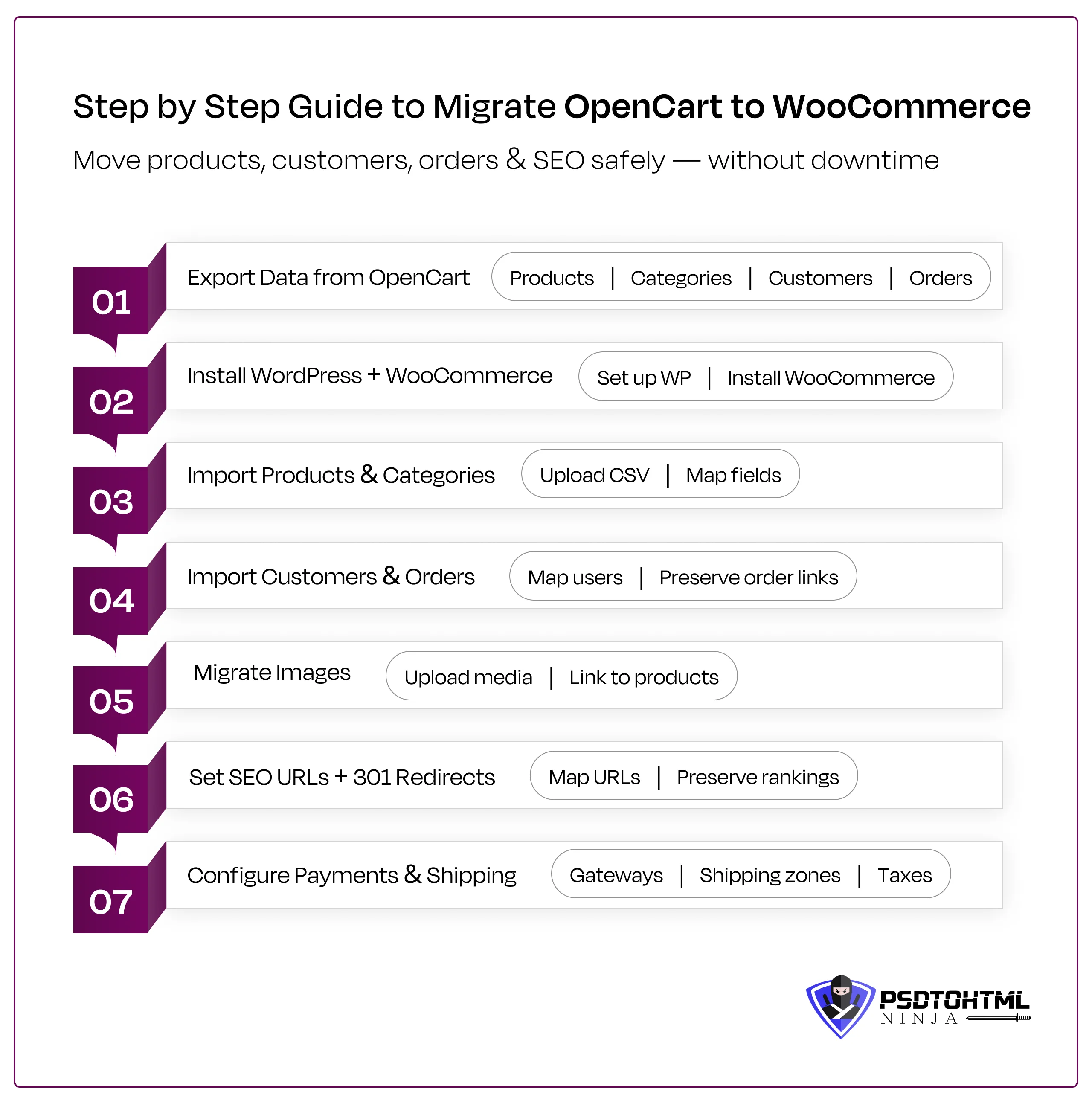
Step 1: Export data from OpenCart
The first step involves extracting the necessary data from OpenCart.
For Products
- Log in to the OpenCart admin
- Go to System > Maintenance > Backup
Select product-related tables such as:
→ oc_product
→ oc_product_description
→ oc_product_to_category
→ oc_product_attribute
→ oc_product_option- Click Export
For Categories
Follow the same process as above the select tables like:
- oc_category
- oc_category_description
- oc_category_to_store
For Customers
Follow the same process as above the select tables like:
- oc_customer
- oc_address
- oc_customer_group
Step 2: Install WordPress + WooCommerce
We need to install WordPress since it powers WooCommerce. Here is how it is done:
- Log in to your hosting panel
- Use the 1-click WordPress installer (automated method), OR
- Upload WordPress manually via FTP and run the installation script
- Set the Site title, Admin username, and SSL
- Go to WordPress Dashboard > Plugins > Add New
- Search for WooCommerce
- Click Install > Activate
Step 3: Import products & categories
Using the In-built Importer
- Go to Products > Import
- Upload your formatted CSV file
- Map fields correctly:
- Name > Product Name
- Model > SKU
- Price > Regular Price
- Quantity > Stock
- Category > Categories
- Description > Description
- Click Run Importer
Step 4: Import customers & orders
You have to be very careful at this step. Make sure everything you want to import is selected during this step:
Import Customers
- Install a customer import plugin (if needed).
- Upload the exported customer CSV.
Map fields:
→ Email
→ First name
→ Last name
→ Billing address
→ Shipping address
Import Orders
Order migration requires mapping:
- Order ID
- Customer
- Products
- Order total
- Status
- Date
- Payment method
Use an order import plugin to maintain order relationships correctly.
Step 5: Migrate images
- Click on WordPress > Media > Add New
- Upload Product Images
- Match images with product details
Step 6: Set up SEO URLs + 301 redirects
SEO remains paramount when you migrate data from OpenCart to WooCommerce. One wrong step and all your rankings and online traffic will be severely affected.
During migration, the URL structure changes and needs to be fixed properly. A broken link or wrongly-assigned page ruins your SEO strategy.
- Maintain a consistent URL structure
- Map URLs of all the webpages
- Implement 301 Redirects that tell the search engines that a particular page has been shifted to a new URL.
- Optimize the final SEO settings by checking metadata, internal linking, image alt text, etc.
Step 7: Configure payments & shipping
In this step, we configure shipping and payment details so that all the transactions go smoothly. This is extremely important for a good user experience and customer trust.
During this step, the following aspects are covered:
- Payment gateways are activated and tested
- Transaction confirmations are verified
- Shipping zones and rates are set up
- Free shipping rules are defined
- Tax settings are configured
Common Migration Challenges & How to Fix Them
Once migrated, your new WooCommerce online store is ready to go. Since the process is a little technical and complicated, multiple things can go wrong.
You should be aware of the common migration challenges to fix them on time, and ensure a hassle-free migration, preserving all data and SEO strategies.
Data Mismatch
Problem: Both the platforms operate on distinct database schemas, which can create problem during migration.
Solution: Manually map and check product categories and attributes to ensure every detail is stored correctly.
Missing Media
Problem: Product images sometimes do not show up on the frontend after migration.
Solution: To fix this, you usually need to regenerate shop thumbnails and product lookup tables using the WooCommerce status tools.
Extension Differences
Problem: If you have custom features in your OpenCart setup, they might not have a direct equivalent in WooCommerce.
Solution: Search for new plugins or even bring in developers for tailored solutions.
Also read: Website Migration Cost: How Much Does It Cost to Migrate a Website?
Post-Migration Checklist
Now that your store is migrated to WooCommerce, and you already have a sense of what could go wrong, let us go through the post-migration checklist.
Following this checklist is important because a lot of things can go wrong after migration. Your data might be half migrated, or the product descriptions don’t match the uploaded images. This checklist will ensure your online users get a functional store.
- Test out product pages, categories, and the search function
- Double-check payment gateways and run some test transactions
- Review shipping rules and tax settings
- Go over URLs and ensure that 301 redirects are functioning properly
- Optimize for site speed and make sure it’s mobile-friendly
- Reconnect your analytics and tracking tools
- Update your sitemap and resubmit it to search engines
SEO Considerations for OpenCart to WooCommerce Migration
SEO is the most important aspect of your online WooCommerce store’s performance and success. Its visibility and online revenue depend heavily on your SEO strategy. OpenCart to WordPress migration involves transferring the huge data and essential files to an entirely new ecosystem.
This means your search engine rankings might get affected if the webpages are linked to the wrong URL. Here are some SEO considerations for you to follow:
Maintain URL Consistency
To keep your website's SEO intact, it is crucial to maintain your URL structure. Try to replicate existing URLs as much as you can to prevent any ranking drops. For example, the homepage URL in OpenCart may look like this: storename.com/index.php?route=common/home
After migration to WooCommerce, it should be simplified to meet the SEO standards, like this: storename.com/
Implement 301 Redirects
This means you will want to redirect your old OpenCart URLs to the new WooCommerce pages to ensure you don’t lose any link equity. Make sure that every key product, category, and CMS page has a corresponding redirect to prevent 404 errors.
Update the XML Sitemap
Updating your XML sitemap is also essential. Create a new sitemap and submit it to search engines to keep everything in sync. This will help search engines find and index your newly migrated WooCommerce pages more efficiently.
Enhance Loading Speed
Optimizing your page speed is key! Improving loading times will not only enhance user experience but also help maintain your SEO rankings. You can do this by enabling caching, compressing images, and opting for a reliable hosting service.
Best Tools to Migrate Data from OpenCart to WooCommerce
Migrating from OpenCart to WooCommerce can be a breeze if you have the right tools at your disposal.
Instead of going through the tedious process of manually exporting and importing databases, migration plugins can take care of the data transfer for you, all while keeping the structure, relationships, and key elements of your store intact.
With dedicated migration tools, you can easily transfer products, categories, customers, orders, reviews, and even SEO URLs.
This not only minimizes the chance of human error but also ensures that all your product variations, attributes, and order histories stay just as they should.
Plus, many of these tools offer demo migrations, so you can test everything out before making the full switch.
Popular Migration Tools You Can Try
Cart2Cart: This is a go-to automated migration service that supports transfers from OpenCart to WooCommerce.
LitExtension: Known for its secure and thorough migration process, it can handle complex data sets with very little downtime.
FG OpenCart to WooCommerce: A handy plugin that allows you to migrate data directly within WordPress.
WP All Import + WooCommerce Add-On: Perfect for custom imports using CSV files.
Why Choose PSDtoHTMLNinja for OpenCart to WooCommerce Migration
A successful migration can make your WooCommerce store a solid hit online. Your ecommerce store will deliver improved performance along with higher user retention results.
But this can only be achieved with the assistance of a professional WooCommerce development company. At PSDtoHTMLNinja, we help you smoothly transition from OpenCart to WooCommerce.
Allow us to migrate your ecommerce store with future-proof solutions, and help you grow your business with the right technologies. Contact our support team for a quick consultation call.

FAQs
1. How long does migration take?
The exact time it takes to migrate your store from OpenCart to WooCommerce depends on the project size and complexity. On average, migrating a store can take from a few days to weeks.
2. Will my SEO rankings drop?
No, migration experts preserve your SEO rankings and strategies during migration. This is done by proper URL mapping and setting up 301 URL Redirects.
3. Can you migrate custom fields?
Yes, our team is perfectly equipped with the technical skills and WordPress experience to migrate custom fields from OpenCart to WooCommerce.
4. Will my store have downtime?
Downtime usually occurs during migration, but managing it well depends on the migration experts. For example, our team schedules ecommerce store migration during low traffic hours. This ensures your customer retention and audience rate stay consistent.
5. Is the OpenCart to WordPress migration safe?
Absolutely, migrating a store from OpenCart to WordPress is safe as long as it is done by trained professionals. They follow all standards and protocols required for smooth migration without data loss.

Jayveer Ker serves as the Business Development Manager at PSDtoHTMLNinja.com, specializing in assisting organizations with overcoming web development hurdles. His insightful and informative posts deliver practical solutions and valuable insights.
Couldn't find what you were looking for?
Let us know how we can help!